Scanning 21
Scanning
Software applications for scanning
Your scanner is controlled through scan, copy or imaging software installed
on your PC.
Optimal full featured scanning functionality is obtainable through scan
and copy software specifically developed for compatibility with your
scanner model. See the scanner manufacturer’s website for information on
scanner software and compatible third-party applications.
Simple scanning functionality - Many common imaging applications
support TWAIN and WIA interfacing and will thereby support simple
scanning tasks through a limited range of settings and control options.
Running applications from the scanner panel
Normally you would control the scanner from your PC through your scan
software user interface. However, your scanner also supports one-touch
buttons that enable you to trigger your software from the scanner panel.
When a button is pressed, a scan is initiated and the result is loaded into
the application triggered. You configure your one-touch buttons through
WIDEsystem and your compatible scanning software. Please refer to the
on-line help in these applications for instructions.
NOTE: See Appendix A – Overview of the Operator’s Panel -
Application Control – One Touch Scan for additional information.
Em ail Appl ication button
Scan App lic ation but ton
Copy A pplication b utt on
The one touch buttons
Batch scanning
Batch scanning involves jobs where you want to feed and scan a whole set
of originals that require equal scan settings. The basic steps are:
1. Set your scan settings (size, type, image adjustments..) for the batch.
Your settings will apply to ALL the documents in the batch.
2. Set the scan software into Batch Mode. This will tell the scanner to
start scanning as soon as the document is fed so you don’t need to
trigger the scan.
3. Choose Automatic loading (optional) - for fast and effective loading.
Read you scan software’s on-line help pages for specific information on
batch scanning with the application.
NOTE: The availability of Batch scanning options will depend on your
scan/copy software and its level of compatibility with the scanner model.
Monitoring your scanner with WIDEsystem
You installed WIDEsystem with the scanner drivers. WIDEsystem contains
an application that monitors the scanner and reports on its functionality.
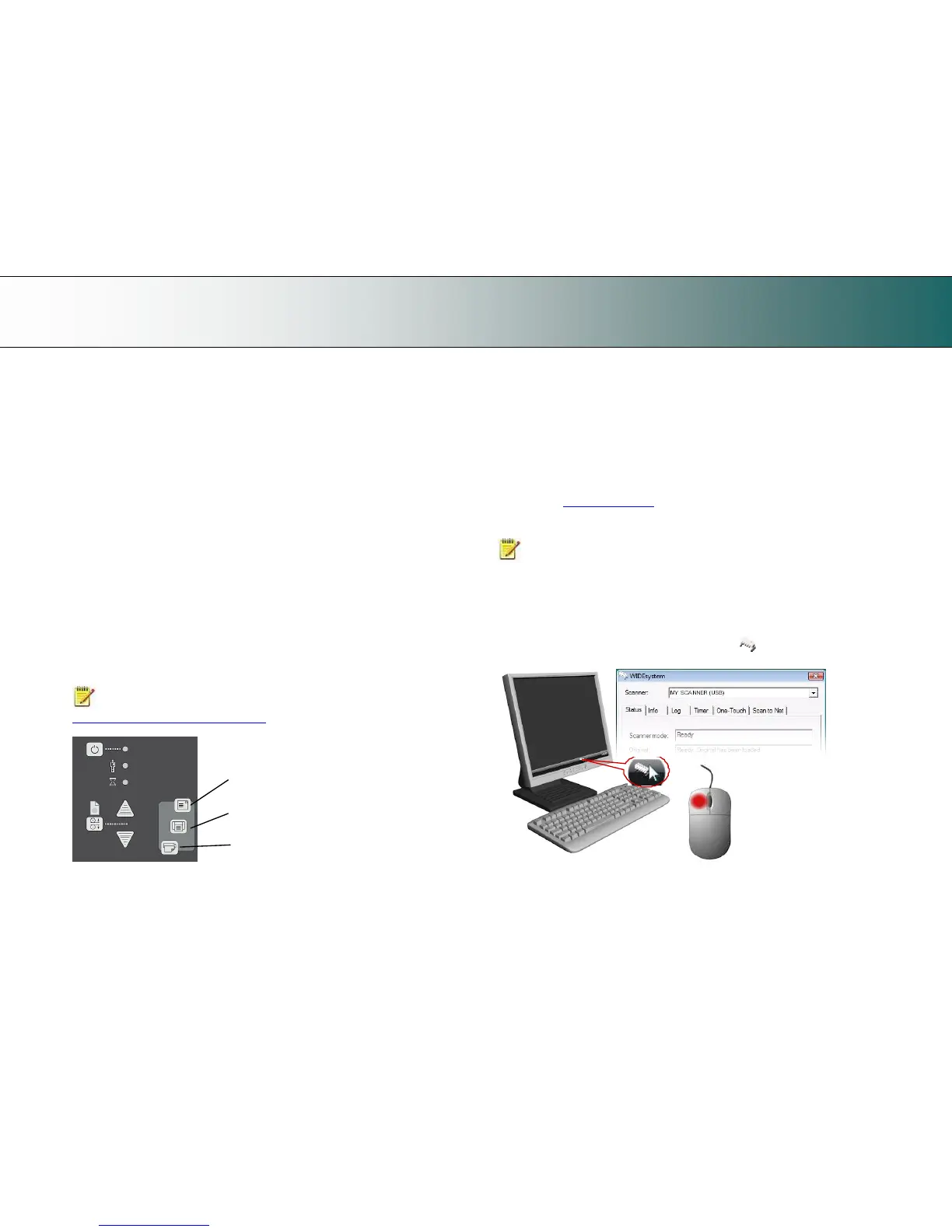
Double left click the system tray’s scanner icon to open the
WIDEsystem control interface.













 To Next Page