©2015 Cradlepoint. All Rights Reserved. | +1.855.813.3385 | cradlepoint.com
12
User Manual / CBA850
11/5/15
ACCESSING THE ADMINISTRATION PAGES
Once you are connected, open the Cradlepoint CBA850’s GUI-based administration pages to make conguration
changes to your router.
1. Open a browser window and type “cp/” or “192.168.0.1” in the address bar. Press ENTER/RETURN.
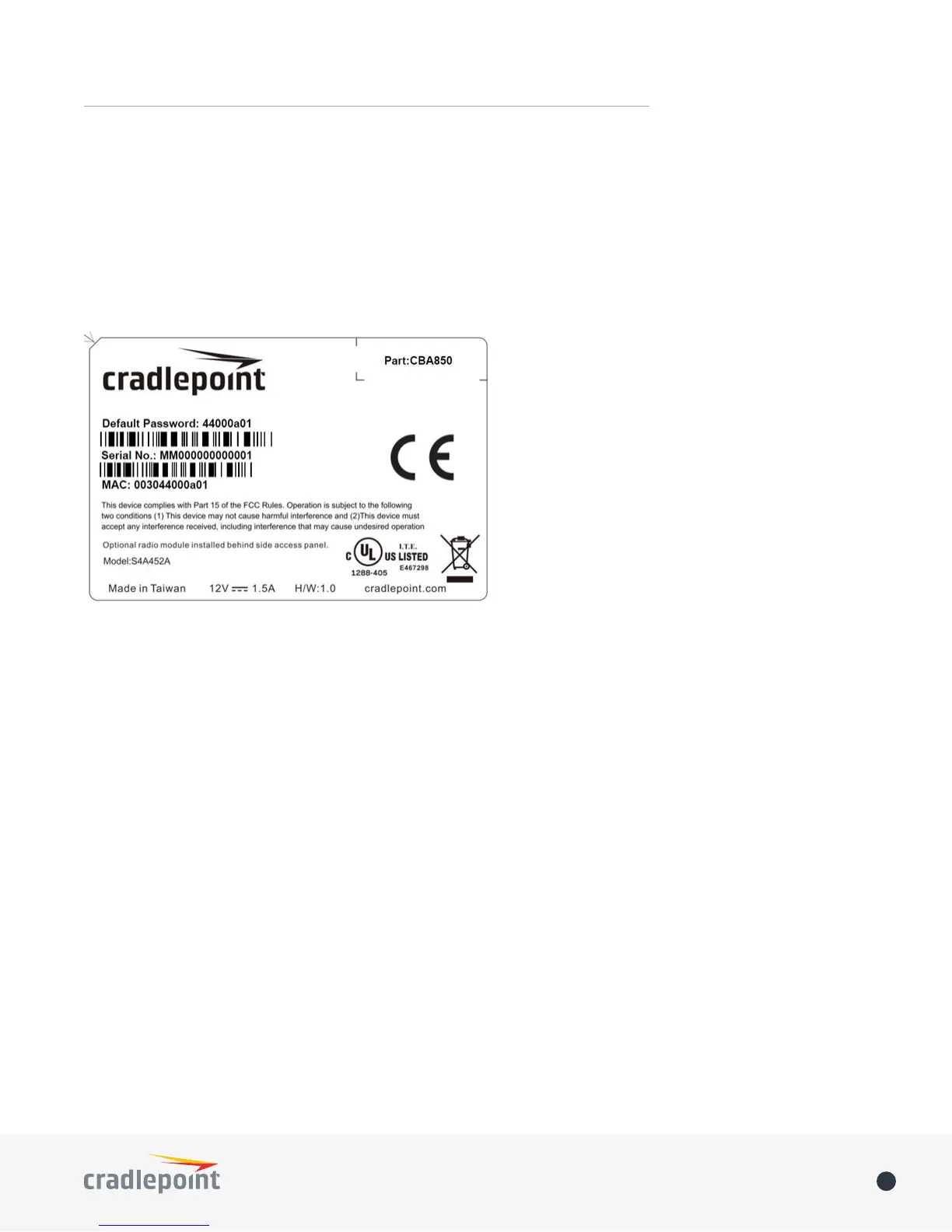
2. When prompted for your password, type the eight character DEFAULT PASSWORD found on the product
label.
NOTE: The product label below is an example only: your DEFAULT PASSWORD and SSID will be unique.
It’s possible – and more ecient – to do all your conguration changes through Cradlepoint Enterprise Cloud
Manager (ECM) without logging into the local administration pages. Set up a group of routers and set the
conguration for all of them at once. See below for more information about ECM.
FIRST TIME SETUP WIZARD
When you log in for the rst time, you will be automatically directed to the FIRST TIME SETUP WIZARD, which
will walk you through the steps to customize your Cradlepoint CBA850. You have the ability to congure any of
the following:
• Administrator Password
• Time Zone
• WiFi Network Name
• Security Mode
• Access Point Name (APN) for SIM-based modems
• Modem Authentication
• Failure Check
If you are currently using the router’s WiFi network, you will need to reconnect your devices to the network
using the newly established wireless network name and password.
NOTE: To return to the First Time Setup Wizard after your initial login, select SYSTEM from the navigation bar,
expand Setup Wizard, and select First Time Setup.





 To Next Page