©2015 Cradlepoint. All Rights Reserved. | +1.855.813.3385 | cradlepoint.com
35
User Manual / CBA850
11/5/15
pre-populated with public DNS server IP addresses. You can override the IP address with any other DNS server
IP address of your choice. For example, Google Public DNS servers have the IP addresses 8.8.8.8 and 8.8.4.4
while 4.2.2.2 and 4.2.2.3 are servers from Level 3 Communications.
Force All DNS Requests To Router: Enabling this will redirect all DNS requests from LAN clients to the router’s
DNS server. This will allow the router even more control over IP addresses even when clients have their own
DNS servers statically set.
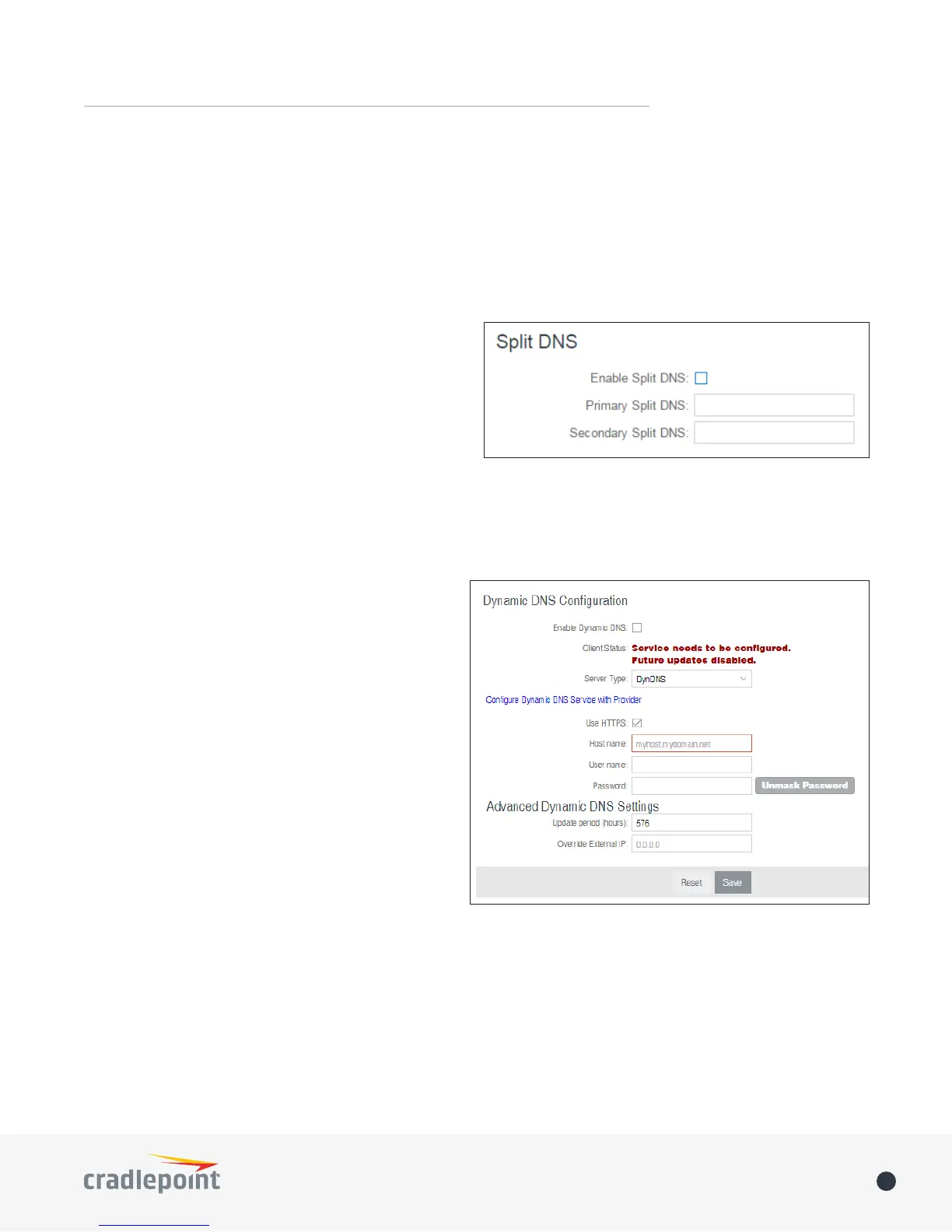
Split DNS
Split DNS allows you create two zones for the same
domain, one to be used by the internal network, the
other used by the external network. Split DNS directs
internal hosts to an internal domain name server for
name resolution and external hosts are directed to an
external domain name server for name resolution.
Primary Split DNS and Secondary Split DNS: If you
choose to specify your DNS servers, then enter the IP
addresses of the servers you want as your primary and secondary DNS servers in these elds. The Secondary
DNS is optional.
Domain: Click Add to add desired domain for Split DNS.
Dynamic DNS Conguration
The Dynamic DNS feature allows you to host a
server (Web, FTP, etc.) using a domain name that
you have purchased (www.yourname.com) with your
dynamically assigned IP address. Most broadband
Internet Service Providers assign dynamic (changing)
IP addresses. When you use a Dynamic DNS service
provider, you can enter your host name to connect to
your server, no matter what your IP address is.
• Enable Dynamic DNS: Enable this option only if
you have purchased your own domain name and
registered with a Dynamic DNS service provider.
• Server Type. Select a dynamic DNS service
provider from the dropdown list:
• DynDNS
• DNS-O-Matic
• ChangeIP
• NO-IP
• Custom Server (DynDNS clone)
• Custom Server Address. Only available if you select Custom Server from the Server Address dropdown list.
Enter your custom DynDNS clone server address here. For example: www.mydyndns.org.
• Use HTTPS: Use the more secure HTTPS protocol. This is recommended, but can be disabled if not
compatible with the server.
• Host name: Enter your host name, fully qualied. For example: myhost.mydomain.net.
• User name: Enter the user name or key provided by the dynamic DNS service provider. If the dynamic DNS
provider supplies only a key, enter that key for both the User name and Password elds.
• Password: Enter the password or key provided by the dynamic DNS service provider.





 To Next Page