©2015 Cradlepoint. All Rights Reserved. | +1.855.813.3385 | cradlepoint.com
43
User Manual / CBA850
11/5/15
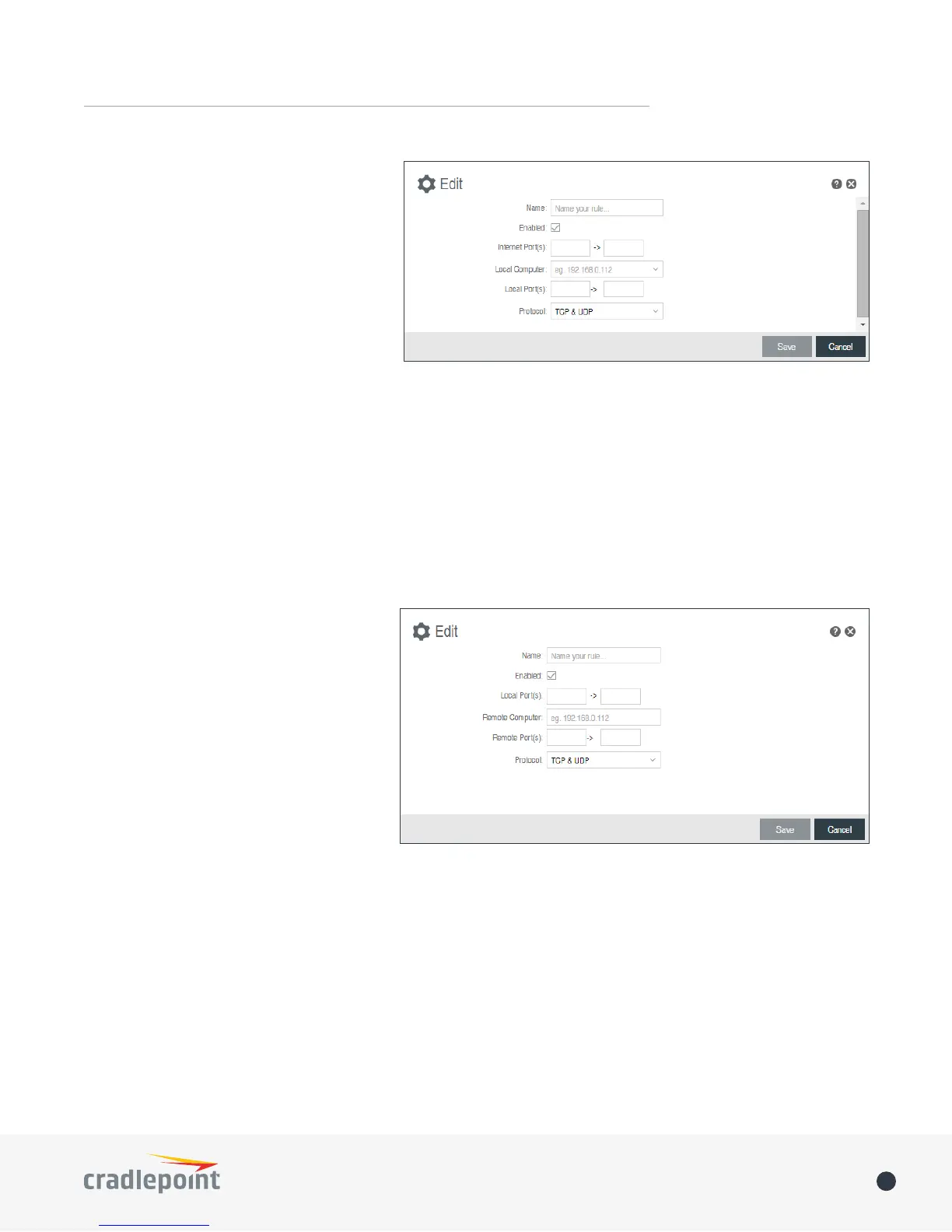
server on a computer within your
network. The Internet Port(s) eld could
then also be 80, or you could choose
another port number that will be used
across the Internet to access your
Web server. If you choose a number
other than 80 for the Internet Port,
connections to that number will be
mapped to 80 – and therefore the Web
server – within your network.
• Protocol: Select from the following
options in the dropdown menu:
• TCP
• UDP
• TCP & UDP
Click Save to save your completed port forwarding rule.
Port Proxying Rules
A port proxying rule allows trac from the local LAN to be redirected to a specic computer/IP address on the
Internet.
Click Add to create a new port proxying rule, or select an existing rule and click Edit.
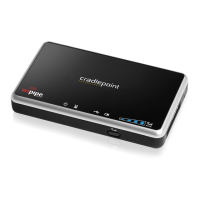
Add/Edit Port Proxying Rule
• Name: Name your rule.
• Enabled: Toggle whether your rule is
enabled. Selected by default.
• Use Port Range: Check this box
to create a rule which proxies a
contiguous range of ports instead of
a single port. The remote port(s) will
require the same number of contiguous
ports.
• Local Port(s): Specify the IP port(s) on
the LAN to proxy to a remote computer.
• Remote Computer: Specify the remote
computer to receive proxied trac.
• Remote Port(s): Specify the IP port
(rst if a range) on the remote computer to receive proxy trac.
• Protocol: Select the IP protocol trac to proxy from the following options in the dropdown menu:
• TCP
• UDP
• TCP & UDP
Click Save to save your completed port proxying rule.
NAT
Zone NAT is similar to Port Forwarding and provides that functionality by mapping ports available on interfaces
associated with the Zone to ports available on local clients. Zone NAT also has the ability to map many types
interfaces selectable via a Zone. For example, GRE interfaces can be used to port forward trac from the GRE





 To Next Page