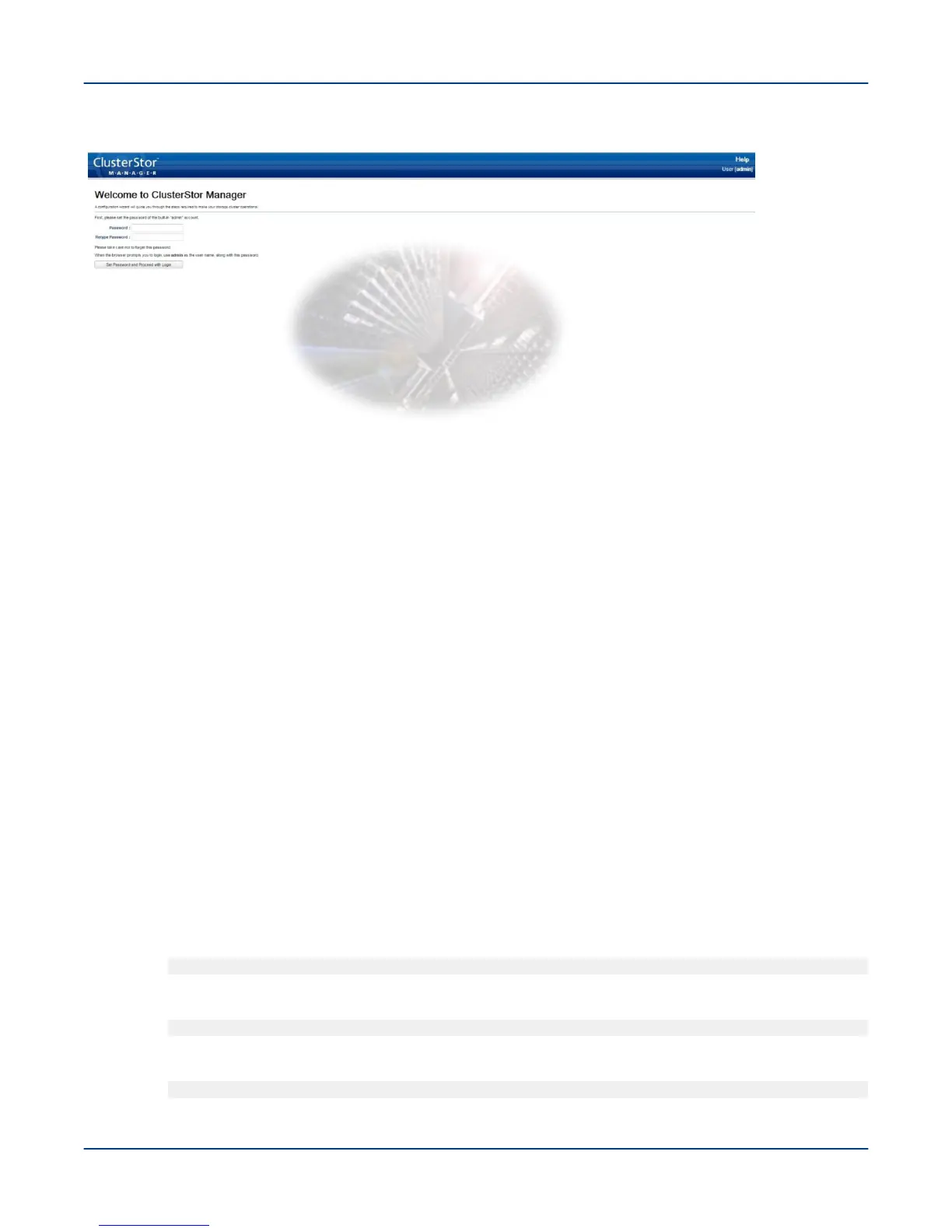
Figure 51. CCM Welcome Screen
Procedure
1. Create the administrator password.
The password is limited to 8 characters.
2. Re-enter the new administrator password to confirm.
3. Click Set Password and Proceed with Login.
4. Monitor progress:
● If the License Screen appears, proceed to Acknowledge License Screen.
● Do not click OK if an error window opens. Follow the procedure below:
Troubleshoot the CSM Welcome Screen
a. To resolve "node has not received changes" error, which can occur after selecting the Set Password
and Proceed with Login button, do not click the OK box on the error.
b. Carefully inspect any errors generated by CSM. Often, the errors reveal the exact problem through
backend script output, middleware issues, etc.
This error usually points to larger underlying issues, the most common of which is that one or more
node(s) is powered off. If this is the case:
1. Determine if there are downed nodes:
[MGMT0]$ pm -q
2. Power the node(s) on:
[MGMT0]$ pm -1 nodename
3. Verify that the nodes power on correctly. Log in to the nodes when power on completes:
[MGMT0]$ ssh nodename
Perform the First-Run Configuration
66


 To Next Page