4.
5. Repeat the preceding steps to create the administrator password.
5. Click OK.
When the password is accepted, the License Screen appears.
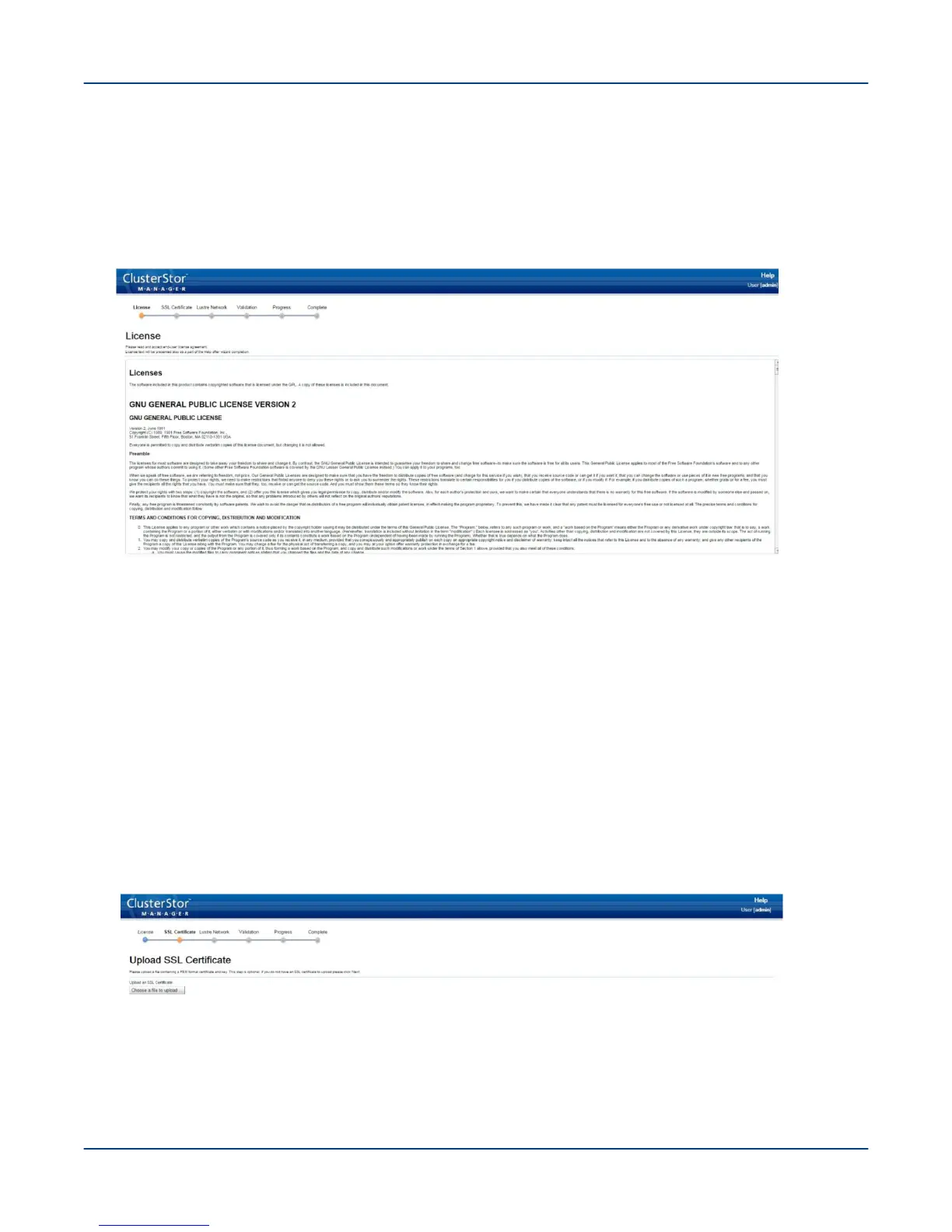
Figure 52. CSS License Screen
6. Read the license.
7. Scroll through the list of licenses and select the Accept All Licenses box.
The Accept All Licenses box remains greyed out until the list of licenses has been scrolled through.
8. Click Next.
The Upload SSL Certificate screen displays (optional).
ClusterStor L300 and L300N systems support only privacy enhanced mail (.PEM) format files. If the SSL
certificate file is in a different format, convert it to .PEM before continuing with this procedure.
TIP: Uploading an SSL certificate is an optional step. To bypass this procedure and proceed to
configure the Lustre network Interfaces, click Next now to skip to configure the Lustre network
interfaces.
Figure 53. CSSM SSL Certificate Screen
9. When the Upload SSL Certificate Screen appears, click Choose a file to upload....
10. Locate and select the SSL certificate (in .PEM format).
11. Click Open.
Perform the First-Run Configuration
67


 To Next Page