3.3 Loading Filament From CFS
17
3. Product Usage
To avoid lament spool getting stuck, do not use cardboard spool with untreated edges
or cardboard spool that are deformed as a whole;
T
1
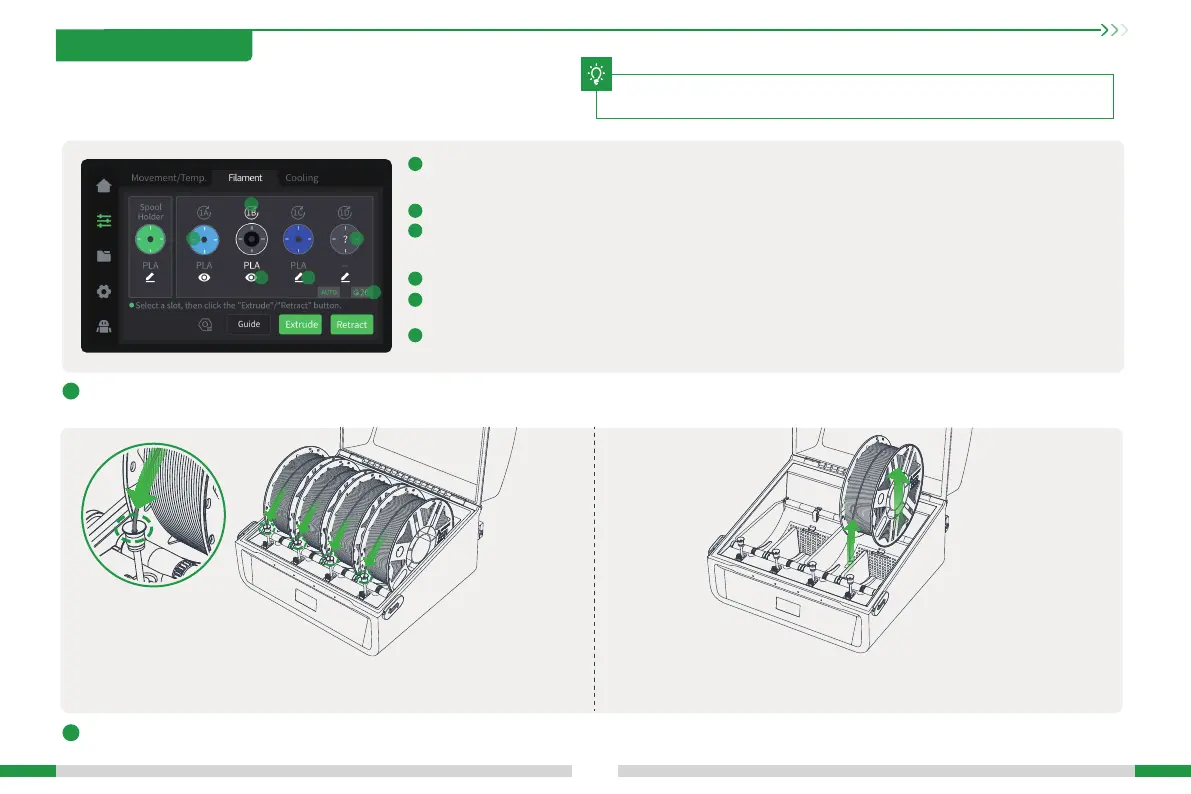
Introduction to the lament management inteace: The lament management page is divided into two pas: the spool holder [left] and the CFS [right]. The code
above the lament in the CFS, such as 1A, indicates the slot number;
is the Refresh RFID button, which can be used to read lament. If the reading is successful, the remaining lament and
lament color will be displayed. If the reading fails, the lament editing button will be displayed, and the lament will be
displayed as "?";
a
a
is the empty slot state, displayed as "/", and editing is not suppoed;
b
b
means that the RFID lament is read, the eye icon is for viewing lament information, RFID lament only suppo viewing;
if this is RFID and you want to use non-RFID next time, click the pre-loading button, wait for the reading to complete,
and then click the lament editing button;
c
c
is ordina lament, which suppo editing;
d
d
is the state where RFID is not read, the lament display "?". At this time, you need to click the edit button to manually edit
the lament information;
e
e
is the CFS humidity status. Green means the humidity is appropriate, orange means the humidity is slightly higher, and red
means the humidity is ve high. The desiccant may need to be replaced.
Loading lament: Put the lament into the CFS, align the lament head with the Teon tube
of corresponding silo, push it in gently, and let go after feeling the pulling force. The
lament will be automatically loaded.
Unloading lament: First, make sure that the lament is not in the extruder, in this case,
just pick up the lament and pull it out; if it is in the extruder, click the Retract button rst,
wait for the lament to return to the CFS, and then take out the lament.
f
f
2
Load/unload lament.


 To Next Page