Operating modes
Function button: function
Favourites
: List of destinations stored as favourites.
Contacts
: List of phone book contacts that have a
stored address (postal address).
Home address
Only one address or po
sition can be stored
as the home address at any one time.
Pressing will start guidance to the stored
home address.
If a home address has not yet been stored,
an address can be assigned.
Assigning the home address for the first time:
Position
: Press to store the vehicle's current position as
the home address.
Address
: Press to enter the home address manually.
Editing the home address:
The home address can be edited in the Navigation
settings > Manage memory menu.
Special destinations (POI)
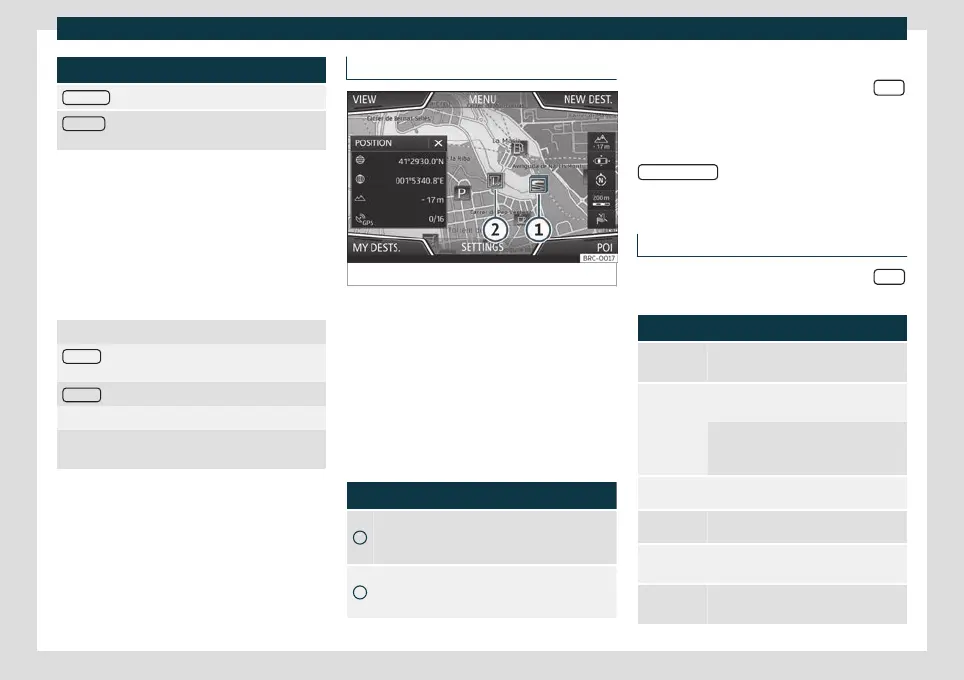
Fig. 165
Points of interest on the map.
The points of interest saved in the memory
ar
e divided int
o different categories. Each
category of special destinations has a symbol
assigned to it.
In the Map settings menu, you can indicate
the special destinations that you want to dis-
play on the map. Up to 10 categories can be
selected.
Selecting a point of interest on the map
Function button: function
1
There are several points of interest in the area.
Press this symbol to open a list of points of inter-
est.
2
The only point of interest in this zone. Press the
symbol to open the detailed view of the point of
interest.
Quick POI search
In the Na
vig
ation main menu, press the POIs
function button and the three main catego-
ries will appe
ar. Alt
ernatively, enter the name
of the point of interest to be searched using
the new destination keypad, or press
Search nearby
on the map
›
›
›
table on
page 202.
View
In the Na
vigation main menu, press the Vie
w
function button.
Function button: function
Map display in two dimensions (conven-
tional).
Map display in three dimensions (bird's
eye view).
The places of interest and well-known
buildings are also shown in detail and in
colour.
a)
To display the destination on the map.
a)
To display the route on the map.
Auto / Day /
Night
To switch between day and night for-
mat.
SPLIT
SCREEN
Show the split screen
›››
page 202.
»
201



 To Next Page