Operating modes
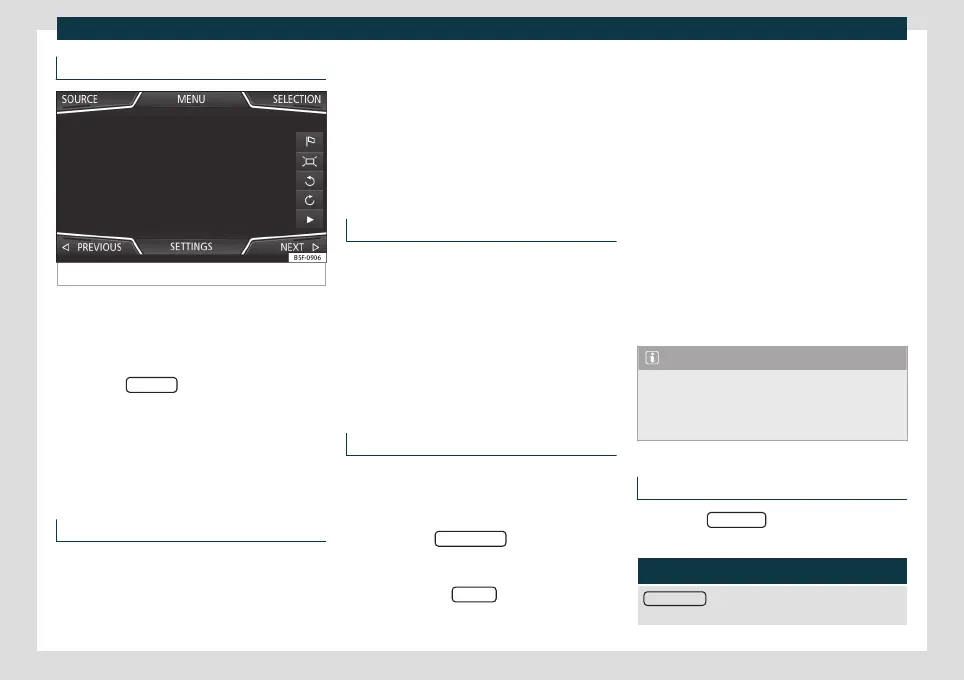
Navigation with images
Fig. 170
Images main menu.
Selecting an image and starting route
guidance
●
Press the Infotainment butt
on and then
select the
Images context.
●
Press the SOURCE
›
›
›
Fig. 170 function
button and select the data storage device
where the images are stored.
●
If the image displayed was taken using GPS
localisation, the function button will ap-
pear. Press to start guidance to a destination.
Road signs indication
The road sign indication must be active in
the Navigation settings menu
›
›
›
page 205.
If there are road signs stored in the naviga-
tion data for the route you are driving on, the
system can display them on the map (e.g. a
speed limit).
Take into account the age of the navigation
data and the limitations of the navigation
system
›››
page 195!
Recognition of road signs
Some vehicles have a road sign recognition
camera. If the v
ehicle has road sign recogni-
tion and it is active, road signs detected by
the system will be displayed on the map,
along with additional information.
Read and take into account the information
and indications of the road signs recognition
system
›››
page 70.
Route guidance in Demo mode
If demo mode is activated in the Navigation
settings menu, an additional pop-up win-
do
w opens when y
ou start route guidance.
●
Pressing the Demo mode
function button
st
arts a “virt
ual route guidance” to the desti-
nation you have entered.
●
If you press the Normal
function button, a
“r
e
al route guidance” starts.
The development and operation of virtual
route guidance is compatible with the devel-
opment and operation of real route guid-
ance.
Virtual route guidance is repeated after
reaching the fictitious destination and re-
starts from the starting point, if it is not inter-
rupted beforehand.
When the starting point of the Demo mode
is manually set Navigation settings
menu, the virtual route guidance starts from
that position.
A manually entered starting point is overwrit-
ten with the current location of the vehicle, if
the vehicle starts moving.
Note
Deactivate the Demo mode after use, oth-
erwise you will always have to select wheth-
er to start a virtual route or normal route
before starting route guidance.
Navigation settings
●
Press the SETTINGS function button in the
main Na
vig
ation menu.
Function button: function
Route options
: To make the route calculation adjust-
ments.
»
205



 To Next Page