Infotainment System
Function button: function
POI Show special destinations.
a)
Only displayed with route guidance activated.
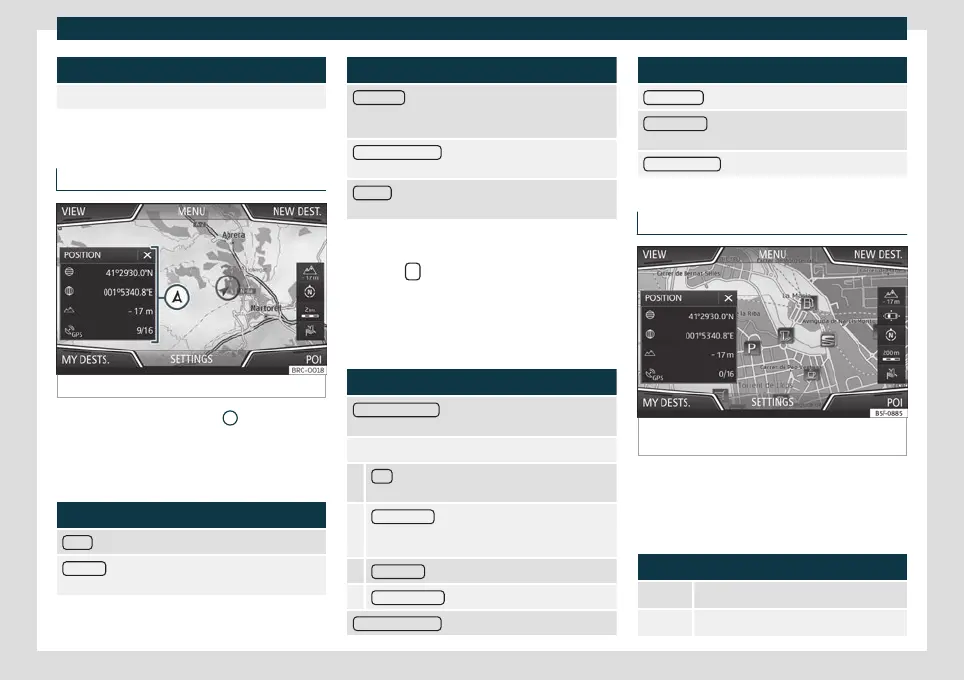
Split screen
Fig. 166 Split screen displayed.
The split screen
›
›
›
Fig. 166
A
shows the in-
f
ormation det
ailed below:
●
Pressing the name displays a menu with
the following options:
Function button: function
Audio
: Current audio source.
Compass
: Displays a compass with the current direc-
tion and position of the vehicle (street name).
Function button: function
Manoeuvre
: Displays a list of the next manoeuvres,
POIs or TMCs on the route and pressing them brings
up additional information
FREQUENT ROUTES
a)
: Information on the user's most
frequent routes.
Position
: current vehicle position in coordinates and
GPS status (satellite reception).
a)
Only shown when route guidance is not active or
when predictiv
e route guidance is active.
Press the
function button to close the
split scr
een.
At an
y moment during navigation, pressing
inside the map will make a pop-up menu ap-
pear with the following functions:
Function button: function
Clicking on the map
: Shows the details of the selected
point, street name or coordinates
Only when you press on an icon on the map:
POI
: name of the point of interest (when only one
appears on the map).
Group of POIs
: more points of interest (when you
press on the map on various POIs grouped togeth-
er).
FAVOURITE
: name of the favourite.
HOME ADDRESS
: Home address.
Start route guidance : starts guidance directly.
Function button: function
Add stopover
: only when you have an active route.
Search nearby
: enters in the search menu, but only for
the area around the point selected on the map.
Demo mode start
(only when demo mode is active)
Map display
Fig. 167
Messages and function buttons on the
map display.
Function buttons and messages on the
map displa
y.
T
o activate function buttons
and , press
function button .
Function button: function
Current altitude indicator.
To centre the vehicle position on the map.
202



 To Next Page