Operating modes
Selecting a track from a track list
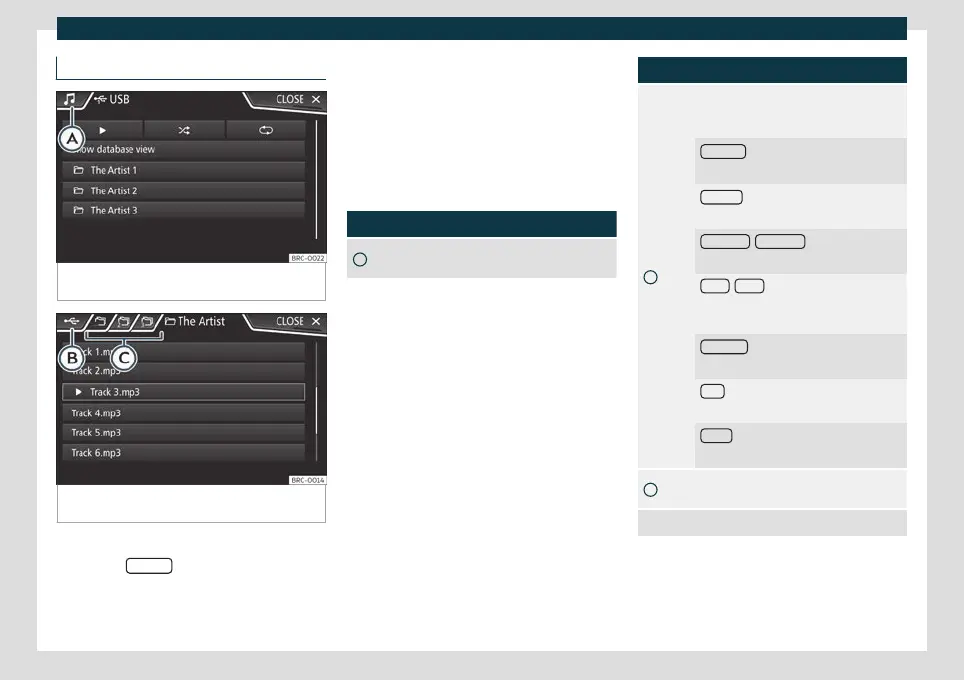
Fig. 153
Media Mode: list of folders of a Media
source.
Fig. 154 Media Mode: list of tracks of a Media
source.
Open a list of tracks
●
Press the SELEC
T
function button on the
MEDIA main menu
›
›
›
Fig. 151 to open the
track list. The track that is playing is highligh-
ted
›››
Fig. 154.
●
Search the track list and press the track
you want.
If there is track information available, the
track (on audio CDs) or the file name (MP3) is
displayed instead of Track + num.
Overview of the function buttons in the
track list
Function button: function
A
Open the Sources menu. Select another
Media source by pressing.
Function button: function
B
Indicates the media source being ex-
plored. If pressed, it goes to the root of the
device shown on the icon.
JUKEBOX
a)
: Internal hard disk of the info-
tainment system (SSD)
›››
page 190.
CD/DVD
a)
: Internal CD and DVD drive
›››
page 186.
SD CARD 1
, SD CARD 2 *: SD memory card
›››
page 187.
USB 1
, USB 2 *: External data storage de-
vice connected to the USB port
›››
page 187.
BT AUDIO : External Media Player connec-
ted via Bluetooth
®
›››
page 189.
AUX : Audio source connected to the
AUX-IN socket
›››
page 188.
WLAN *: External audio source connected
by WLAN
›››
page 191.
C
Press the function button to open the top
folder of the Media source.
Start playback of the first track.
»
185



 To Next Page