Infotainment System
Jukebox (SSD)
3 Only available for the model: Navi System Plus
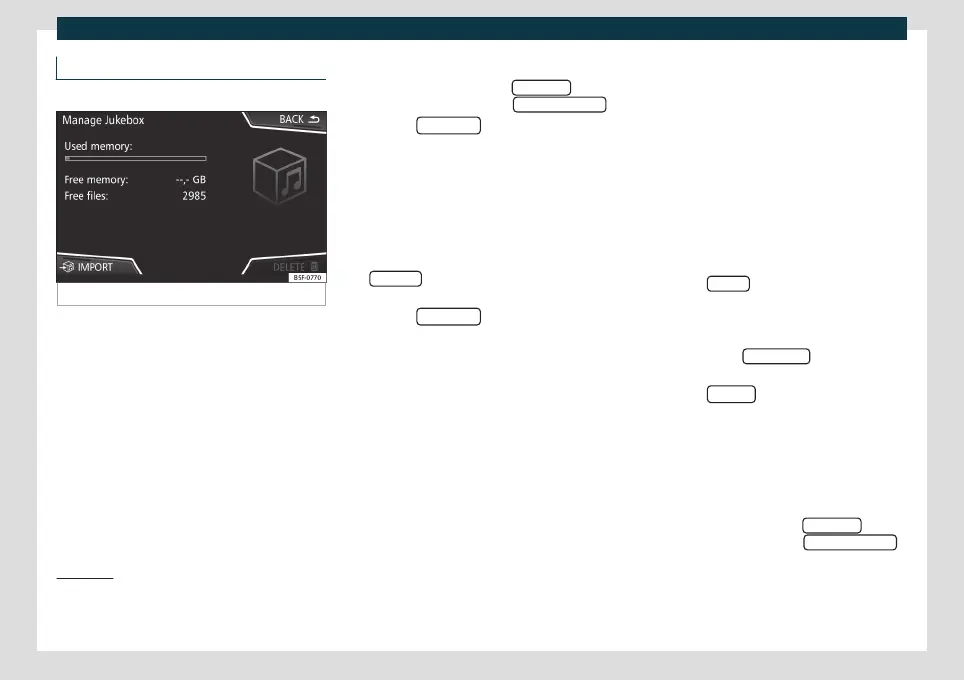
Fig. 157
Manage Jukebox
The “jukebox” is located on the hard drive of
the Inf
ot
ainment system (SSD
1)
).
Compressed audio files (MP3 and WMA) and
some video files (Podcasts, AVIs, etc.) can be
imported from different data storage devices
to the jukebox and this used to play them.
The files will only be copied when the engine
is running. Copying copy-protected CDs and
DVDs is prohibited
Importing files
●
In Media mode, press the SETTINGS
func-
tion butt
on and then select Manag
e Jukebox
.
●
Press the IMPOR
T
function button.
●
Select the desired source from the Select
source menu.
The dat
a st
orage device is prepared. This op-
eration may take a few seconds.
●
Activate the checkboxes to the right of the
files or folders to be imported.
●
If Select all
is activated, all files and folders
on the dat
a st
orage device will be imported.
●
Press the IMPORT
function button.
Depending on the selection, all files and
f
older
s will be imported with the indicated
name to the Jukebox.
If no track information is available, the audio
files will be placed in the following folders:
Audio data CD
■
Album
■
Unknown albums
■
Título.mp3
2)
■
Artists
■
Unknown artists
■
Unknown albums
■
Título.mp3
2)
Functions and progress display during the
copying operation
While copying, an animation is displayed
along with the progress percentage on the
import screen.
Audio data CD: It is not possible to copy and
play files at the same time.
●
Press the Cancel
function button to end
the import of the whole tr
ack that is curr
ent-
ly being imported.
●
To obtain information on the status of the
import, press the Information
function but-
t
on.
●
Pr
ess the BACK
function button to close
the import scr
een with the pr
ogress informa-
tion.
●
When the file import ends, a message will
appear.
Deleting files
●
In Media mode, press the SETTINGS
func-
tion butt
on and then select Manag
e Jukebox
.
1)
Solid-State-Drive (SSD).
2)
The name and extension of the file are exam-
ples.
190



 To Next Page