Infotainment System
Take into account all other instructions and
limit
ations r
egarding requirements for media
sources.
iPod™, iPad™ and iPhone™
Depending on the country and equipment,
iPods™, iPads™ or iPhones™ can be connec-
ted via the device's own USB cable to the ve-
hicle’s USB port and used as audio sour-
ces.
After connecting an iPod™, iPad™ or
iPhone™, the list views specific to the iPod™
are displayed at the top selection level
( Playlists, Artists, Albums,
Tracks, Podcasts, etc.).
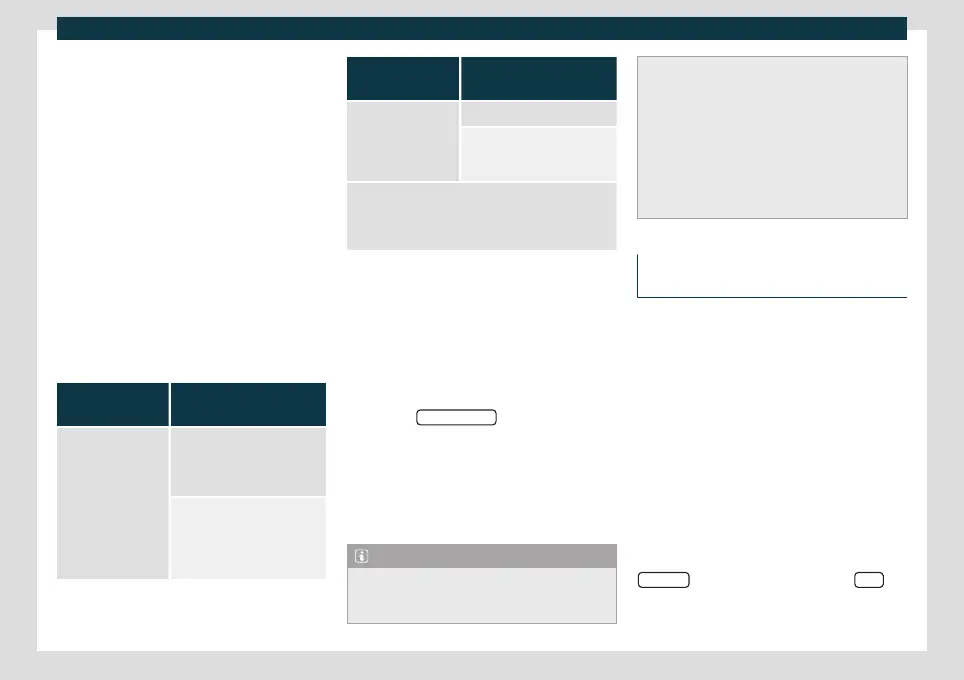
Possible error messages after connecting
external data media
Error message
Cause and actions to
take
Source is not
supported.
It is not possible to play the
external data media or estab-
lish communication with the
adapter cable that is used.
Check that the external data
media is connected and oper-
ates correctly.
If possible, update the exter-
nal data media software.
Error message
Cause and actions to
take
Device not re-
sponding.
Communication interrupted.
Check that the external data
media is connected and oper-
ates correctly.
Due to the large number of different data storage devi-
ces and various iPod™, iPad™ and iPhone™ genera-
tions available, it is not possible to guarantee fault-free
operation of all functions described here.
Disconnecting
D
at
a media be prepared for disconnection.
●
From the main Media menu, press the
SETTINGS button to open the Media Set-
tings menu or press the infotainment but-
ton and then press Settings to open
menu System settings.
●
Press the Remove safely
function button. A
dr
opdo
wn menu appears with the following
options: SD1 Card, SD2 Card*, USB1 and
USB2*. Pressing the corresponding function
button disables it.
●
Now the data storage device can be dis-
connected.
Note
●
Do not connect an external media player
at the same time to play music via Blue-
tooth
®
and via the USB port with the In-
fotainment system, as this could cause
playback limit
ations.
●
If the external player is an Apple™ device,
it cannot be simultaneously connected by
USB and by Bluetooth
®
.
●
If a connected source is not recognized,
disconnect and reconnect it. If the data
cannot be played, the corresponding indi-
cation will be displayed.
External audio source connected to
the AUX-IN multimedia socket
Depending on the equipment and country
ther
e ma
y be an AUX-IN multimedia socket
›››
page 224.
The connected external audio source can-
not be operated with the infotainment sys-
tem's controls.
Connecting an external audio source to
the AUX-IN multimedia socket
●
Connect the external audio source to the
AUX-IN multimedia socket.
●
Start playback on the external audio
source.
●
In the MEDIA main menu, press the
SOURCE
function button and select AUX .
The pla
yback v
olume of the connected ex-
ternal audio source should be adjusted to
188



 To Next Page