26D-Link DIR-514 User Manual
Section 3 - Conguration
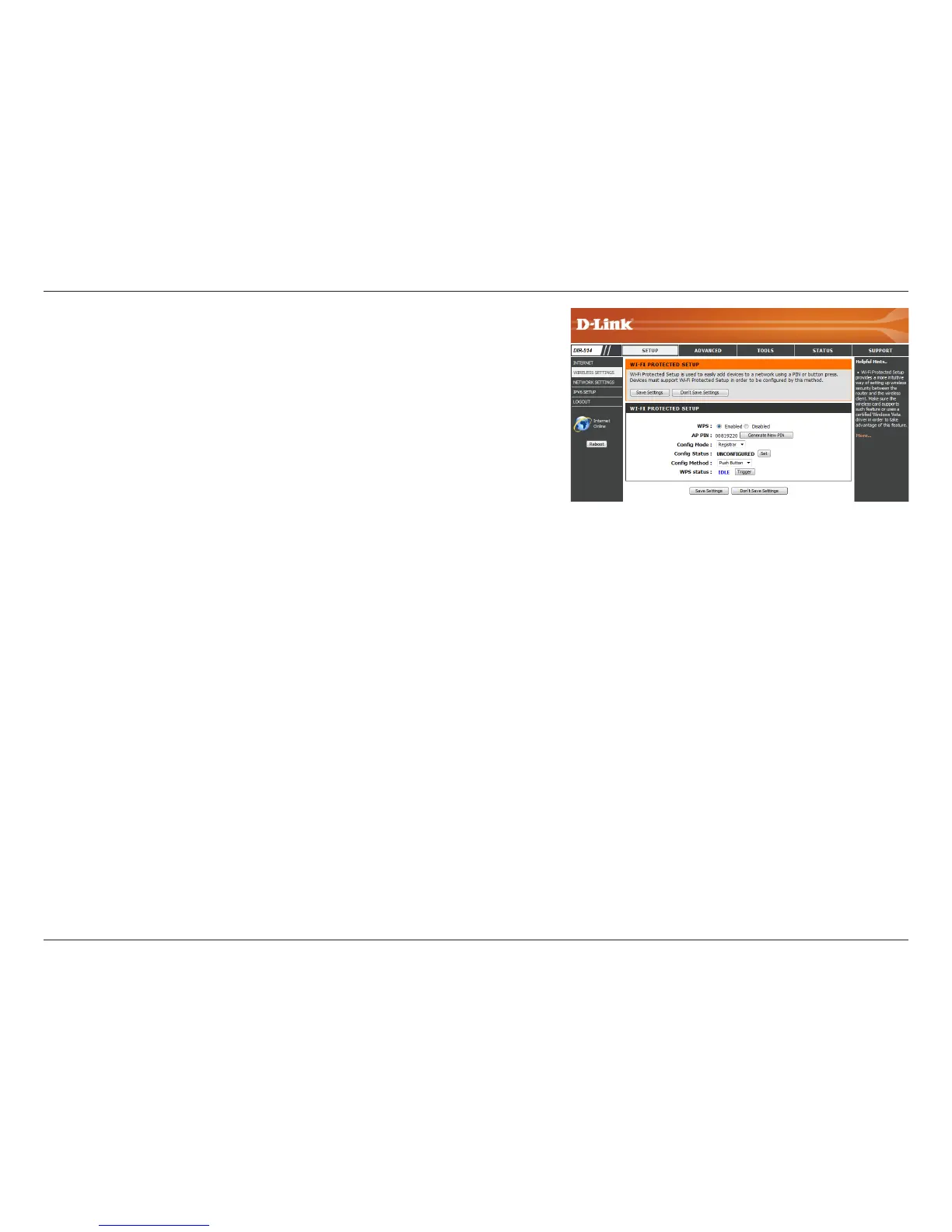
Select whether you would like to enable or disable WPS features.
If you use Windows 7’s Connect to a network wizard to do initial
conguration of the router, you will need to enter the WPS PIN/AP
PIN into the wizard when prompted. The factory default WPS PIN/
AP PIN is printed on a label located on the bottom of the router. You
can click the Generate New PIN button to change it to a randomly
generated PIN.
Select whether the WPS cong mode should be set to Registrar or
Enrollee. In most cases, this should be set to Registrar so that you
can use WPS to connect new wireless clients.
If this is set to CONFIGURED, the router will be marked as “already
congured” to computers that try to use WPS conguration, such as
Windows 7’s Connect to a network wizard. You can click the Release
button to change the status to UNCONFIGURED to allow for WPS
conguration of the router.
If this is set to UNCONFIGURED, you can click the Set button to
change the status to CONFIGURED to block WPS conguration of
the router.
This lets you choose whether to use the Push Button connection
method (PBC) or PIN method to connect to a wireless client when
the Trigger button is clicked. If you choose the PIN method, you will
need to enter a 8-digit PIN number that the wireless client need to
use to connect to your router.
This will show the current WPS connection process status. Click the
Trigger button to initiate a WPS connection.
WPS:
AP PIN (also
known as WPS
PIN):
Cong Mode:
Cong Status:
Cong Method:
WPS Status:


 To Next Page