125
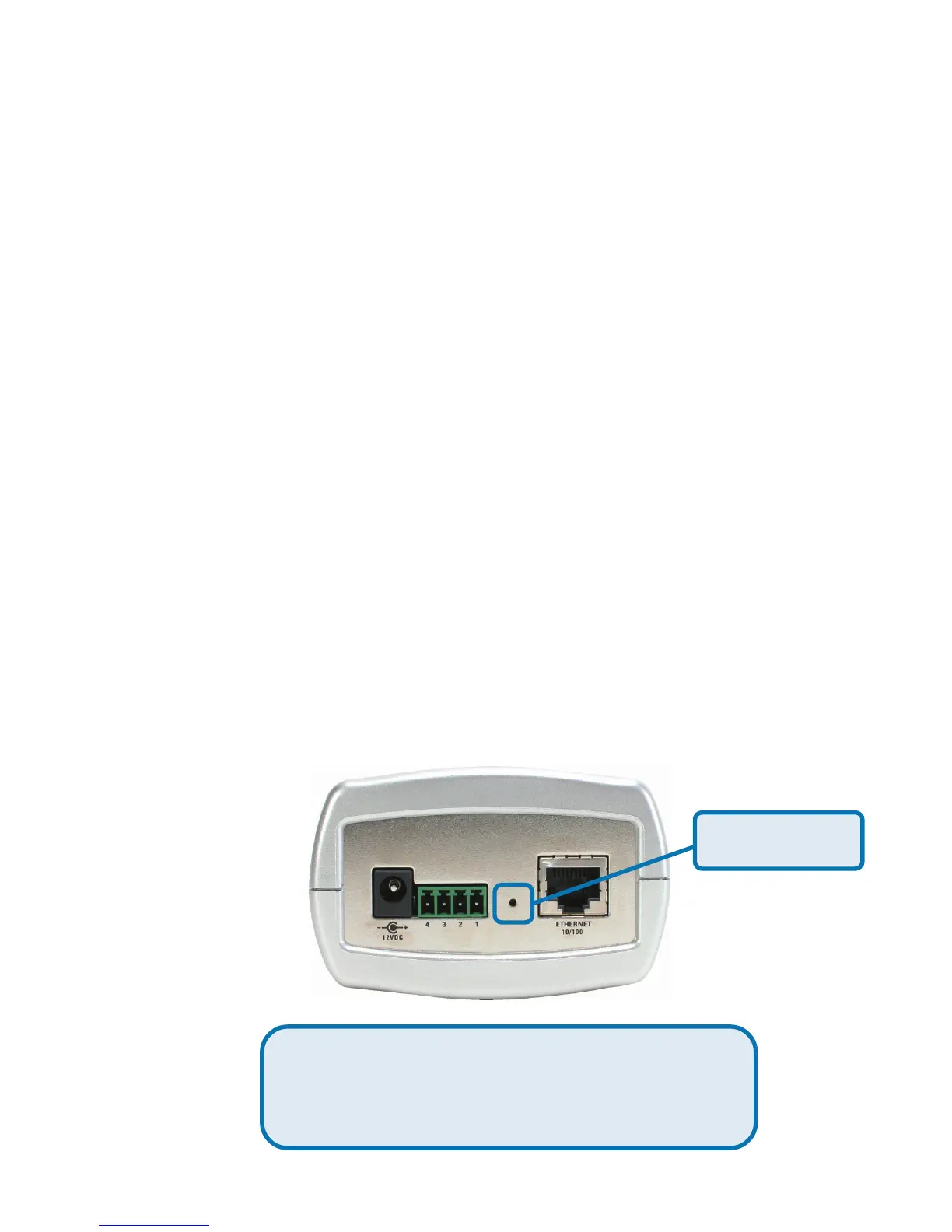
There is a button hidden in the pinhole beside the Ethernet socket. It is
used to reset the system or restore the factory default settings. Sometimes
resetting the DCS-2000 will return the system back to a normal state. If
the system still has problems after reset, restore the factory settings and
install again:
RESET: 1.
3.
RESTORE:1.
2.
3.
Reset and Restore
Reset button
Restoring the factory defaults will result in the
loss of any previous settings and will require
running the Installation Wizard to return the
DCS-2000 to user preferred settings.
2. The LED on the front of the camera will begin blinking
red and green fast.
Lightly insert a paper clip (or a similar sized tool) into the
reset hole on the back of the camera, press lightly and
then release the button.
Insert the paperclip or other tool and press and continuously
hold down on the button recessed inside the reset hole.
Wait for the LED on the front of the camera to blink red
and green and hold the button through two cycles of
blinking (about 5-7 seconds.)
Withdraw the tool after the second cycle of the LED
blinking and a factory restore has been completed.
When the LED stops the blinking fast and starts to blink
once a second, the reset is completed.




 To Next Page