29
Using & Configuring the DCS-2000 with a
NAT Router (continued)
Router Set-Up and Installation
The following steps generally apply to any router that you have on your network.
The D-Link DI-614+ is used as an example to clarify the configuration process.
Configure the initial settings of the DI-614+ by following the steps outlined in the
DI-614+ Quick Installation Guide.
Access Your Router on Your Web Browser
If you have cable or DSL service, you will most likely have a dynamically
assigned WAN IP Address. ‘Dynamic’ means that your router’s WAN IP address
can change from time to time depending on your ISP. A dynamic WAN IP Address
identifies your router on the public network and allows it to access the Internet.
To find out what your router’s WAN IP Address is, go to the Status menu on
your router and locate the WAN information for your router. As shown on the
next page the WAN IP Address will be listed. This will be the address that you
will need to type in your Web browser to view your camera over the Internet.
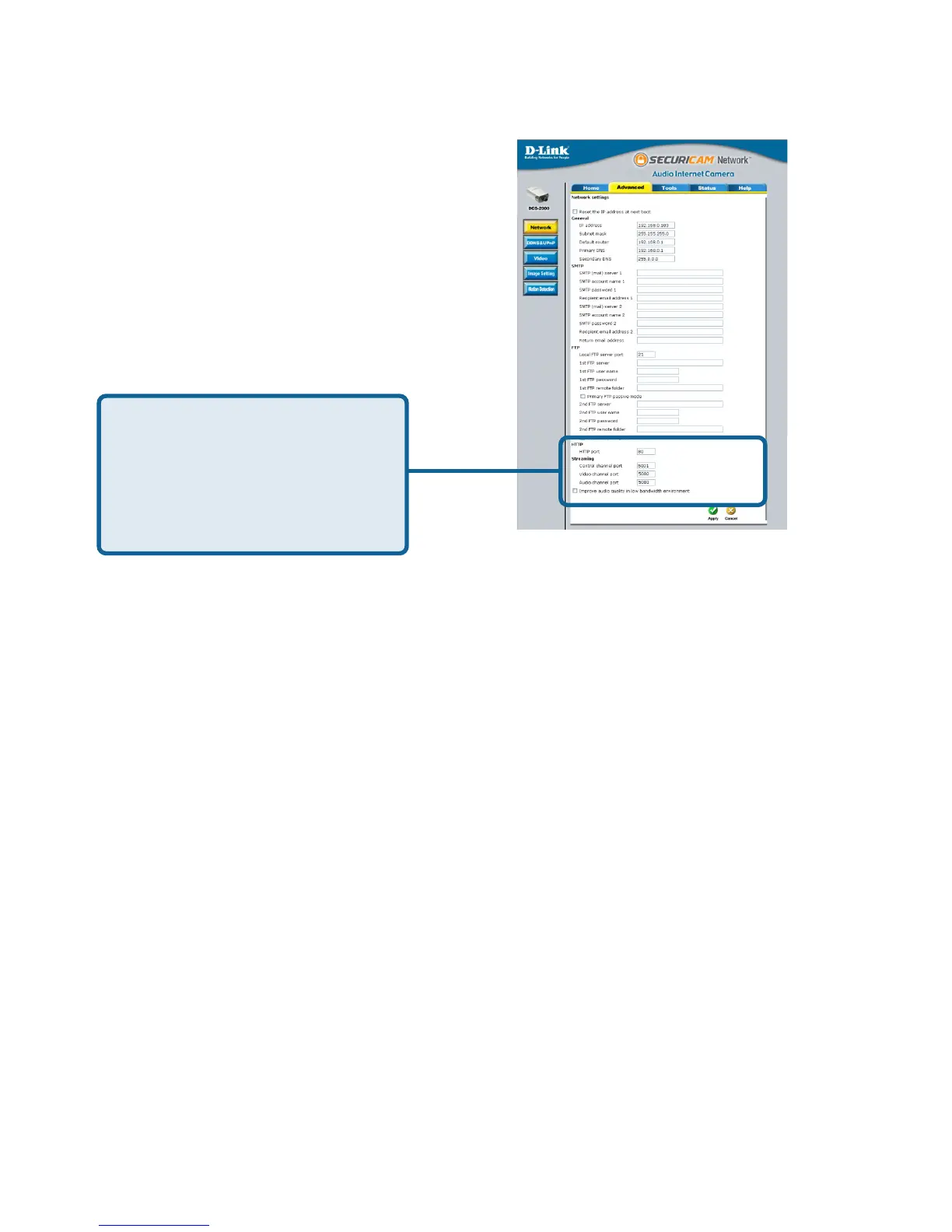
These are the port settings for
your camera. If necessary, these
ports can be changed if they are
already in use by other devices
(e.g. in a multiple camera environ-
ment).
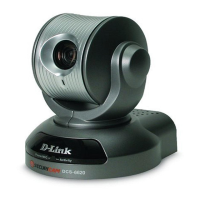
Ports that are used by the DCS-2000



 To Next Page