118
Schedule Video Recording with Motion
Detection
Next, run the IP surveillance program. Click on the Configurations button
and select Scheduler.
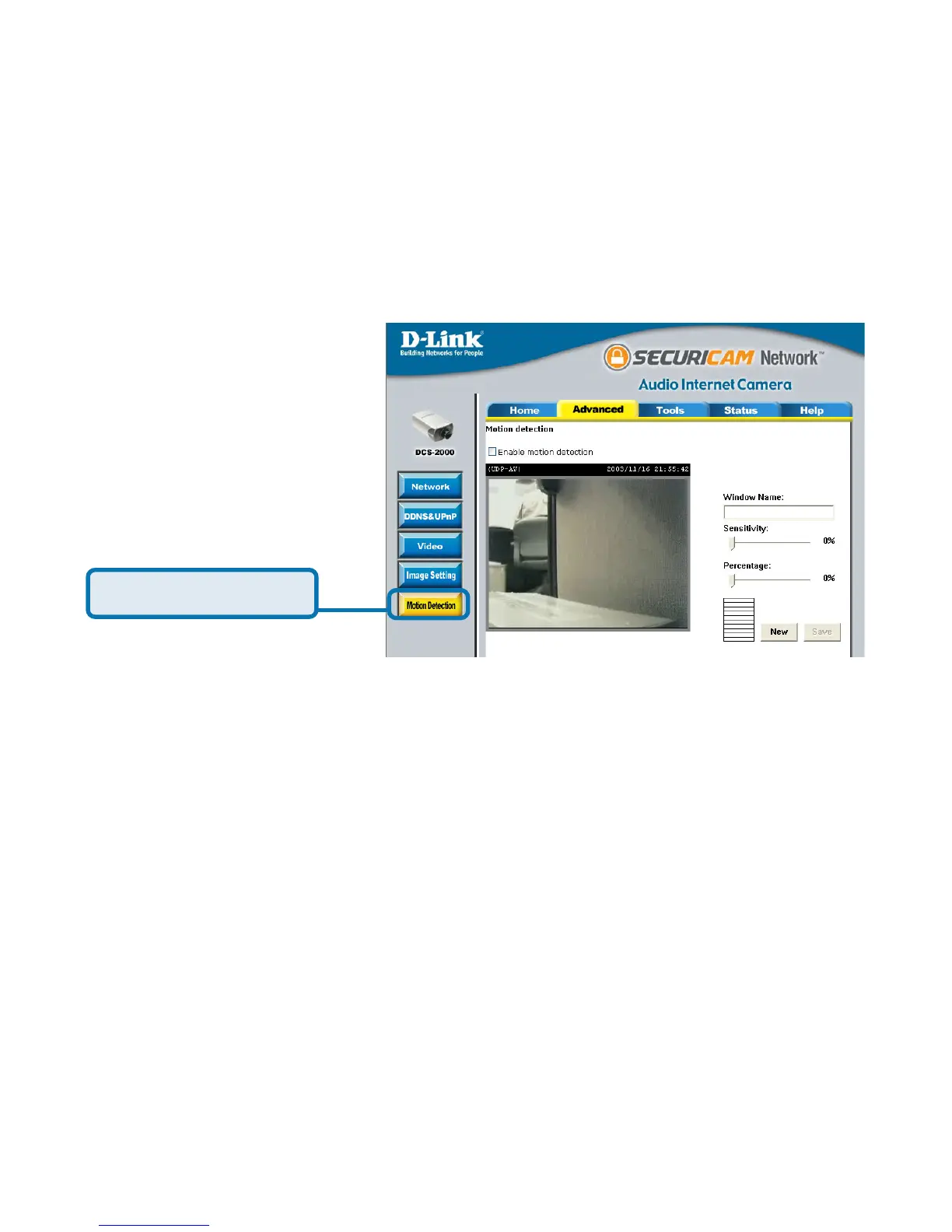
Check “Enable motion detection.”
Click on “New” to have a new window to monitor video.
Enter in a window name.
Adjust the “Sensitivity” and “Percentage” levels according to the local
environment. The highest sensitivity and lowest percentage provides
the most sensitive setting.
55
55
5 After adding the motion window, click on save to enable the
activity display. You can add up to 3 motion windows to trigger
recording.
To schedule video recording with motion detection, you must first enable motion
detection on the Internet Camera. Click the Motion Detection button under
the Advanced tab from the Configuration screen to access settings that affect
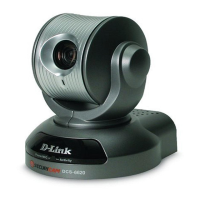
how the DCS-2000 Internet Camera can serve as a security device by recording
only when motion is detected. Note: These settings can be configured in your
Web browser and while logged into the IP surveillance Program.
In this window, follow the steps below to ensure that motion detection is correctly
enabled:
For detailed information about each setting, please refer to Configuration >
Advanced > Motion Detection in the section titled “Using the DCS-2000 With
an Internet Browser” (page 47).
Click Motion Detection



 To Next Page