85
Using IP surveillance Software (continued)
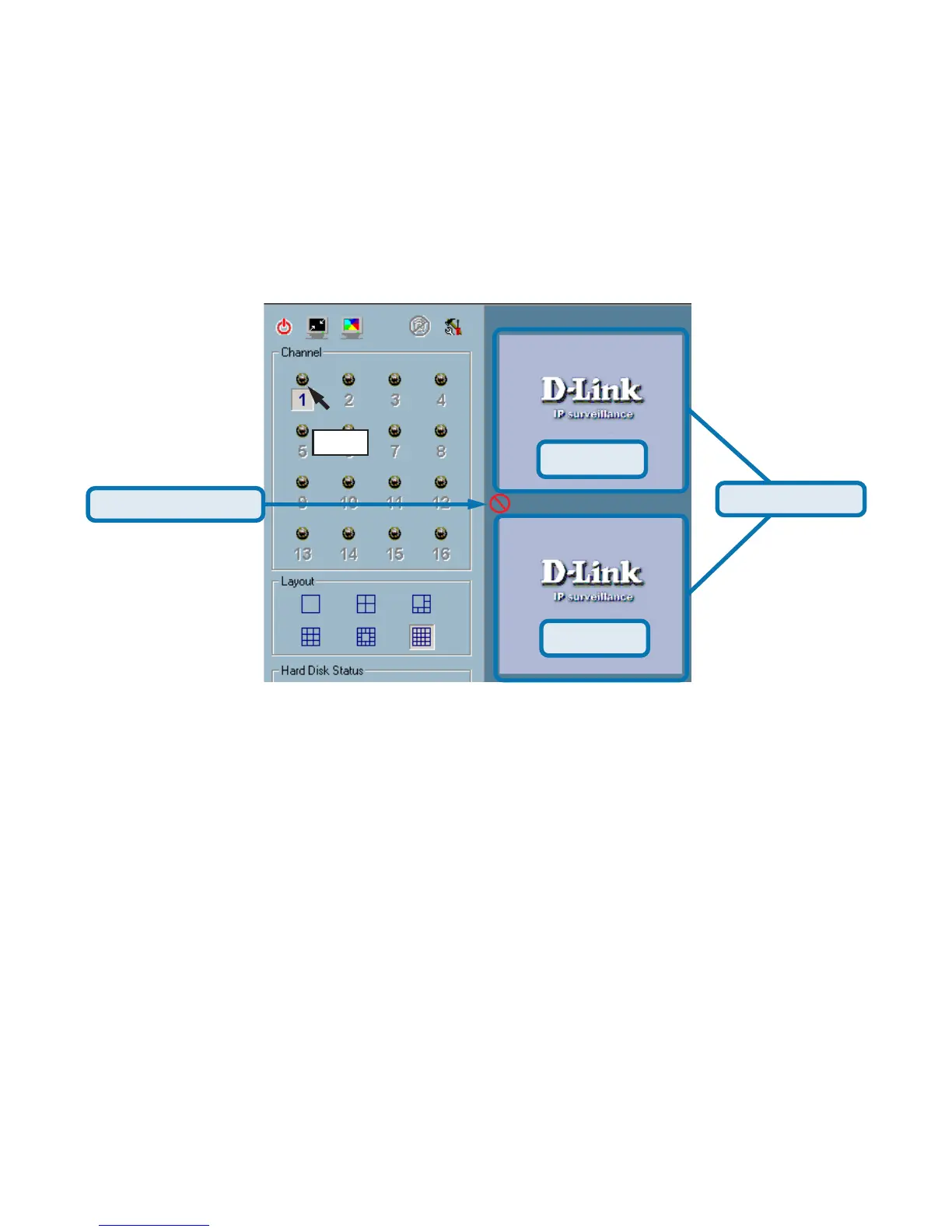
Video 1
Droppable area
Not droppable area
Monitor Program (continued)
Window A
Window B
Step 2: Press and hold the left mouse button, and then move the cursor to a
display window in the video area, which is shown below. Note that the cursor
will change according to the area in order to indicate whether the area is
droppable or not.
Step 3: Release the left mouse button while on top of a display window. In each
display layout, only one window can be assigned to a camera. Also, each camera
must have its own separate window when displayed. Once the video is in a
display window, it can be dragged and dropped to other windows. If you drag
one camera’s video to a window that already has its own camera’s video, the
two cameras will trade display windows. Dragging and Dropping is a very
convenient way to manipulate the video channels in the IP surveillance Software.



 To Next Page