17
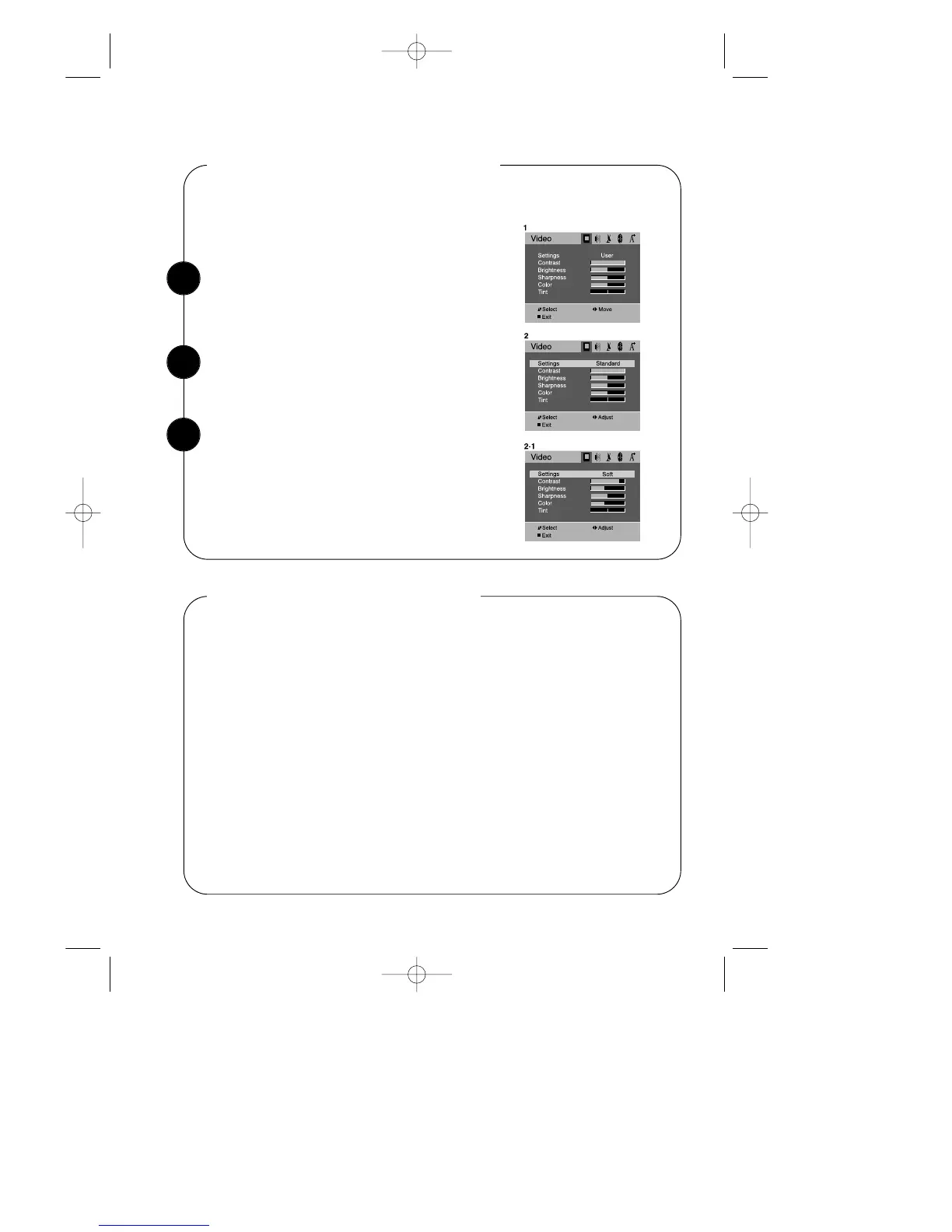
With the TV on, press the MENU button. Then
“Video” menu will appear.
Returning to the factory settings
Select the “Settings” item by use of the WCHV but-
tons. Then Press the CVOLB buttons to set the
“Settings” to ‘Standard’, ‘User’ or ‘Soft’.
The TV will remember the ‘User’ settings you had
previously chosen. When you set “Settings” to ‘User’
again, your previous User settings will be restored.
If you would like to return to the original video settings, as they were calibrated at the
factory, follow these steps :
Descriptions of video settings
The Contrast setting controls the relation between the light and black areas of the screen.
If the light areas are too bright and are losing details, press the CVOL button; if the picture
is gray and lacks contrast, press the VOLB button.
The Brightness settings controls the overall amount of light in the picture. If the picture is
too bright, press the CVOL button; if the picture is too dark, press the VOLB button.
The Sharpness controls how the TV displays edges of objects on-screen. If the TV shows
multiple vertical lines at the edges of an object, press the CVOL button; if the vertical
edges of on-screen objects are fuzzy, press the VOLB button.
The Color setting controls the intensity of color. If the color is over-saturated, press the
CVOL button; if the color is washed out, press the VOLB button.
The Tint setting controls the relationship of red and green in a picture. Tint is especially
noticeable in flesh tones. If flesh tones seem too red or purple, press the VOLB button; if
flesh tones are too green, press the CVOL button.
1
2
3


 To Next Page