System 9700 User Manual
Page 19 of 56
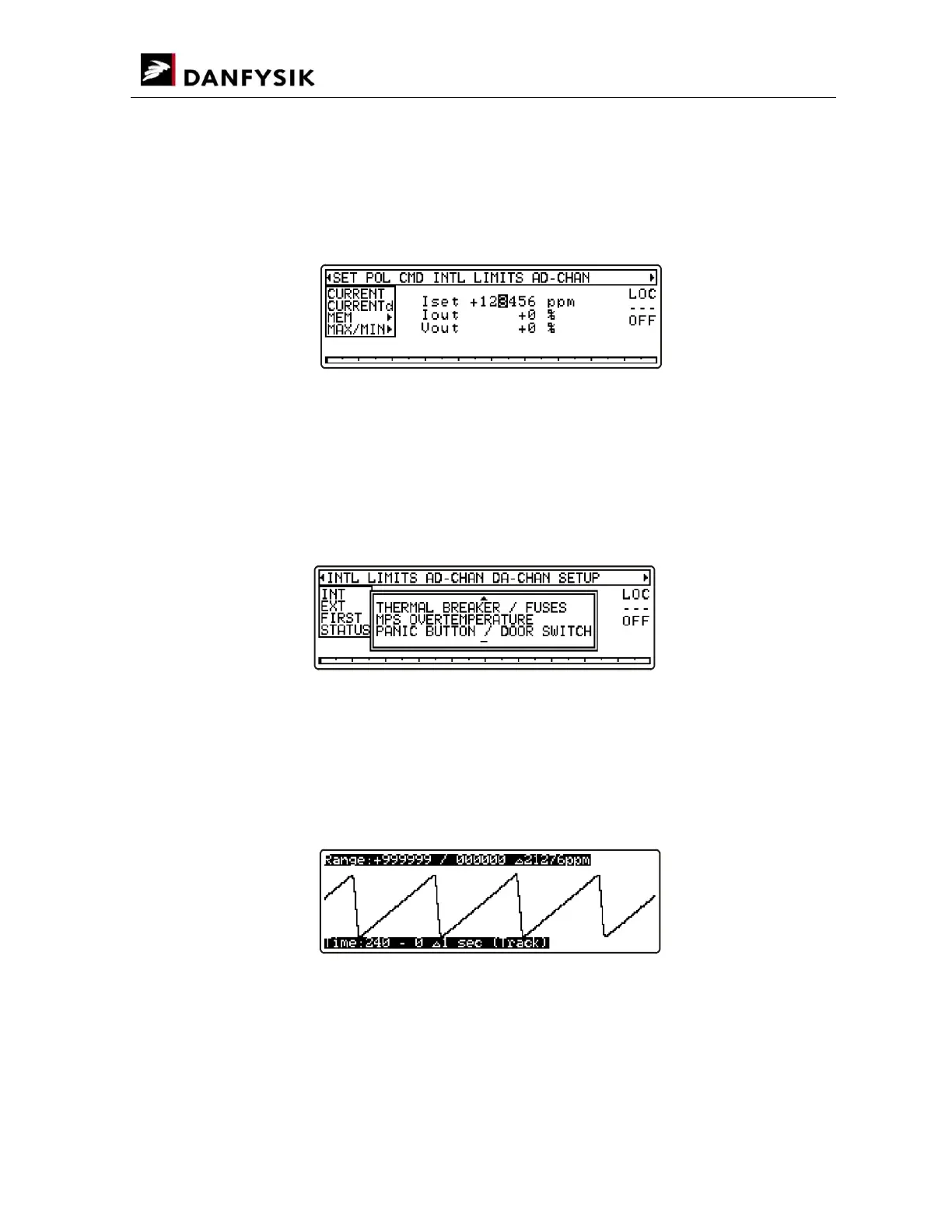
Editing Window:
If a value needs editing, a cursor shown as a character with inverted colour will appear
somewhere in the value. “Somewhere” because the cursor can recall its last used position.
Move the cursor to the desired position and change its value with the “” or “”keys. Holding
the keys pressed will initiate an auto increment / decrement operation.
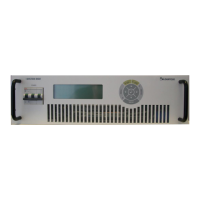
Pop-up Window:
The screenshot below shows a pop-up window displaying several interlocks. The bar at the
bottom indicates that there is no further information downwards. The arrow at the top indicates
that pressing the “” key will display the above listed interlocks. If a pop-up window contains
values to be set, the line to be changed will be highlighted with inverted colour (cursor over the
line). Use the “” “” keys to change the value and “” & “” to scroll between the lines.
(E.g. LED colour setup menu).
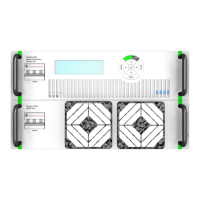
History Window:
The history window can be viewed as an oscilloscope screen with auto scaling.
The screenshot below shows an example history window set to absolute scale with visible scale
units. The indicates one pixel unit.


 To Next Page