EasyManua.ls Logo

DataCard CE870 - User Manual

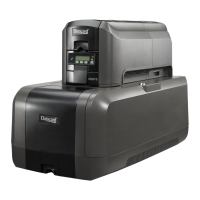
DataCard CE870
92 pages
Print Icon
To Next Page IconTo Next Page
Loading...
Datacard
®
CE870
Instant Issuance System
User’s Guide
January 2017
Part No. 527260-001, Rev. H

Table of Contents

Other manuals for DataCard CE870

Questions and Answers

  • T
    tonya02Aug 28, 2025
    Why do photos look faded from DataCard CE870 Printer?
    • J
      Joann WatsonAug 28, 2025
      If photos look faded when using your DataCard Printer, the image capture system needs adjustment. To determine optimal color settings, refer to the documentation for your image capture system.
  • L
    Leroy MirandaAug 27, 2025
    Why does the printed card have small unprinted areas from DataCard CE870?
    • A
      Andrew PadillaAug 27, 2025
      Small unprinted areas on cards printed with your DataCard Printer can result from: * Scratches on unprinted cards; handle cards carefully. * Embedded particles, an uneven surface, or burrs on the card edge; use cards meeting the printer's requirements. * Dirty rollers or debris in the card packaging; run a cleaning card.
  • L
    Lee DeanAug 27, 2025
    Why is part of the printed image discolored on DataCard CE870 Printer?
    • S
      sabrina35Aug 27, 2025
      Discoloration in printed images from your DataCard Printer can arise from a few factors: * Cards may have fingerprints or dirt; handle cards carefully. * A signature panel might be on the other side of the card; design the card to avoid printing photos over signature panel residue. * The rollers could be dirty, or the card packaging may contain debris; run a cleaning card and use cards that meet the printer's requirements.
  • A
    Allison LaneAug 25, 2025
    Why is the printing very light on my DataCard CE870 Printer?
    • D
      Daniel GoodmanAug 26, 2025
      If the printing is very light on your DataCard Printer, there are several possible causes: * The print ribbon may be loaded incorrectly; remove and reinstall it correctly. * The card may have been previously printed and has a topcoat on it; use only new cards. * The printhead power might be too low; log in to the Printer Manager as a WebAdmin, open the Printer Settings > Print menu, increase the YMC Power setting, and click Set Current to save your changes.
  • J
    Jessica HoodAug 25, 2025
    What to do if one or more lines appear on the card from DataCard CE870?
    • E
      Eric BruceAug 25, 2025
      If one or more lines appear on the card when using your DataCard Printer, it may be due to a dirty or damaged printhead. Clean the printhead to resolve this issue.

Summary

Chapter 1: Introduction

About This Manual

Provides an overview of the manual's content and purpose.

Intended Audience

Identifies the target users and their responsibilities for operating the system.

Technical Support Contact Information

Lists contact information for technical assistance for the Datacard system.

System Components

Printer Component (Top, Front, Right Side)

Details the physical parts of the printer component from top, front, and right.

Printer with Multi-Hopper

Card Hoppers H1 through H6

Details the six input hoppers in the multi-hopper system for card loading.

Multi-Hopper Cover

Describes the cover used to access the multi-hopper system for loading cards.

Loading Cards into Input Hopper

Single Hopper System

Instructions for loading cards into a single hopper.

Multi-Hopper System

Instructions for loading cards into a multi-hopper system.

System Cleaning Procedures

Single Hopper System

Procedures for cleaning the system in a single hopper configuration.

Card Appearance Troubleshooting

Print Troubleshooting

Troubleshoots issues related to the appearance of printed cards.

System Messages and Conditions

Messages on the Printer LCD

Lists and explains messages displayed on the printer's LCD panel.

DataCard CE870 Specifications

General IconGeneral
BrandDataCard
ModelCE870
CategoryPrinter
LanguageEnglish

Related product manuals