20
3. Click the box and drag the mouse to the end of the desired time.
Time options on this screen are broken out in hour intervals.
4. Repeat steps 1 to 3 for each schedule setup
De le ting:
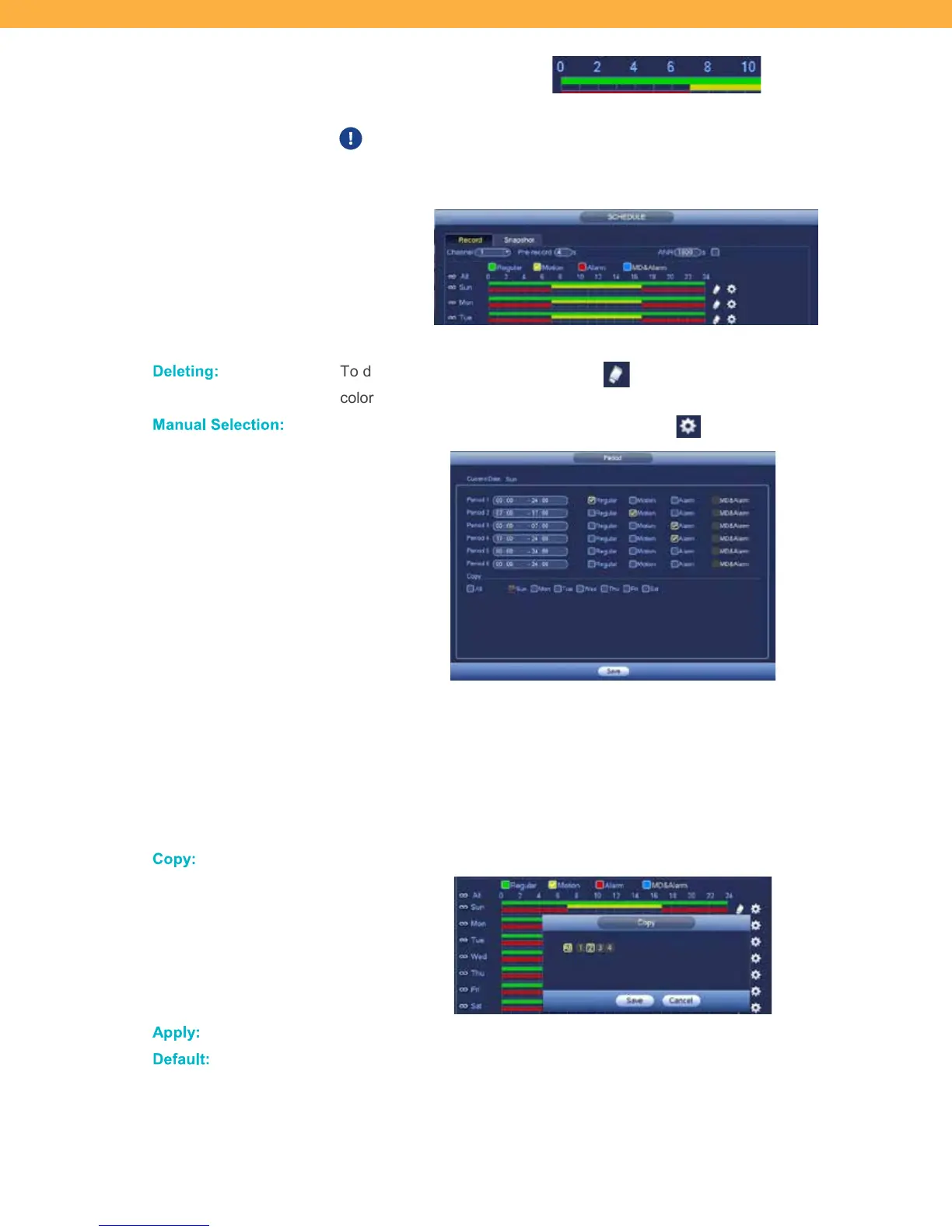
To delete a schedule, click the Delete icon and drag over the schedule
color bar to remove.
Manua l S elect ion:
To select the day/time manually click the Setting icon:
1. Click the Period fields to select the required times for recording.
2. Click the checkboxes to select the type of recording (Regular, Motion,
Alarm).
3. Select the Days to apply the schedule individually or select All to have
the schedule run daily.
4. Click Save to apply your schedule.
Copy :
Click to apply the scheduled setup to another Channel (Camera) or to All.
Apply:
Click to save Schedule settings.
De fault :
When selected, the Recording Schedule will return to default settings, no
scheduled options will be selected.



 To Next Page