23
9.2 Sear ch /Playback
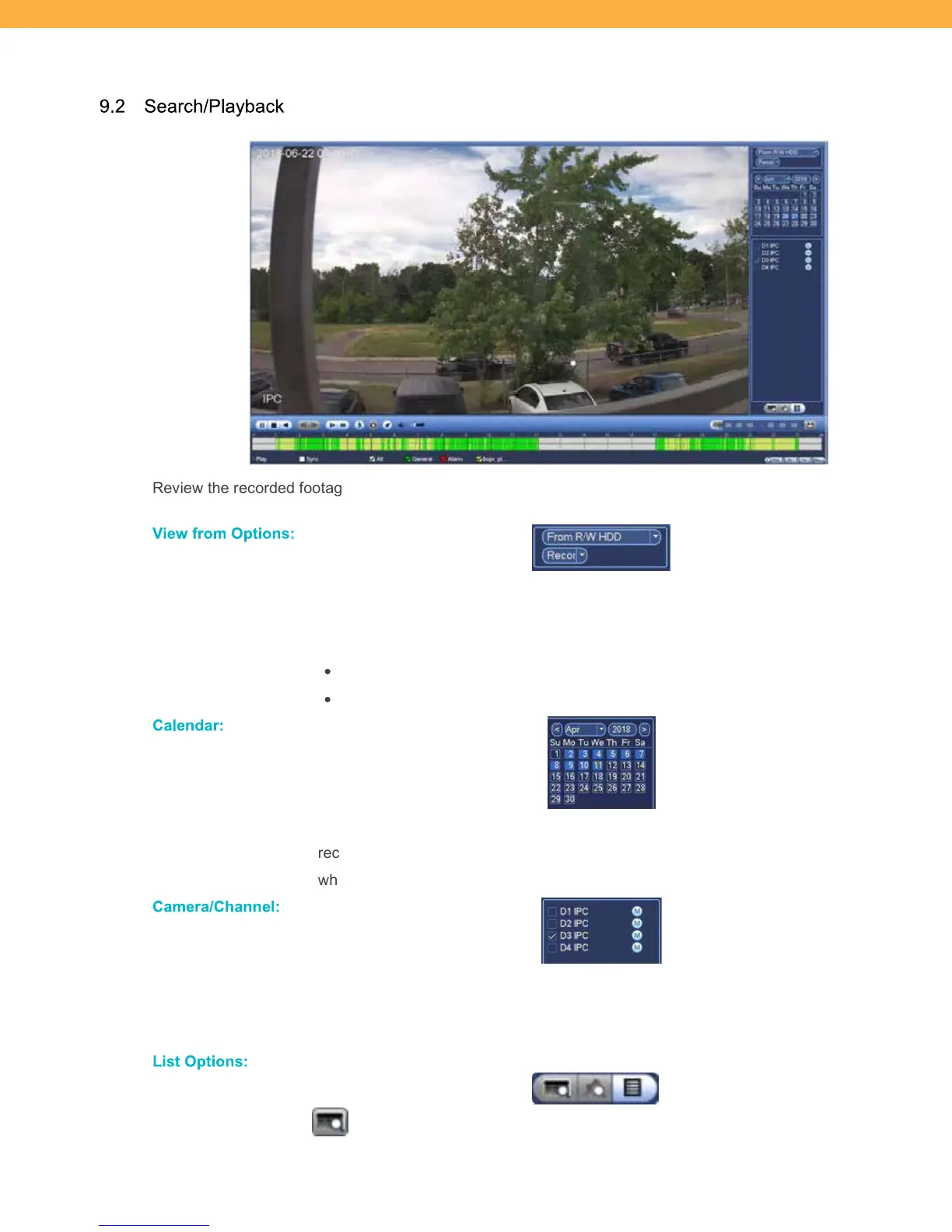
Review the recorded footage right click on the screen to exit to the Live View screen.
Vie w f rom O ptions :
Click the drop down to select where to view footage from: R/W HDD – Internal
storage (NVR hard drive) or I/O Device.
Click the drop down to select the footage type:
RECORD: Click to select Recorded footage
PIC: Click to select Snap Shot (picture) footage
Ca le nda r:
Click the arrows beside the month and year to change the calendar dates – the
recorded footage blocks will appear in the Playback Bar below. Dates are bolded
when there is an event recorded.
Ca mera/Ch annel:
Click the checkbox to select the Channels (Cameras) to view. The available footage
will appear on the playback grid on the bottom of the screen. Change the Channel
(Camera) view from single to multi
view using the tabs.
Lis t O ptions :
View recorded footage lists.
Snapshot List: Click to view the list of Snapshots.



 To Next Page