24
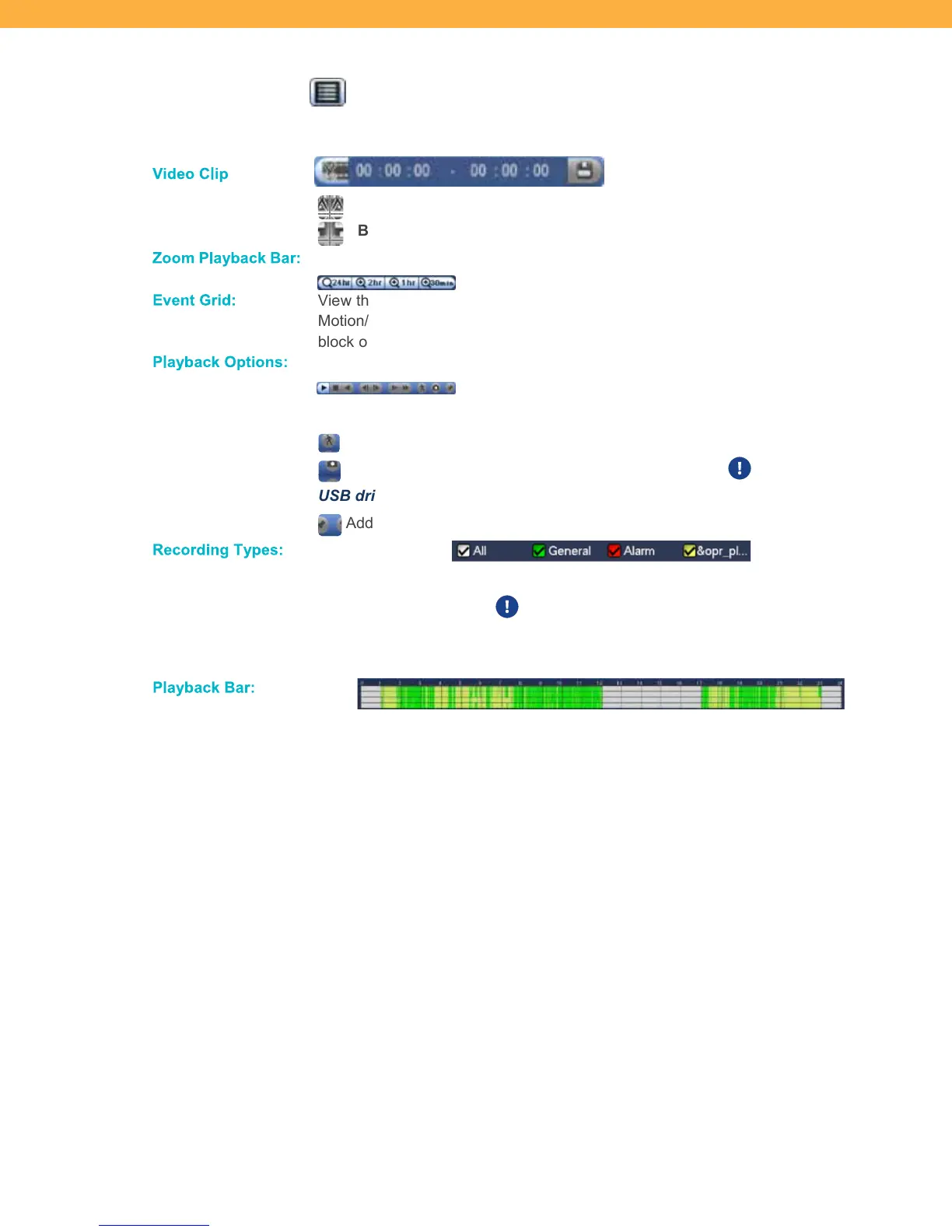
Book Mark List: Click to view the list of bookmarked footage.
Footage List: Click to view the list of recorded video clips.
Vid eo Cl ip
Video Clip Backup: Select video start/end times.
Backup Video Clip: Click to save selected clips.
Zoom Pla yback Ba r:
Click the time options to change the amount of time displayed in the Playback Bar.
Event G rid :
View the recorded footage on the bottom grid by type (Regular/Green, Alarm/Red,
Motion/Yellow or All). When footage is available to view it will appear as a colour
block on the grid. The colour will match the recording type listed below.
Pla yback O ptions :
Use the Playback icons to navigate through the footage (play,
stop, back, fast forward/back).
Smart Search: Review motion events in specific zones of your video stream.
Snapshot: Click to take a snapshot during playback. You must insert a
USB drive connected to take a snapshot.
Add Bookmark: Click to bookmark a specific point in the playback video.
Reco rding T ypes:
Click the checkboxes to show/hide recorded footage by type. When selected, the
recording typ
e will show. Recorded footage will show in the color that
corresponds with the recorded types.
Pla yback Ba r:
Click on the recorded footage (color bars) to view the footage.



 To Next Page