25
10 MAI N MENU & AD VANCED SET UP
This section provides details about the Main Menu and more details about setup, backup, upgrades, etc. When
navigating the screen there are commonly used command buttons:
Click to change back to the default settings on the screen. Any custom settings will be lost.
Click to refresh the screen when changes have been entered.
Click to apply your changes and return to the Main Menu.
Click to exit the screen to the Main Meu without saving your changes.
Click to save your changes without leaving the screen.
Some settings can be applied to one or more other Channels (Cameras).
Click to open the Copy options and select the Channels (Cameras) to copy the current settings.
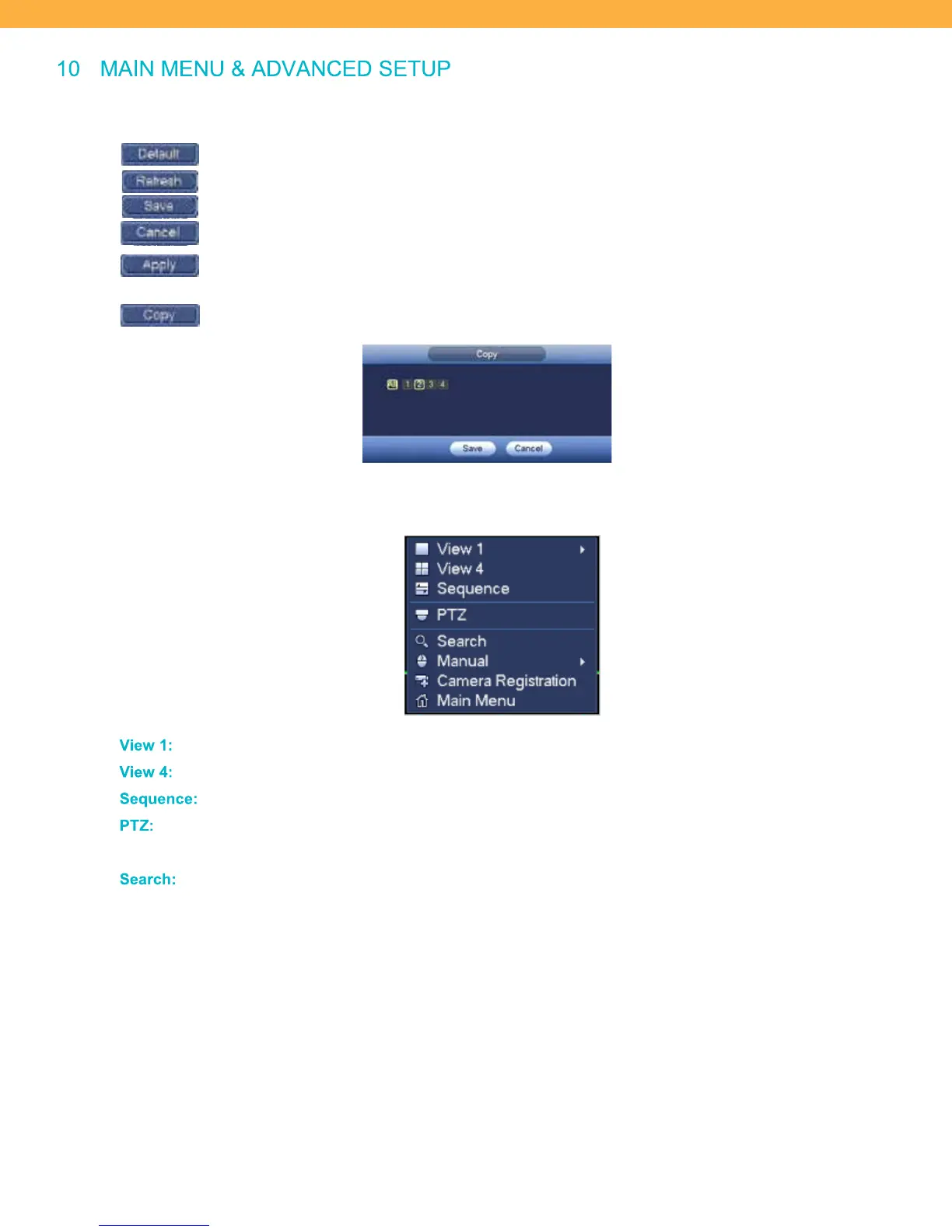
From the Live View screen, right click the mouse to access the menu window.
Vie w 1 :
Click to select a single Channel (Camera) view.
Vie w 4 :
Click to select the multi view screen (all 4 Channels).
Seque nce:
The sequence of Channel (Camera) display when video loss occurs.
PTZ:
Point – Tilt – Zoom. This feature is not available on the included cameras. The
included cameras do offer a 127
o
field of view.
Search:
Click to open the Search/Playback screen. To view recorded footage.



 To Next Page