37
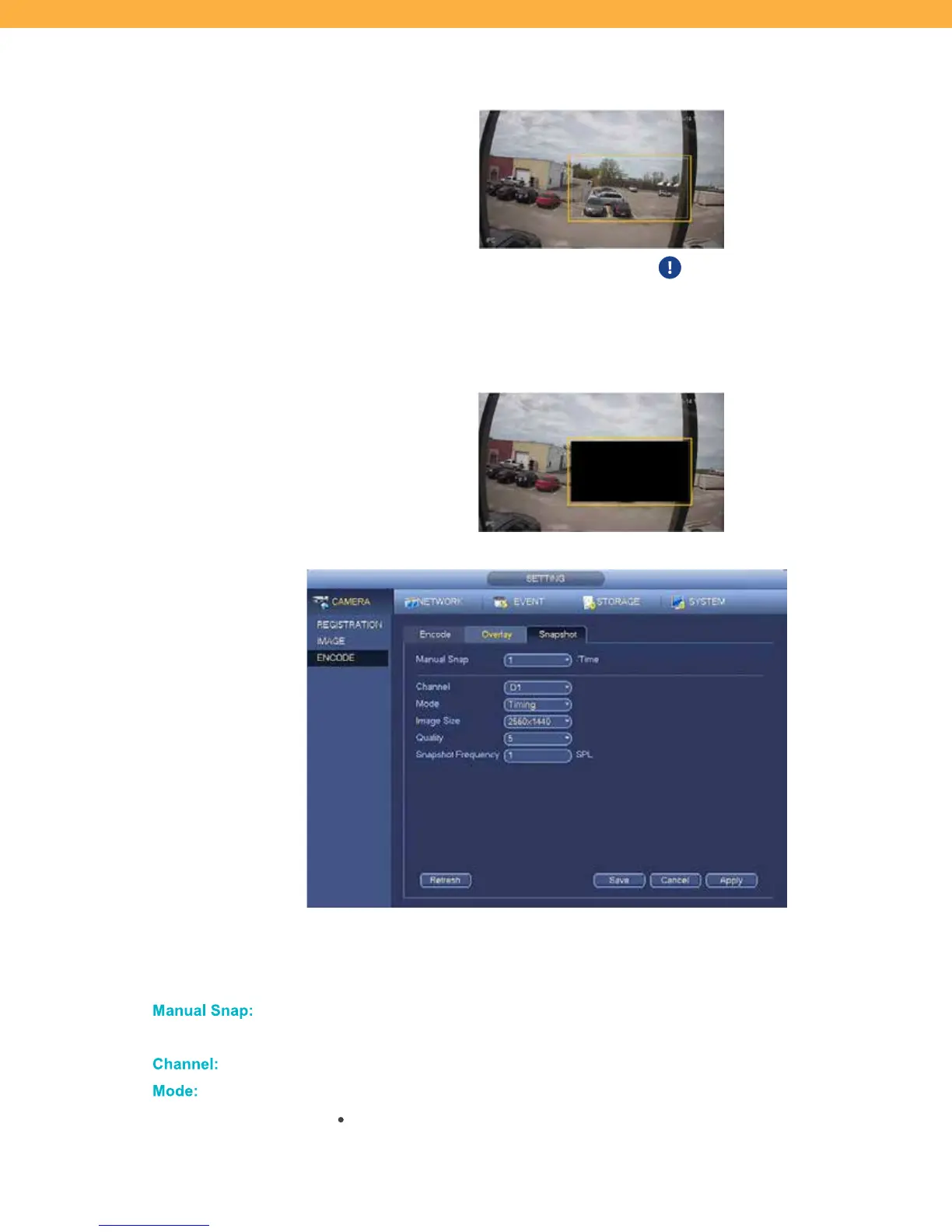
area to block out. Click and drag over the area to block out. Right click on the Live
View screen to return to the Overlay screen.
Click Setting again to set another coverage area. Each area is numbers in
the top left corner of the coverage square.
When selected the area will appear blocked out and will not appear in the
recorded footage or snapshots.
Snapshot Tab
Set the snapshot quality and frequency. Snapshots can be setup to occur based on a schedule or can be
taken manually from the Live View screen using the Icon Toolbar.
Manua l S nap:
This is the number of snapshot that will be taken when you select to take a
snapshot manually. Click the drop down to select from the options.
Ch anne l:
Click the drop down to select a Channel (Camera) or select All.
Mode :
Click the drop down to select from the options:
Timing – Regular snapshots during the period selected



 To Next Page