36
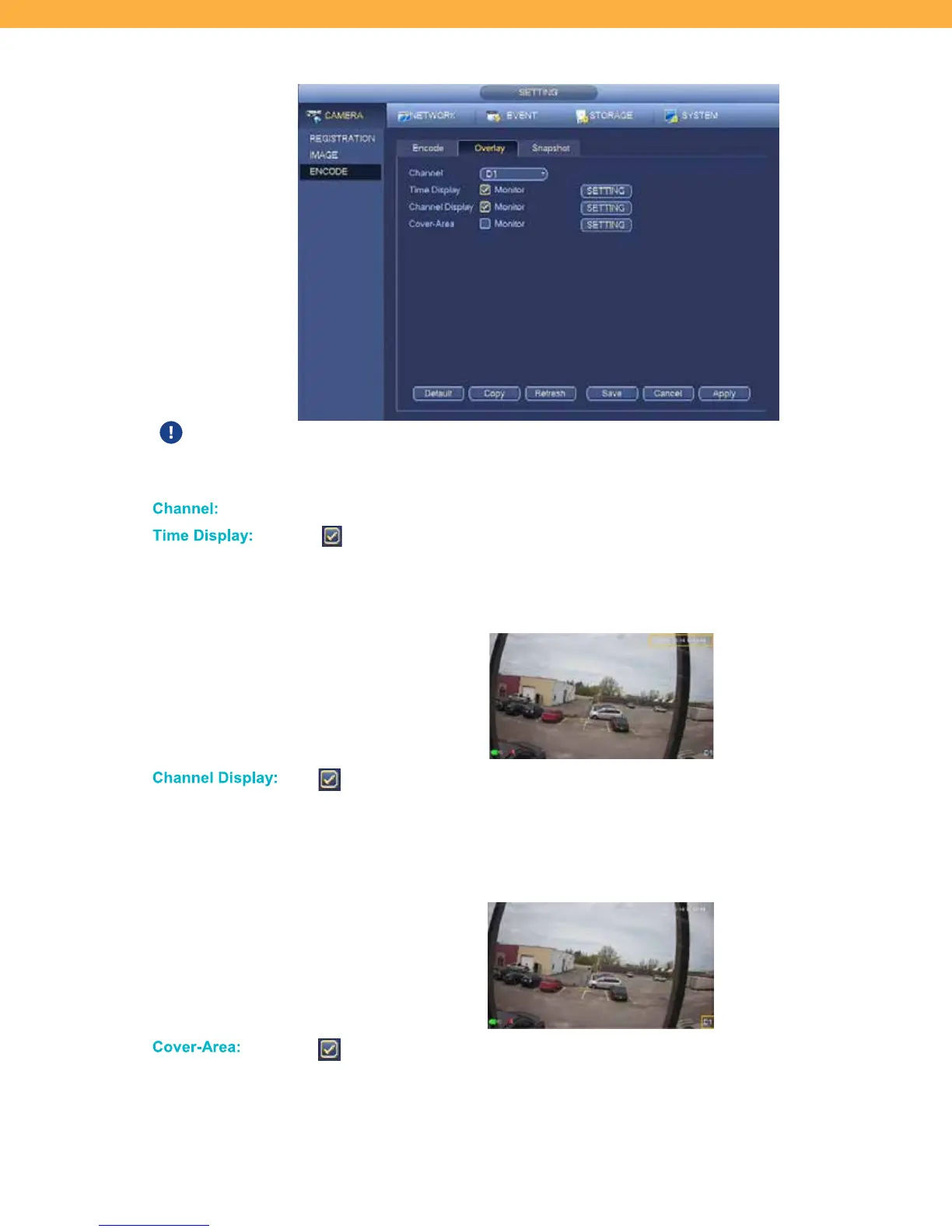
Overlay Tab
Overlays are the labels that appear on the Live View screen (example: Channel (Camera)
name and Time).
Ch anne l:
Click the drop down to select a Channel (Camera).
Tim e Dis pla y:
When the checkbox is selected the Time will display on the Live View screen.
Click Setting and the view screen will open to allow you click and drag the time label
where you would like it to appear. The default location is the top right corner of the
camera view. Right click on the Live View screen to return to the Overlay screen.
Ch anne l Di spla y:
When the checkbox is selected the Channel (Camera) name will be displayed
on the Live View screen. Click Setting and the view screen will open to allow you
click and drag the channel label where you would like it to appear. The default
location is the bottom right corner of the camera view. Right click on the Live View
screen to return to the Overlay screen.
Co ver-Area:
When the checkbox is selected you are able to select an area of the camera
view to block out. This can be useful if there is an area that does not need to be
recorded or to block out areas that may trigger motion recording (ex: traffic in the
background). Click Setting and the view screen will open to allow you select the



 To Next Page