190
Copying
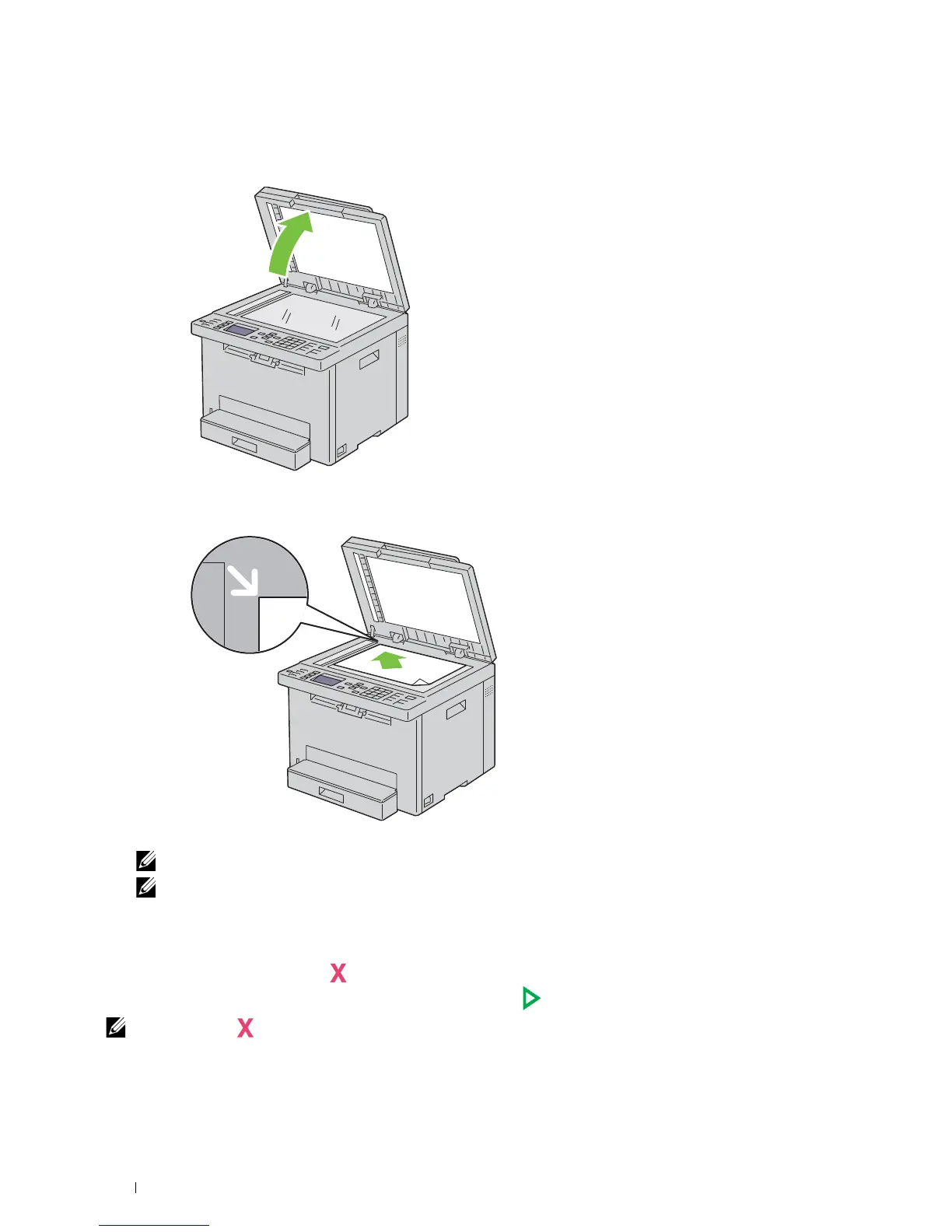
To make a copy from the document glass:
1
Open the document cover.
2
Place the document face down on the document glass and align it with the registration guide on the top left corner
of the glass.
3
Close the document cover.
NOTE:
Leaving the document cover open while copying may affect the copy quality and increase the toner consumption.
NOTE:
If you are copying a page from a book or magazine, lift the document cover until its hinges are caught by the
stopper and then close the cover. If the book or magazine is thicker than 20 mm, start copying with the cover open.
4
Customize the copy settings including the number of copies, copy size, contrast, and image quality. For more
information, see "Setting Copy Options" on page 191.
To clear the settings, press the
(Cancel)
button
.
5
Ensure that
Start Copy
is highlighted, and then press the
(Start)
button to start copying.
NOTE:
Press the (Cancel) button to cancel a copy job while scanning a document.












 To Next Page