Maintaining Your Printer
269
3
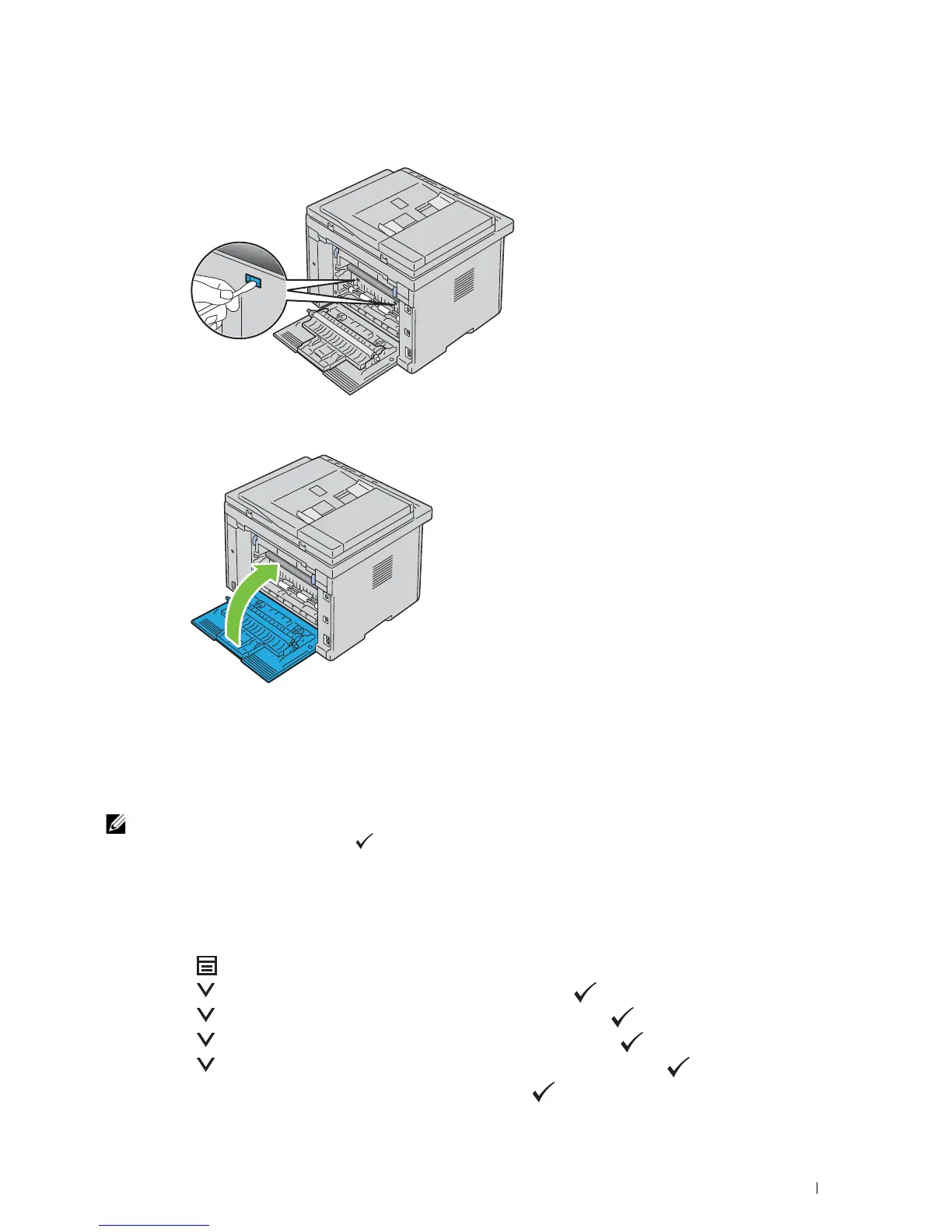
Clean the CTD sensor inside the printer with a clean dry cotton swab.
4
Close the rear cover.
5
Turn o n the p rinte r.
Adjusting Color Registration
This section describes how to adjust the color registration when you first install the printer or after moving it to a
new location.
NOTE:
A password is required to enter
Admin Menu
when
Panel Lock Set
is set to
Enable
. In this case, enter the
password you specified, and press the (Set) button.
Performing Auto Adjust
Auto Adjust allows you to correct the color registration automatically.
Operator Panel
1
Press the
(Menu)
button.
2
Press the button until
System
is highlighted, and then press the
(Set)
button.
3
Press the button until
Admin Menu
is highlighted, and then press the
(Set)
button.
4
Press the button until
Maintenance
is highlighted, and then press the
(Set)
button.
5
Press the button until
Adjust ColorRegi
is highlighted, and then press the
(Set)
button.
6
Ensure that
Auto Adjust
is highlighted, and then press the
(Set)
button.












 To Next Page