230
|Scanning
Setting a User Account (SMB Only)
To send scanned data to a SMB shared folder, it is necessary to have a shared folder on a
computer. To create a shared folder, a user account with a valid password is required.
For Windows
®
:
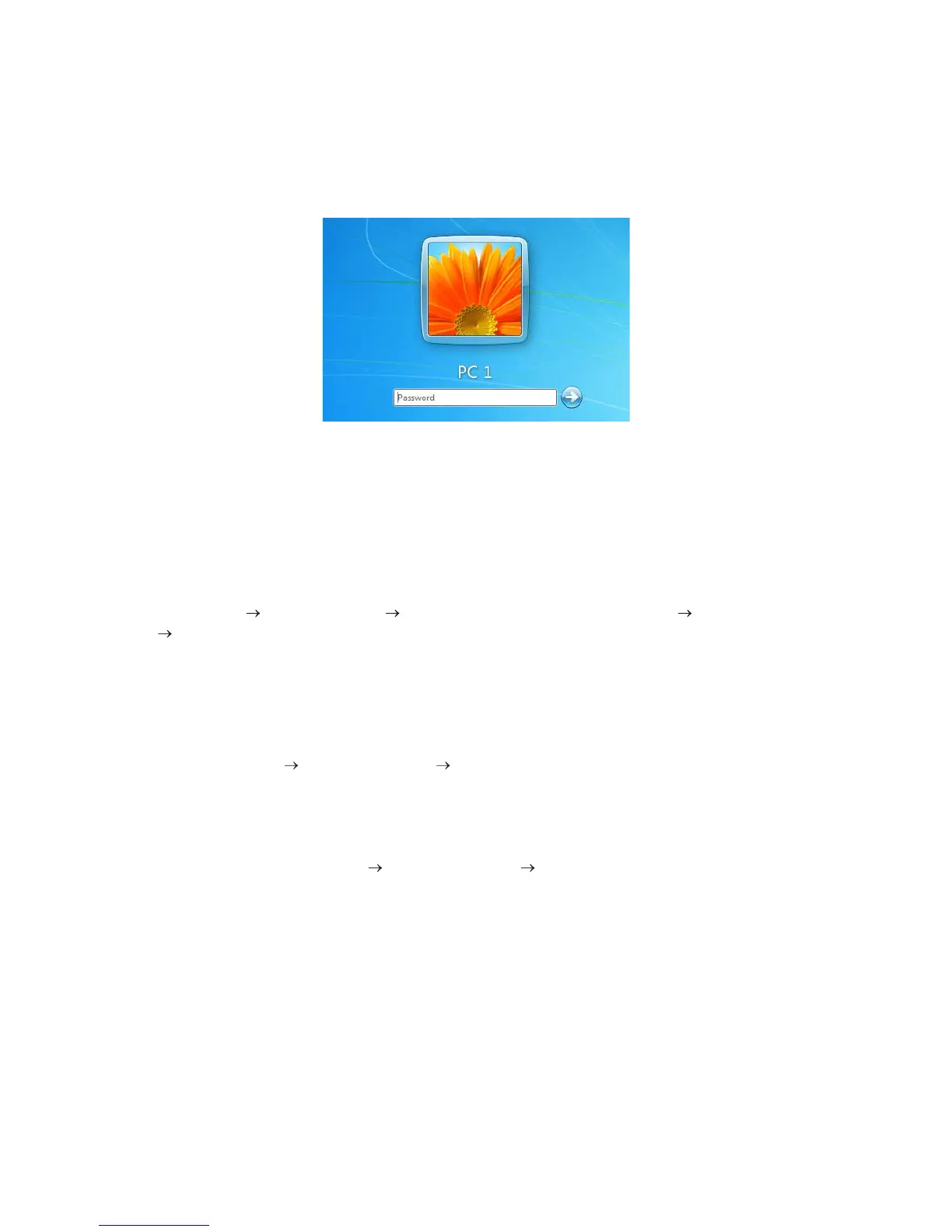
If the user account you are going to use does not have a login password, set a password
with the following procedure.
After checking the login user name and password of the user account, proceed to
"Creating a Shared Folder (SMB Only)."
The following procedure uses Windows
®
7, Windows
®
10, and OS X 10.10 as examples.
For Windows
®
7:
1 Click Start Control Panel User Accounts and Family Safety User Accounts
Create a password for your account.
2 Add in a password for your user login account.
For Windows
®
10:
1 Right-click the Start button, and then click Settings.
2 Click Accounts Sign-in options Add under Password.
3 Add in a password for your user login account.
For OS X 10.10:
1 Click System Preferences Users & Groups Change Password.
2 Enter a password for your user login account in New password.
3 Re-enter the password in Verify.
Creating a Shared Folder (SMB Only)
Create a shared folder to store the scanned data from the printer.
The following procedure uses Windows
®
7, Windows
®
10, and OS X 10.10 as examples.
For Windows
®
7 and Windows
®
10:
1 Create a folder in the desired directory on your computer.
MyShare is used as an example folder name in this procedure.


 To Next Page