a.
Press the Menu button on the printer until you see Utilities Menu, and then press Select.b.
Press Menu until you see Print Menus, and then press Select to print the page. The message
Printing Menus appears on the display.
c.
Verify the optional 250-sheet or 500-sheet tray is listed under "Installed Features."d.
If it is not listed, turn the printer off, unplug the power cord, and reinstall the tray.e.
4.
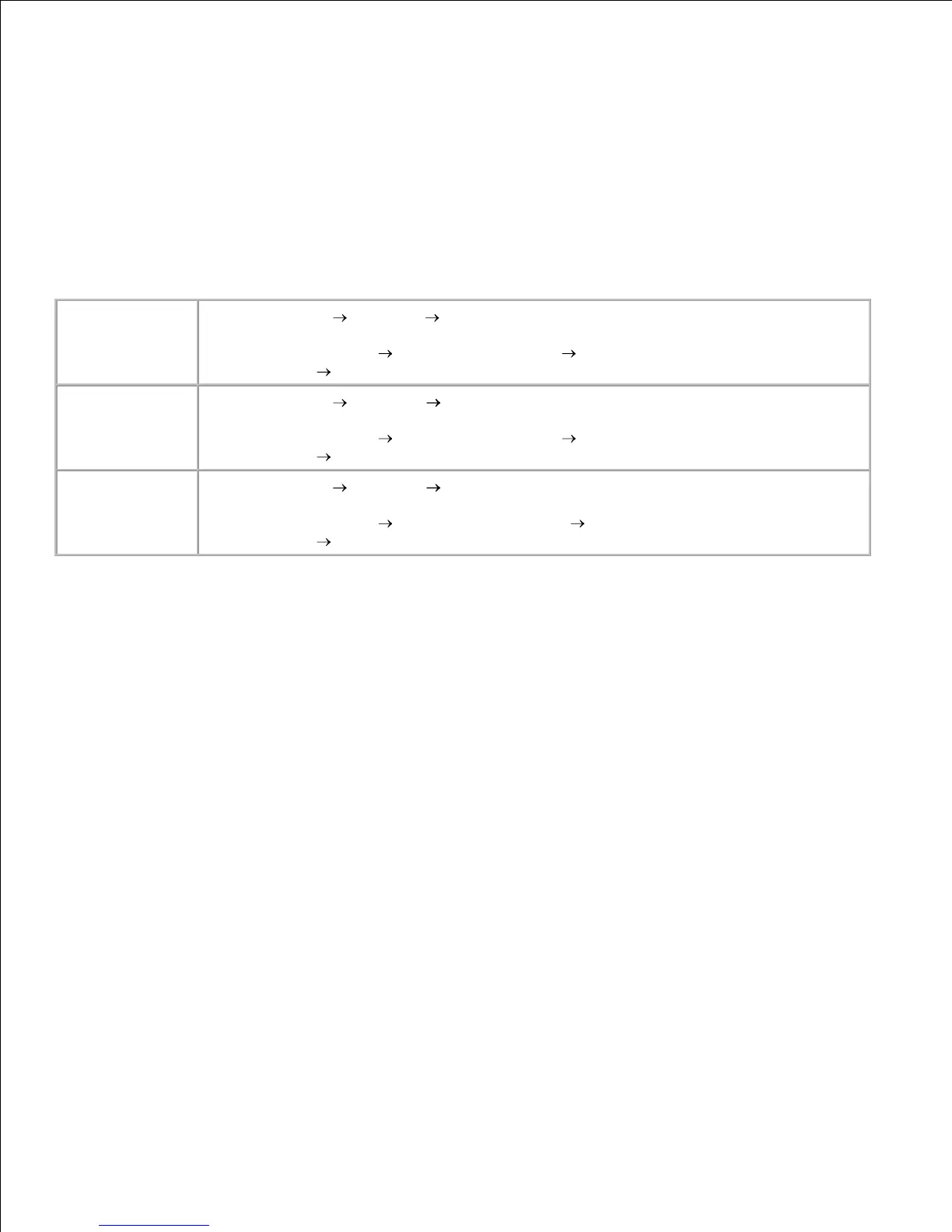
Update your driver by following the instructions in the table. If the printer is on the network, update
the driver for each client.
5.
Click Start Settings Printers and Faxes.1.
Right-click the Dell Laser Printer M5200 icon.2.
Click Properties Device (or Options) Update (or Update Now).3.
Click OK OK. Close the Printers folder.4.
Windows 2000
Windows NT 4.0
Click Start Settings Printers.1.
Right-click the Dell Laser Printer M5200 icon.2.
Click Properties Device (or Options) Update (or Update Now).3.
Click OK OK. Close the Printers folder.4.
Click Start Settings Printers.1.
Right-click the Dell Laser Printer M5200 icon.2.
Click Properties Device (or Features) Update (or Update Now).3.
Click OK OK. Close the Printers folder.4.
If Update is unavailable, follow these steps:
In the Available Options list, click 250-sheet tray or 500-sheet tray.a.
Click Add.b.
Click OK, and then close the Printers folder.c.
If Update Now is unavailable, follow these steps:
In the Options list, find 250-sheet tray or 500-sheet tray.a.
Change the setting from Not Installed to Installed.b.
Click OK, and then close the Printers folder.c.
After loading paper in the installed drawer, specify the paper type from the printer operator panel.
Press the Menu button on the printer until you see Paper Menu, and then press Select.a.
Press Menu until you see Paper Type, and then press Select.b.
Press Menu until you see Tray <x> Type, and then press Select.c.
d.
e.
6.






 To Next Page