Downloading drivers
1 Turn on the laptop.
2 Go to Dell.com/support.
3 Click Product Support, enter the Service Tag of your laptop, and then click Submit.
NOTE: If you do not have the Service Tag, use the auto detect feature or manually browse for your laptop model.
4
Click Drivers and Downloads.
5 Select the operating system installed on your laptop.
6 Scroll down the page and select the graphic driver to install.
7 Click Download File to download the graphic driver for your laptop.
8 After the download is complete, navigate to the folder where you saved the graphic driver le.
9 Double-click the graphic driver le icon and follow the instructions on the screen.
Identifying the display adapter
1 Start the Search Charm and select Settings.
2 Type Device Manager in the search box and tap Device Manager from the left pane.
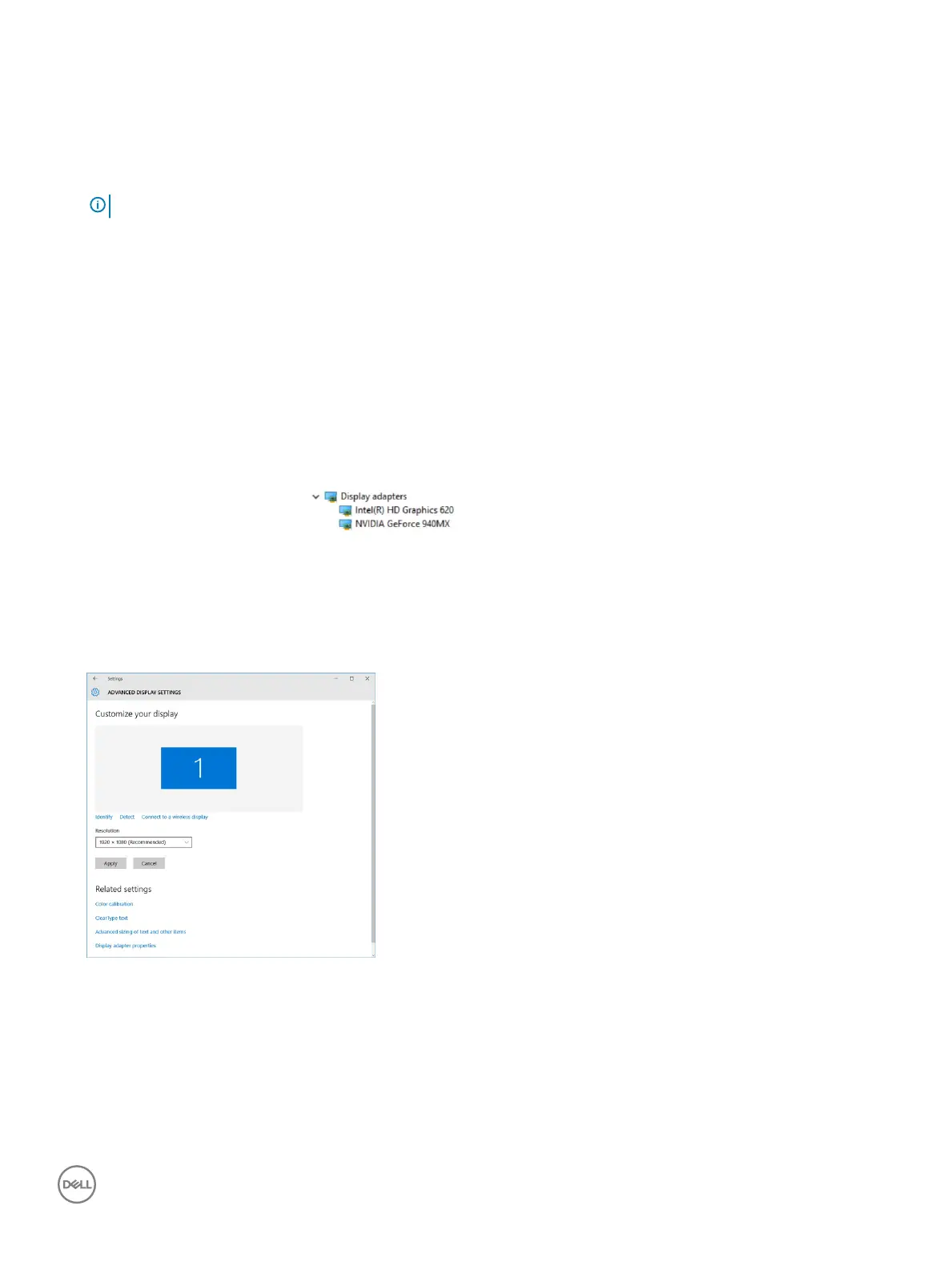
3 Expand Display adapters.
The display adapters are displayed.
Changing the screen resolution
1 Press and hold the desktop screen and select Display Settings.
2 Tap or click Advanced display settings.
3 Select the required resolution from the drop-down list and tap Apply.
Rotating the display
1 Right click on the desktop.
A sub menu is displayed.
2 Select Graphic Options > Rotation and choose on of the following:
• Rotate to Normal
• Rotate to 90 Degrees
Technology and components
49



 To Next Page