16
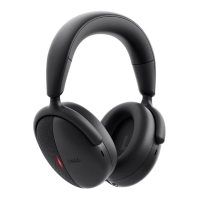
Connecting your wireless headset to your devices
Swift pair:
1. In Windows Search, type Bluetooth.
2. Click Bluetooth and other devices settings. The Settings window appears.
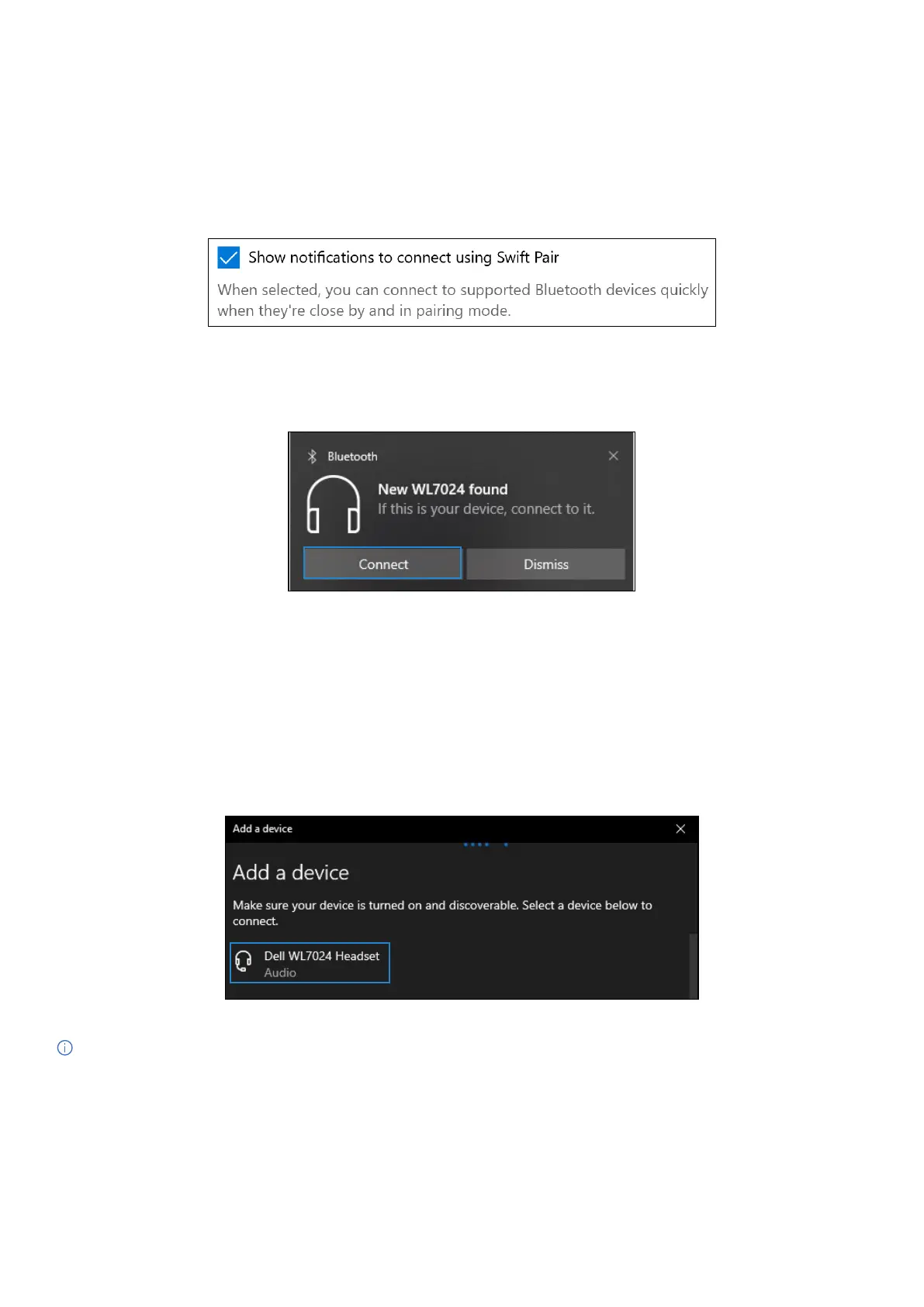
3. Ensure that the Show notifications to connect using Swift Pair box is checked.
4. Ensure that the Bluetooth is turned on.
Figure 17. Enable Swift Pair
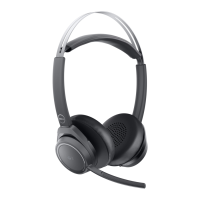
5. Place your headset near your computer. The New Dell WL7024 found window appears.
6. Click Connect and confirm the pairing process on both the headset and your computer
Figure 18. New WL7024 found message
Add device:
1. In Windows Search, type Bluetooth.
2. Click Bluetooth and other devices settings. The Settings window appears.
3. Ensure that the Bluetooth is turned on.
4. Click Add Bluetooth or other device > Bluetooth.
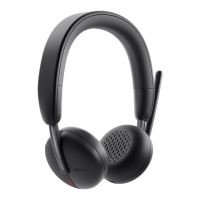
5. From the list of available devices, click Dell WL7024 Headset.
Figure 19. Add Dell WL7024 Headset
NOTE: If the headset is not listed, ensure that the headset is in pairing mode.


 To Next Page