25
Using the headset
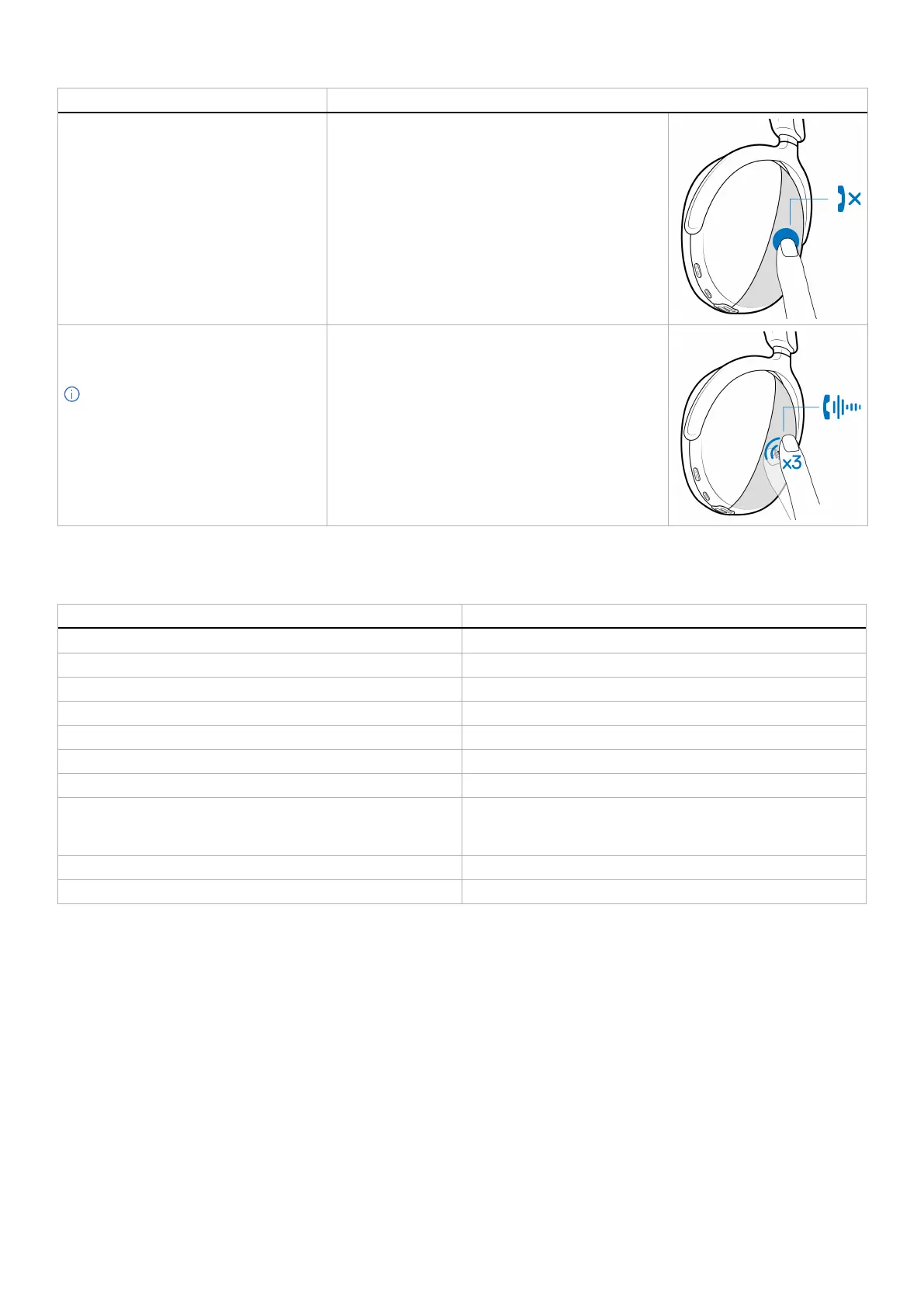
Function Action
Reject the incoming call. Touch and hold
Downlink noise reduction.
(Incoming audio noise cancellation when
calling.)
NOTE: Downlink noise reduction
focuses solely on speech-vocals. For
example, if you are using a phone and
someone plays music during the online
meeting then you can activate this
feature to remove the interfering music
from the conversation.
Tap three times on the touch zone.
Wireless audio receiver LED status
Table 10. Wireless audio receiver LED status.
Status Wireless audio receiver LED
Headset is not connected. Flashes blue
In pairing mode Rapidly flashes blue.
Headset is connected but no Teams. Static blue
Headset is connected, Teams is not active and not signed in. Flashes purple for 10 seconds and then goes to the previous state.
Headset is connected, Teams is active but not signed in. Flashes purple for 3 times and then lights up in blue.
Headset is connected but sign-in to Teams has failed. Flashes purple for up to 70 seconds and then lights up in blue.
Headset is connected, Teams is running and signed in. Static purple
Headset is connected, Teams is running and signed in, Teams
notifications, missed call, voice mail, or meeting alert is displayed on
the screen.
Flashes purple for up to 5 minutes until the user acts on it.
Headset is connected, and the microphone is muted. Static red
Headset is connected, and the microphone is unmuted. Static green


 To Next Page