Troubleshooting
9
D 1650iD/D 2050iD 9-1
9 Troubleshooting
9.1 When Incorrect Copies Are Produced
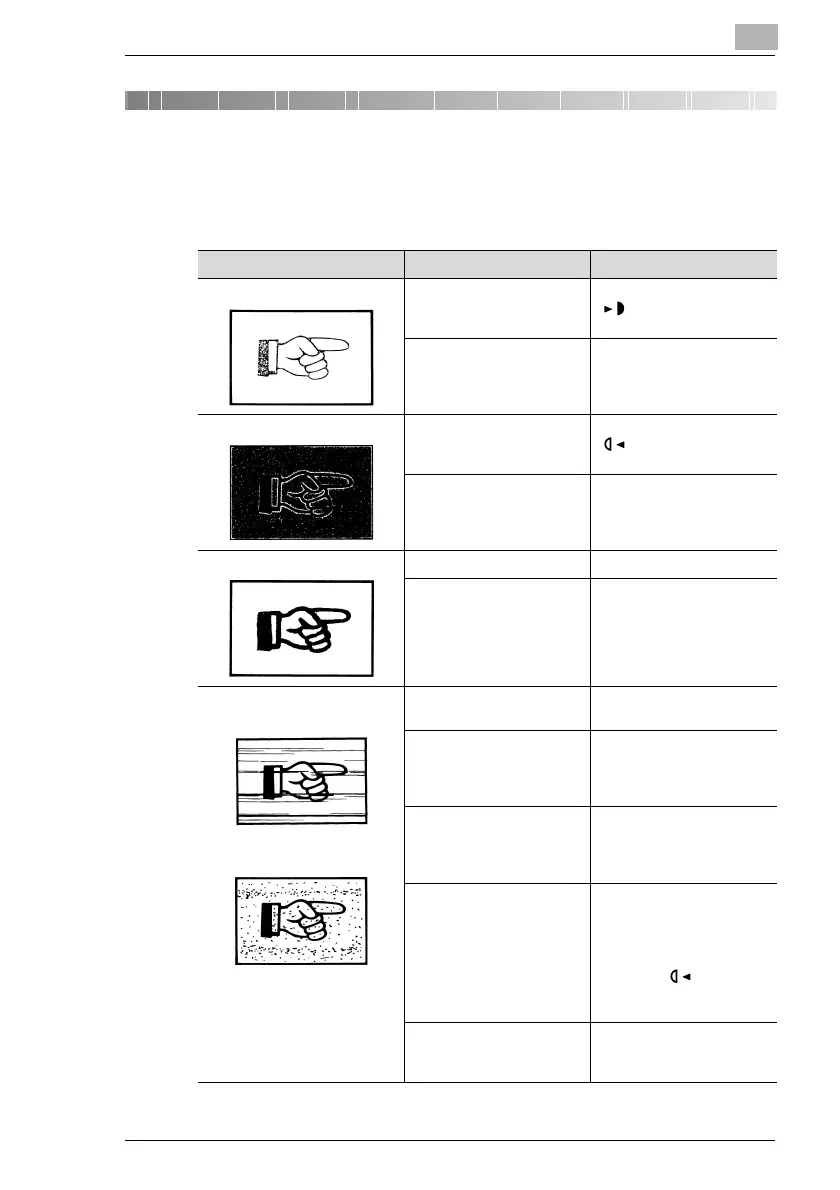
Symptom Possible Cause Remedy
The copy is too light. The copy density is set too
light.
Use the Auto/Photo key
to select a darker copy
density (p. 5-26).
The copy paper is damp. Replace the paper. (p. 3-4)
The copy is too dark. The copy density is set too
dark.
Use the Auto/Photo key
to select a lighter copy
density (p. 5-26).
The document was not
pressed close enough
against the Original Glass.
Position the document so
that it is pressed closely
against the Original Glass.
(p. 3-9)
The copy is blurry. The copy paper is damp. Replace the paper. (p. 3-4)
The document was not
pressed close enough
against the Original Glass.
Position the document so
that it is pressed closely
against the Original Glass.
(p. 3-9)
There are streaks through the
copy.
There are specks throughout
the entire copy.
The Original Glass is dirty. Wipe the glass with a soft
dry cloth. (p. 10-6)
The document pad is dirty. Clean the document pad
with a soft cloth dampened
with a mild detergent.
(p. 10-6)
The original is highly
translucent, such as diazo
photosensitive paper or
OHP transparencies.
Place a blank sheet of
paper over the document.
(p. 3-10)
A double-sided document is
being copied.
If a thin double-sided
document is being copied,
the information on the back
side may be reproduced in
the copy. Use the Auto/
Photo key to select a
lighter density for the
background. (p. 5-26)
The Imaging Unit has
reached the end of its
service life.
Contact your service
representative.



 To Next Page