Advanced Copy Operations
6
D 1650iD/D 2050iD 6-3
Double-sided copying is not possible under the following
conditions:
G Double-sided documents are loaded into the Automatic Document
Feeder AF-12.
G The Manual Bypass is selected.
G Special paper (cards, OHP transparencies, envelopes, or label
sheets) is loaded.
G The “PAPER TYPE” function is set to “1-SIDE”.
G Paper with a width less than 140 mm is selected.
To make double-sided copies using the Original Glass
1 Position the document(s) to be
copied.
Refer to “Loading the Document” on
page 3-8.
H For details on loading the
documents into the Document
Feeder, refer to “To make
double-sided copies using the
Document Feeder” on page 6-4.
2 Press the [Copy] key.
The “Duplex” indicator lights up.
3 If necessary, specify any other copy
setting.
H Before Making Copies (p. 5-1)
H Advanced Copy Operations
(p. 6-1)
4 Using the 10-Key Pad, enter the desired number of copies.
5 Position the first document page,
and then press the [Start] key.
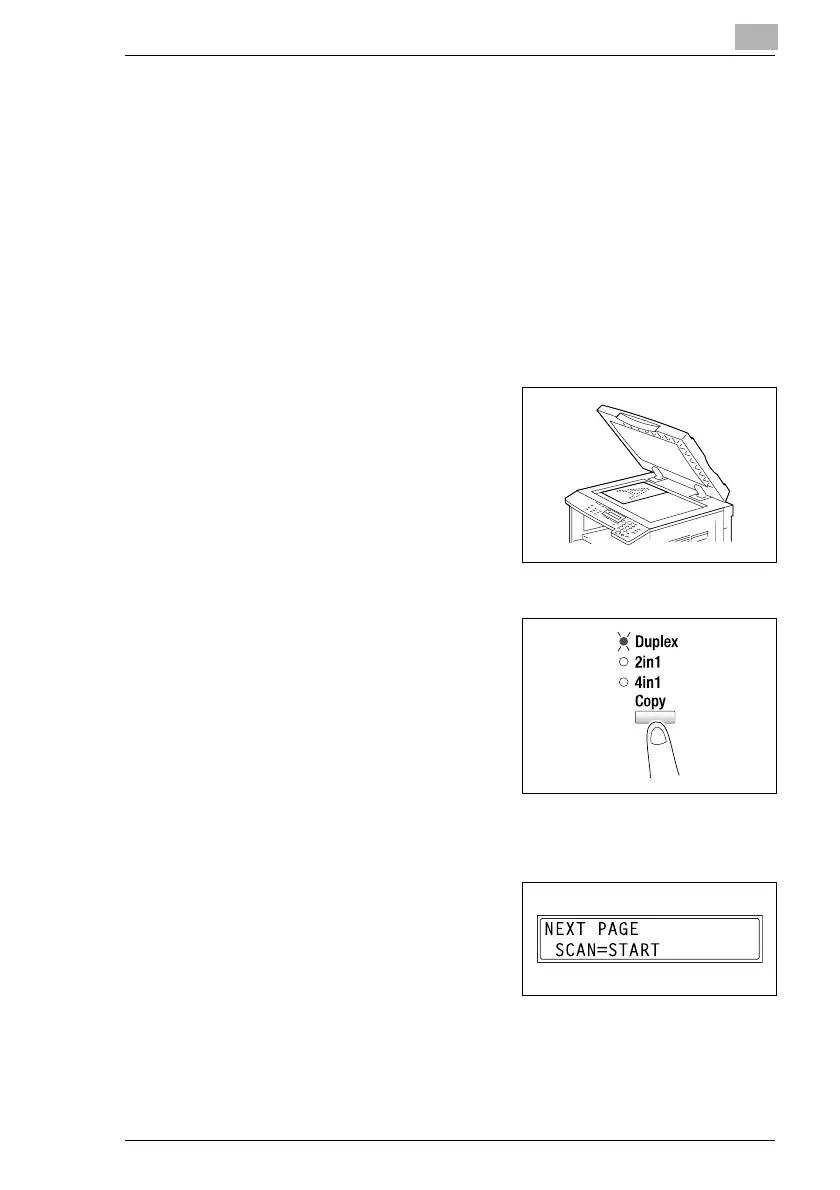
After the document page is
scanned, the message “NEXT
PAGE SCAN=START” appears.
6 Position the second document page, and then press the [Start] key.
After the document page is scanned, a double-sided copy is printed.



 To Next Page