OPERATOR’S MANUAL
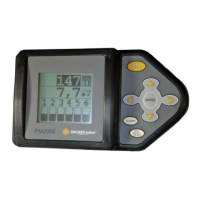
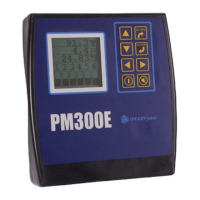
PM300E and PM332E Planter Monitors
11001-1423-200710
OPERATE MODE / 29
OPERATE MODE
OPERATE SCREEN SETUP
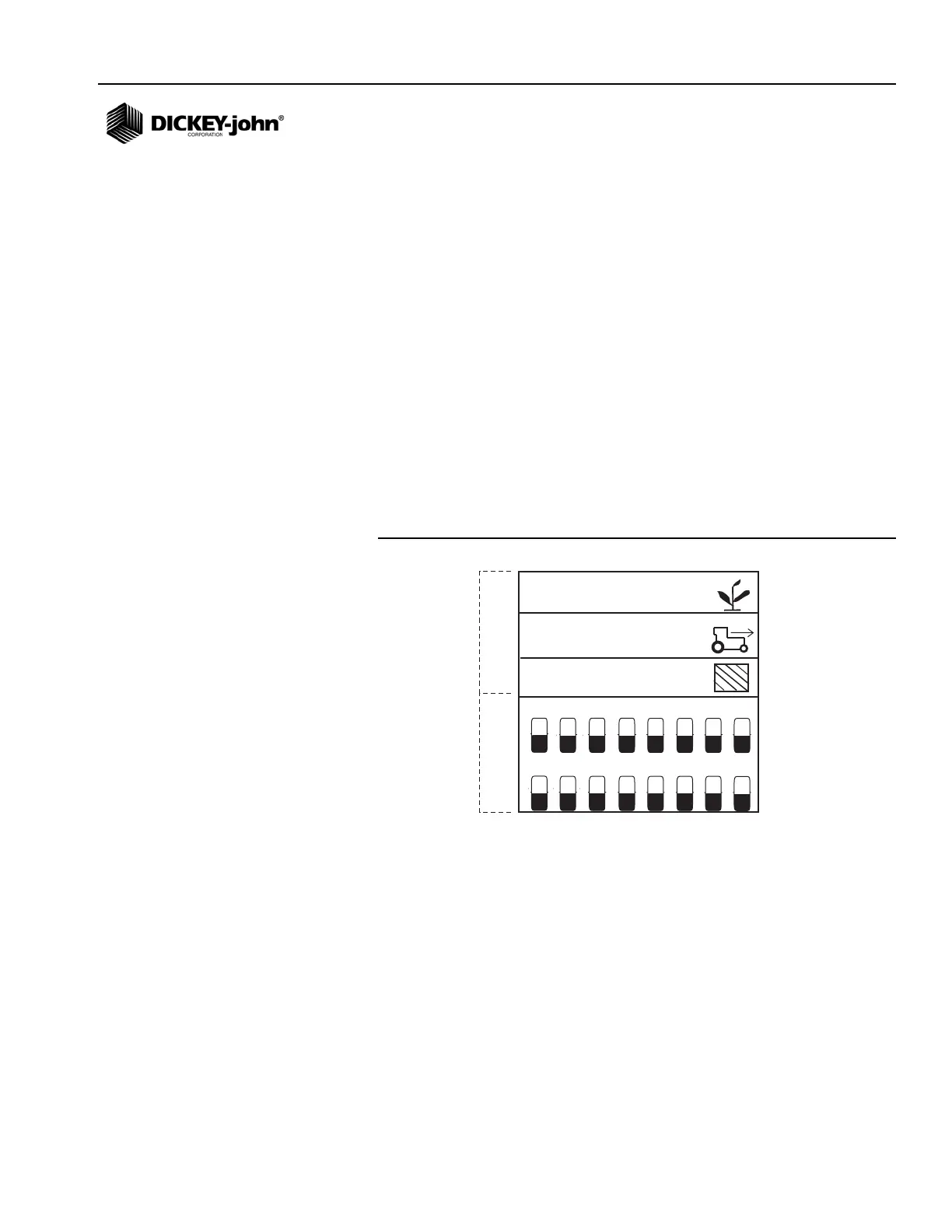
The Main Operate screen provides many tools to monitor planting. This
screen can be immediately accessed from any other screen or sub-menu by
pressing the Escape key.
The Operate screen is divided into the upper parameter window that
displays three planting parameters in graphics mode. Pressing the Down
and Up Arrow keys on the Main Operate screen will scroll through other
available planting parameters.
The lower parameter window monitors individual row status. When more
rows are configured ON than are viewable, the monitor automatically scrolls
through the rows at 5 second intervals (bar graph with 32-row machine).
The operator can use the Right and Left Arrow keys to manually select the
desired rows. Automatic scrolling will restart 10 seconds after a manual
selection.
Figure 19
Main Operate Screen
CUSTOMIZING THE UPPER PARAMETER
WINDOW
NOTE: Italicized text indicates
functionality that is locked.
Authorized users can unlock
screens by highlighting the icon
and pressing the Enter key to
display the Password screen.
Refer to the Advanced Setup
section for additional
information.
The Main Operate screen can be customized by changing the number of
parameter lines to display in the upper window, the icon selected as text or
graphic, and the planting parameter reported for each line.
An example of five parameters selected:
1 = Average population
2 = Speed
3 = Field area
4 = Total area
5 = Shaft RPM
1
9
2
10
3
11
4
12
5
13
6
14
7
15
8
16
0,0
00,0
Upper
Lower
0,0


 To Next Page