Receiver Customization
101
Using Multimedia
External Hard-Disk Drive
You can expand the storage capacity of your receiver’s DVR by connecting a compatible,
external USB 2.0 hard-disk drive (HDD). With the Archiving feature enabled on your
account (fees may apply), you can transfer programs from the receiver to your external
storage device, and play back programs directly from a connected external drive.
To choose a compatible external hard-disk drive, consider the following:
• The hard-disk drive must have a USB 2.0 data connection.
• The capacity of the hard drive should be between 40GB and 2TB.
• Using a hard-disk drive with an external power supply is recommended. External hard
drives powered only by the USB cable may not function properly with your receiver.
• Do-it-yourself expansion kits and expandable storage racks may not be compatible.
• Only hard drives that are single-disk units are currently supported.
• Dedicate the hard-disk drive for use only with your DISH receiver; do not use the drive
for any other purposes, such as the backup and storage of computer files.
To use the external hard-disk drive feature:
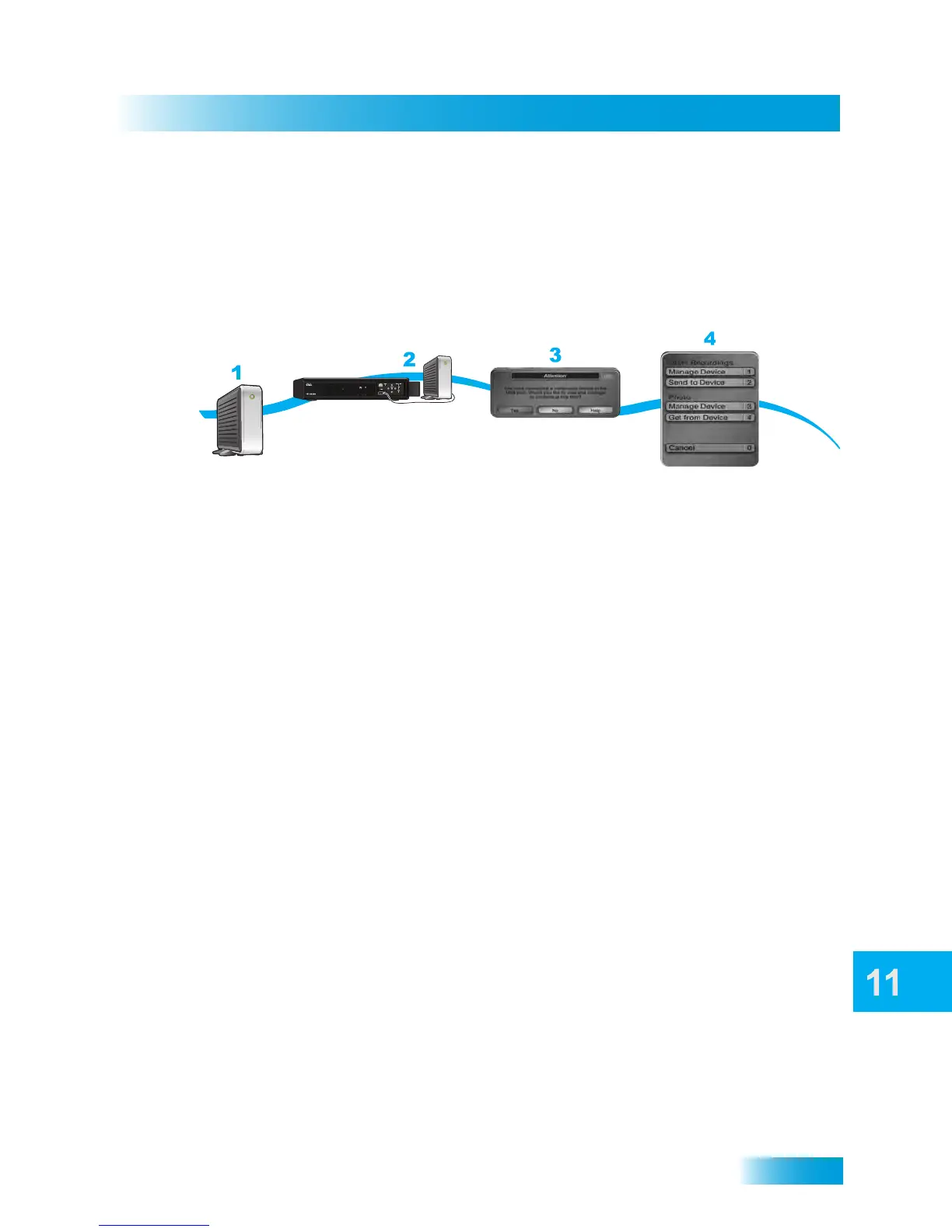
1 Purchase a USB 2.0 hard-disk drive from a consumer electronics retailer.
2 Connect the drive to one of the receiver’s two USB ports, making sure to follow any
connection instructions that came with the hard-disk drive.
Note: Currently, the receiver supports having one USB device connected at a time. If you
have a second USB device such as a digital camera or portable media player connected
to the receiver, you should disconnect it before connecting the external hard-disk drive.
3 If the external hard-disk drive is compatible, you’ll see a pop-up message screen
confirming the multimedia device’s connection and asking if you want to manage its
contents. Select Yes.
4 Under DISH Recordings, select either Manage Device or Send to Device to add and
delete archived DVR content.
Note: To manage the device contents, press the DVR remote button and select My
Media. Then select under External USB Devices, My Media to manage the external hard
drive’s content.
Connect the
External Hard Drive
to receiver’s USB port
Purchase an external
USB 2.0 Hard Drive
Select Yes to manage
the device contents
Under DISH Recordings
select Manage Device or Send to Device


 To Next Page