70
Setting Up a DishPASS™ Timer
Chapter 9
SETTING UP A DISHPASS™ TIMER
DishPASS lets you create timers to record programs automatically based on results of
your search criteria. When the DVR finds programs listed that meet your search criteria, it
will automatically set a timer to record that program. As the Program Guide is updated,
DishPASS will continue to find and record newly listed programs or events based upon
your search criteria. Note that DishPASS only finds programs on satellite TV channels.
An example of how to use DishPASS might be that you saw a movie in a theater and you
want to watch it again as soon as it is available on a movie channel. Use the Exact Match
and Title options, and then type the exact title of the movie. If the movie is made available
on a movie channel you subscribe to, the receiver will automatically set a one-time event
timer to record that movie for you.
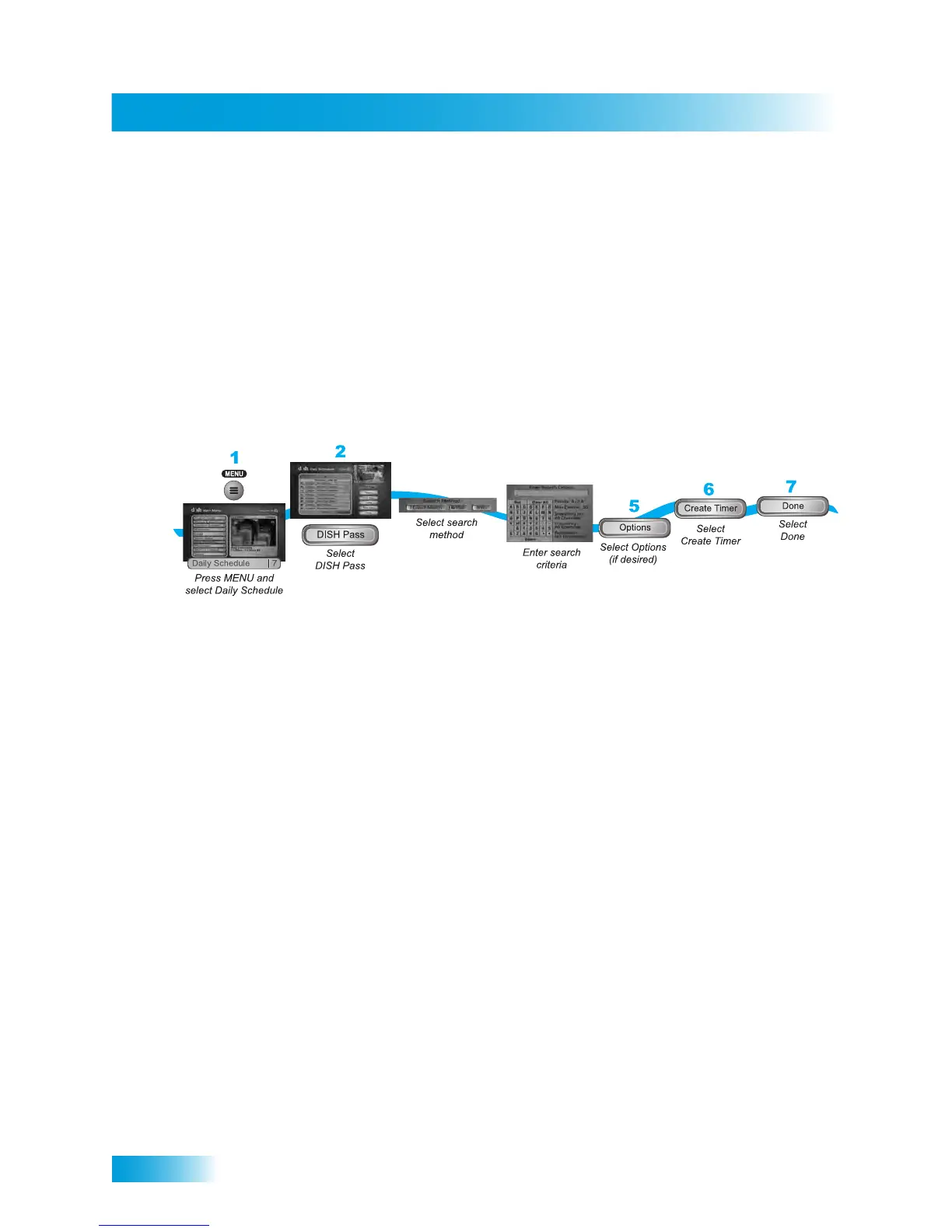
1 Press the MENU button and select Daily Schedule.
2 Select DishPASS.
3 Select your preferred Search Method:
• Title—Search for programs or events by their titles.
• Info—Search for programs whose descriptions or titles contain specified keywords.
• Optionally, select Exact Match if you want to find exactly what you’ve entered in either
the program title or info, when you select the Title or Info, respectively.
4 Enter your search criteria. You can use the virtual on-screen keyboard, or you can use the
letters above the NUMBER PAD buttons on the remote control (similar to texting on
certain mobile phones) while the highlight is in the Enter Search Criteria field. See Using
Text Fields on page 23 for instructions.
5 Select any Options as described on page 65, if applicable.
6 Select Create Timer. When the receiver has completed your search, the Timer Schedule
screen will display the results. Note: After entering your search words and selecting
Create Timer, be sure to review the timers that DishPASS has created—some may not be
what you are expecting. You can:
• Choose any selected events you want to Skip. Review timers for future events often.
• Adjust your search terms and/or method. Select Set Priority to change the priority of
your DishPASS. To adjust your search further, delete the unwanted DishPASS timer
and try the following:
— Change your DishPASS search term(s) to be more specific.
— Select Exact Match with the Title or Info.
— Choose DishPASS when you select a future program within the Program Guide,
Browse Banner, or Search results. This will enter the program's exact title for you.
7 Select Done when finished with your new DishPASS timer.
4
3


 To Next Page