Record Future Programs
67
Using the Timers List
Special Considerations When Using Timers
• For Locked Programs—You must enter the receiver password before you can create
an automatic timer. You can create a manual timer for a locked program without
entering the password. However if you do this, when the timer starts, the receiver may
display only an error or password-entry menu screen.
• For Pay-Per-View Programs—You must order a Pay-Per-View program or event
when you create an event timer for it.
• For Blacked Out Programs—If you set a timer for a program or event that is blacked
out in your area, then when the timer occurs, the receiver may only display an error.
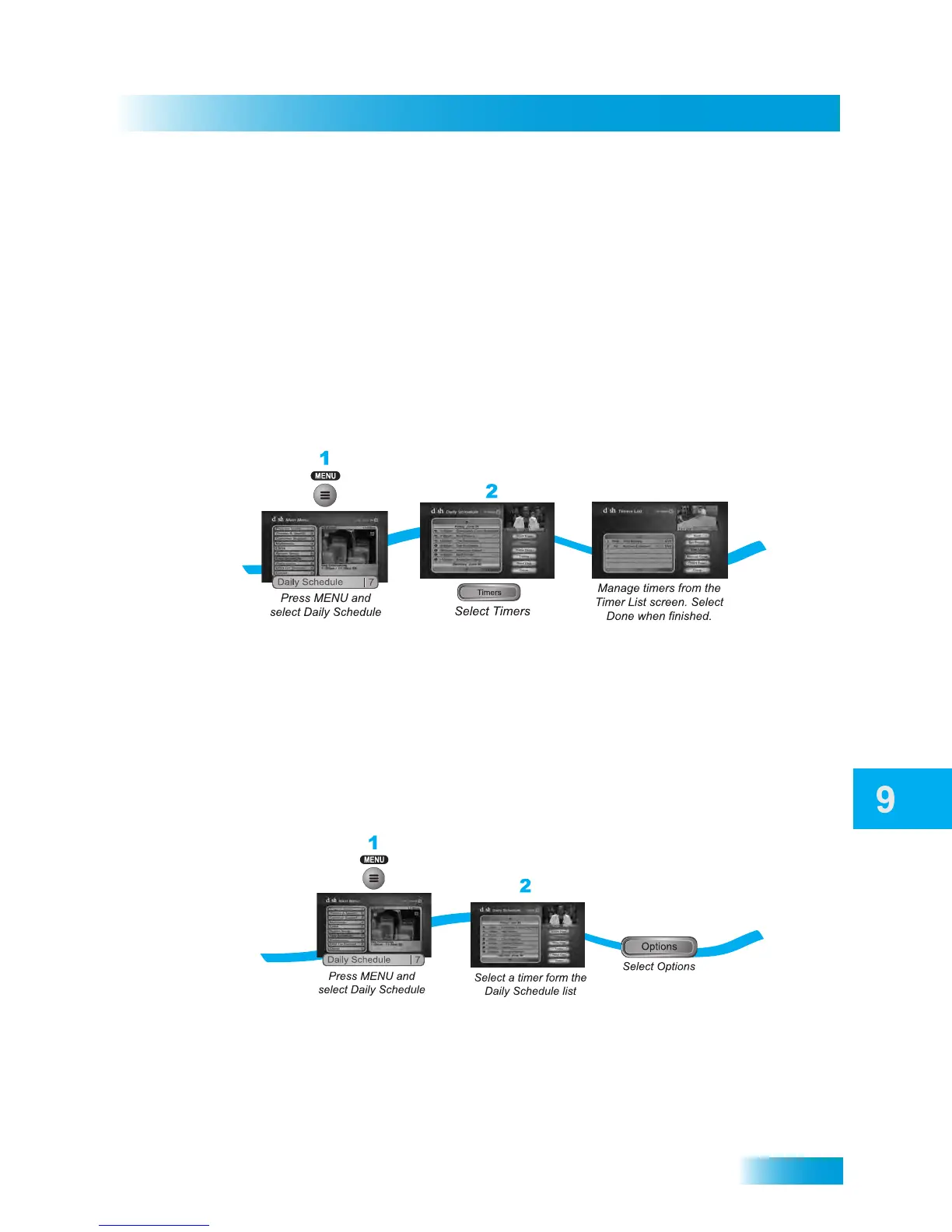
USING THE TIMERS LIST
1 Press MENU on the remote and select Daily Schedule.
2 Select Timers for the Timer List screen.
3 You can manage the timers from the Timer List screen. Select from the Sort, Set Priority,
Edit List, Manual Timer, or DISH Pass options. Select Done when finished.
USING THE DAILY SCHEDULE
With the Daily Schedule use the ARROWS to select a future program and Skip or Restore
an event timer. You can also choose to Protect it, or view the start early/end late settings.
• To change the start early/end late setting, select the event within the Timers List.
• If the program is included in a DishPASS timer, you cannot change the start early or
end late times on an individual occurrence; it must be changed within the DishPASS
timer, selected from the full event Timers List.
• Press PAGE UP to see the previous days' timers. Review these timers if you want to
see timer results (for example, if a timer recorded successfully or why it might have
been skipped).
3
3


 To Next Page