132
Using Troubleshooting Tools
Chapter 12
Point Dish and Check Switch
The Point Dish and Check Switch screens are often helpful to the Customer Service
Representatives. You may be asked to display these screens when you call DISH.
Remember to have an active phone line or broadband Internet connected to your receiver
Warning: Running the Check Switch test while is receiving low or no signal will
result in incorrect receiver settings and cause you to lose channels. Do not run a
Check Switch test unless directed to do so when speaking to a Customer Service
Representative or DISH technician.
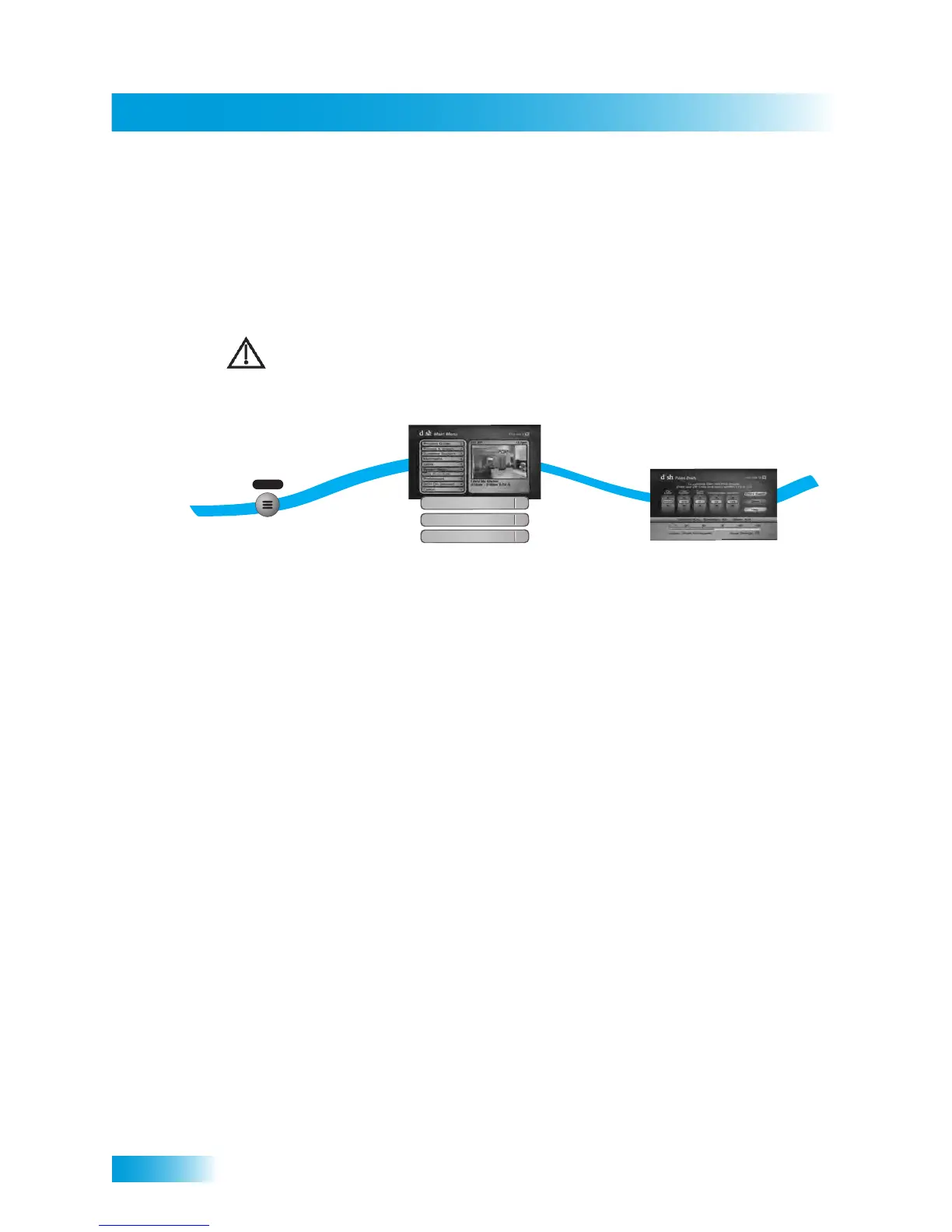
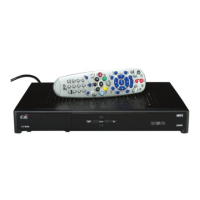
1 Press the MENU button on the receiver front panel or remote control.
2 Select System Setup, then select Installation and Point Dish.
3 The Point Dish screen appears. This screen shows you information to help maximize your
satellite signal. The bar at the bottom of the screen indicates the signal strength. Green
shows a good signal, yellow is a marginal signal, and red indicates the signal is not
acceptable or is from the wrong satellite transponder or orbital location.
1
2
3
Press
MENU
Select System Setup then
Installation and then Point Dish
MENU
System Setup
6
Installation
1
Point Dish
1
The Point Dish screen appears


 To Next Page