Remote Controls
83
Operating Other Devices
Programming Using Device Code Scan
If the code for your device is not included with your remote list containing the manufacturer
codes, or if you could not find a code that worked for your device, use this procedure to
scan through the remote control’s memory for the device code. In the instructions below,
the column on the left contains basic instructions and the column on the right provides
additional information.
Instructions Additional Information
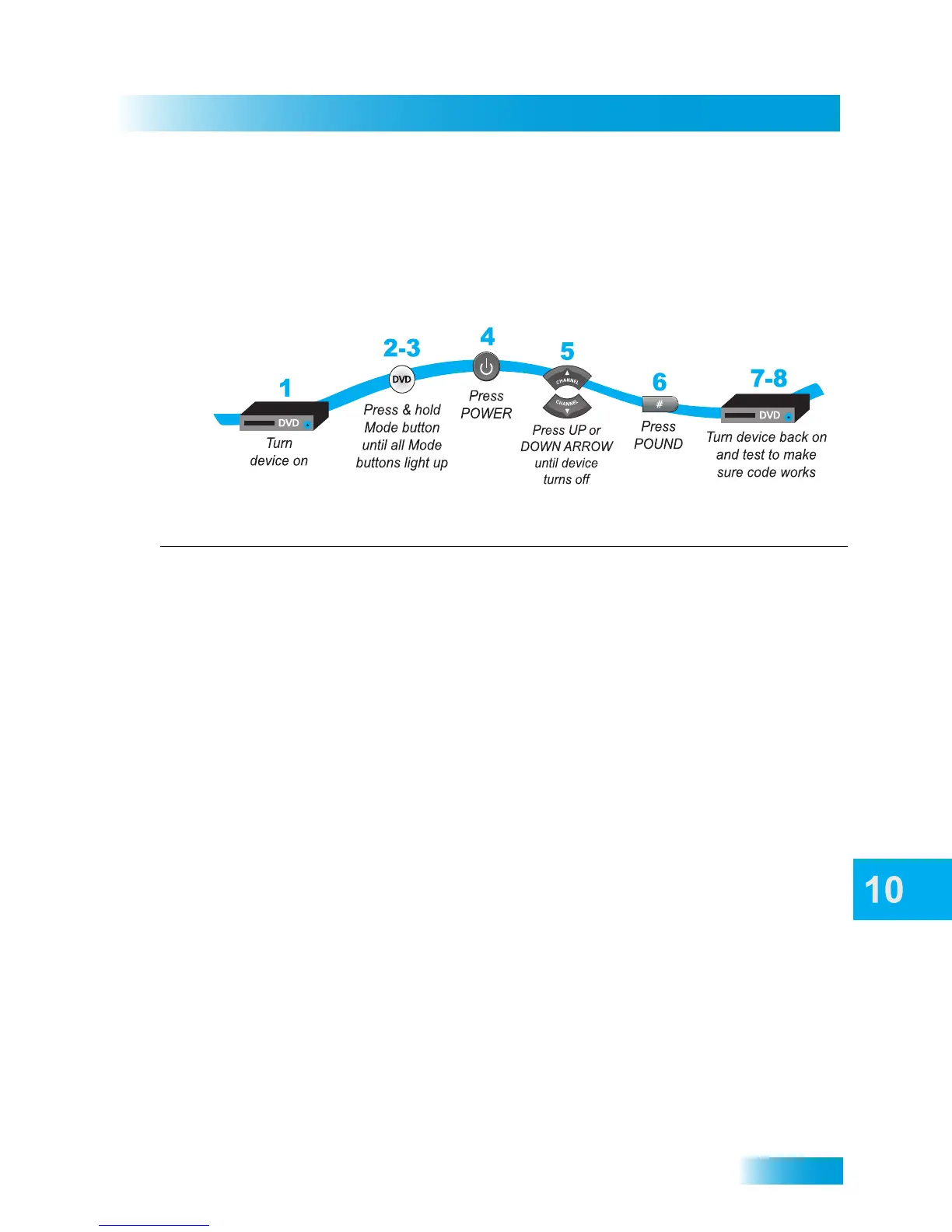
1
Turn the device on.
Use the device’s front panel buttons or its own
remote control.
2 Press and hold the mode button until all the
other mode buttons light up, and then
release the button. The device mode button
flashes.
For example, hold the
TV mode button until all of the
other mode buttons light up. When you let go, the TV
mode button will flash.
3 For AUX mode only. Press 0 for TV, 1 for
VCR, or 2 for an audio tuner or amplifier.
Then press the STAR (*) button.
This step is for specifying the type of device that will
be programmed in
AUX mode. If you’re not
programming in
AUX mode, please skip to step 4.
4 Press the remote’s POWER button.
This puts your remote into code scanning mode.
5 Press the UP or DOWN ARROW
repeatedly until the device turns off.
As you press the
UP or DOWN ARROW, the
remote tries each code in its memory to see if it can
turn off your device. When the device turns off, you
have found a code that might work with your device.
Note: The mode button for the device will flash
rapidly eight times when you’ve scanned through all
the available codes for the specified device.
6 Press the POUND (#) button.
The device mode button flashes three times and
saves the code you found.
7 Turn the device back on and try some other
buttons to make sure that they work also.
Sometimes
POWER works when other buttons
don’t. If in Limited Mode (see step 6 on page 82),
also try
VOLUME or MUTE.
8 If necessary, repeat this procedure until
you’ve tried all the different codes and
chosen the one that works best with your
device.
You may need to repeat the scan to find the best
code for your particular device.
Note: This process could be lengthy, because of this
remote control’s very large device-code database.


 To Next Page