13
Chapter 2: Camera Configuration
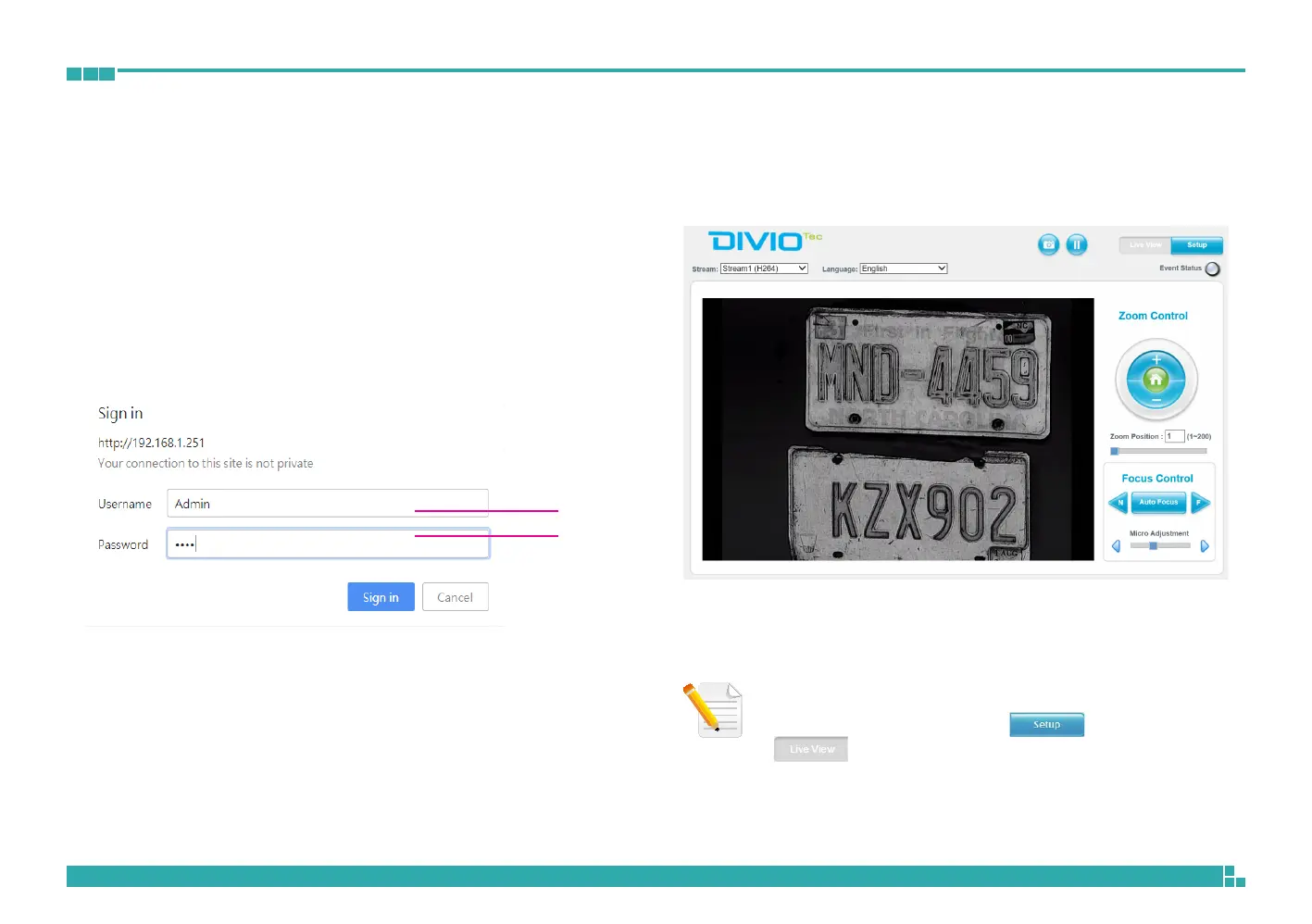
Admin
1234
1. Locate and open one of the web browsers (such as Internet Explorer,
Chrome, Firefox, etc.) shortcut on the desktop.
2. In the address bar, type 192.168.0.250 (default IP address of the camera)
and then press the Enter button.
3. You will be prompted with a pop-up window asking for login
information, type in “Admin” (default login name) and
“1234” (default password)
4. Once logged in, you will see the main screen.
Web Browser
5. If no video is displayed on the screen, please make sure you have VLC
Media Player installed on the computer. If not, please download and
install it first, then you can see the video from the web browser.
Note: The recommended browsers to use are Internet Explorer,
Safari, Firefox and Chrome. However, Chrome only supports
the viewing of the web Setup menu; Live View
of the video stream is not supported.


 To Next Page