30
Chapter 2: Camera Configuration
Configurations
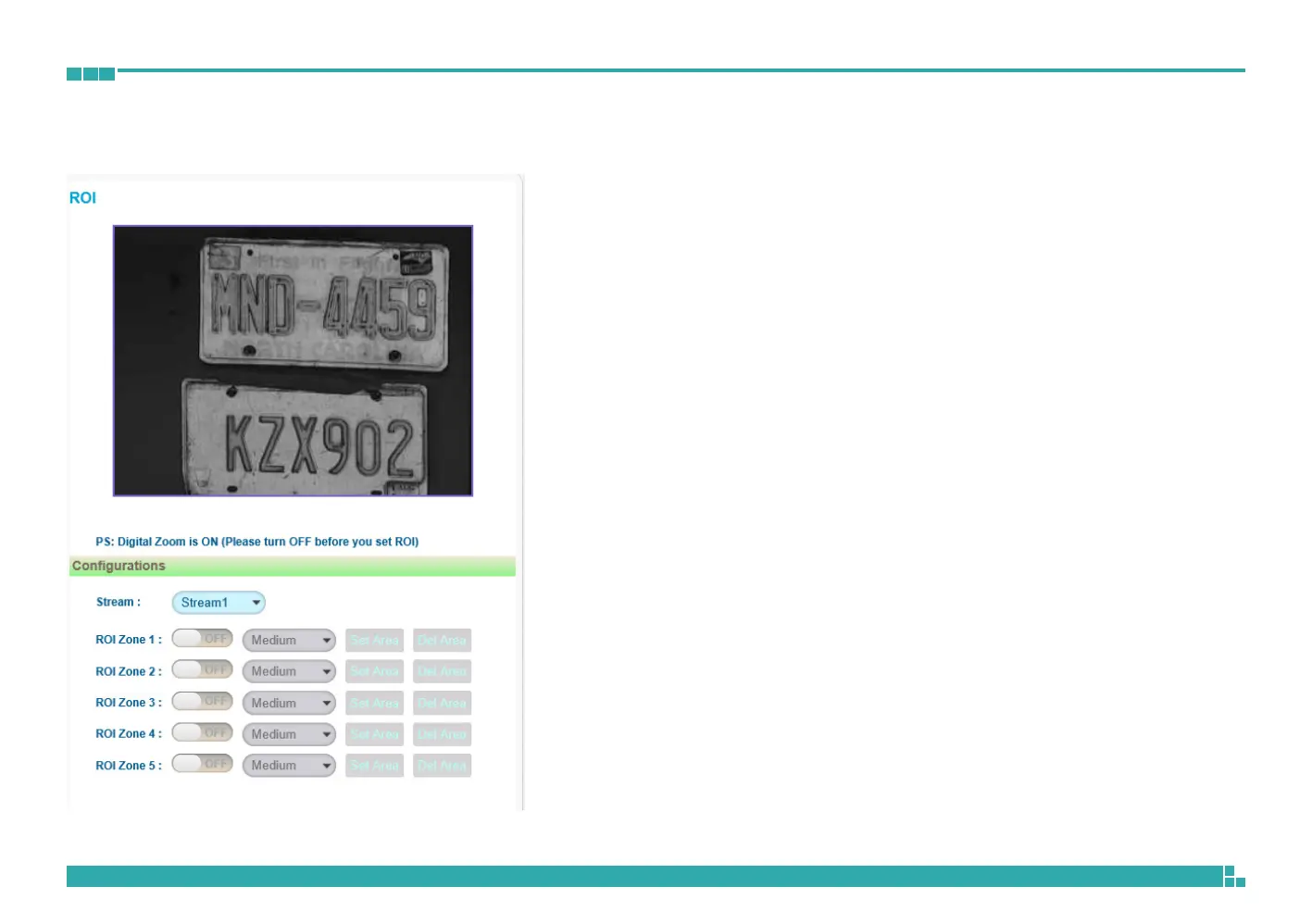
ROI is used to select which areas will be monitored and recorded with higher
image quality while using lower image quality for other non-ROI zones to
save bandwidth and storage. The instructions below illustrate how to setup
ROI.
1. Select Stream 1 or Stream 2 to set the ROI on.
2. There are 5 ROI zones that can be configured (zone 1 ~ zone 5). Switch
to ON to enable ROI function. The default is OFF.
3. Set the image quality of the ROI in the Level drop-down menu, the
options are Low, Medium or High.
4. Select the area to set the ROI by holding down the mouse button and
drag to make a rectangular square, release the button once the desired
area is covered.
5. Press the Set Area button for the setting to take effect. The ROI area will
then be seen on the video stream.
6. Press the Del Area button or select OFF to delete the ROI area.
Image - ROI


 To Next Page