VigorIPPBX 3510 Series User’s Guide
249
C
C
h
h
a
a
p
p
t
t
e
e
r
r
6
6
:
:
T
T
r
r
o
o
u
u
b
b
l
l
e
e
S
S
h
h
o
o
o
o
t
t
i
i
n
n
g
g
This section will guide you to solve abnormal situations if you cannot access into the Internet
after installing the router and finishing the web configuration. Please follow sections below
to check your basic installation status stage by stage.
z Checking if the hardware status is OK or not.
z Checking if the network connection settings on your computer are OK or not.
z Pinging the router from your computer.
z Checking if the ISP settings are OK or not.
z Backing to factory default setting if necessary.
If all above stages are done and the router still cannot run normally, it is the time for you to
contact your dealer for advanced help.
6
6
.
.
1
1
C
C
h
h
e
e
c
c
k
k
i
i
n
n
g
g
I
I
f
f
t
t
h
h
e
e
H
H
a
a
r
r
d
d
w
w
a
a
r
r
e
e
S
S
t
t
a
a
t
t
u
u
s
s
I
I
s
s
O
O
K
K
o
o
r
r
N
N
o
o
t
t
Follow the steps below to verify the hardware status.
1. Check the power line and LAN cable connections.
Refer to “1.3 Hardware Installation” for details.
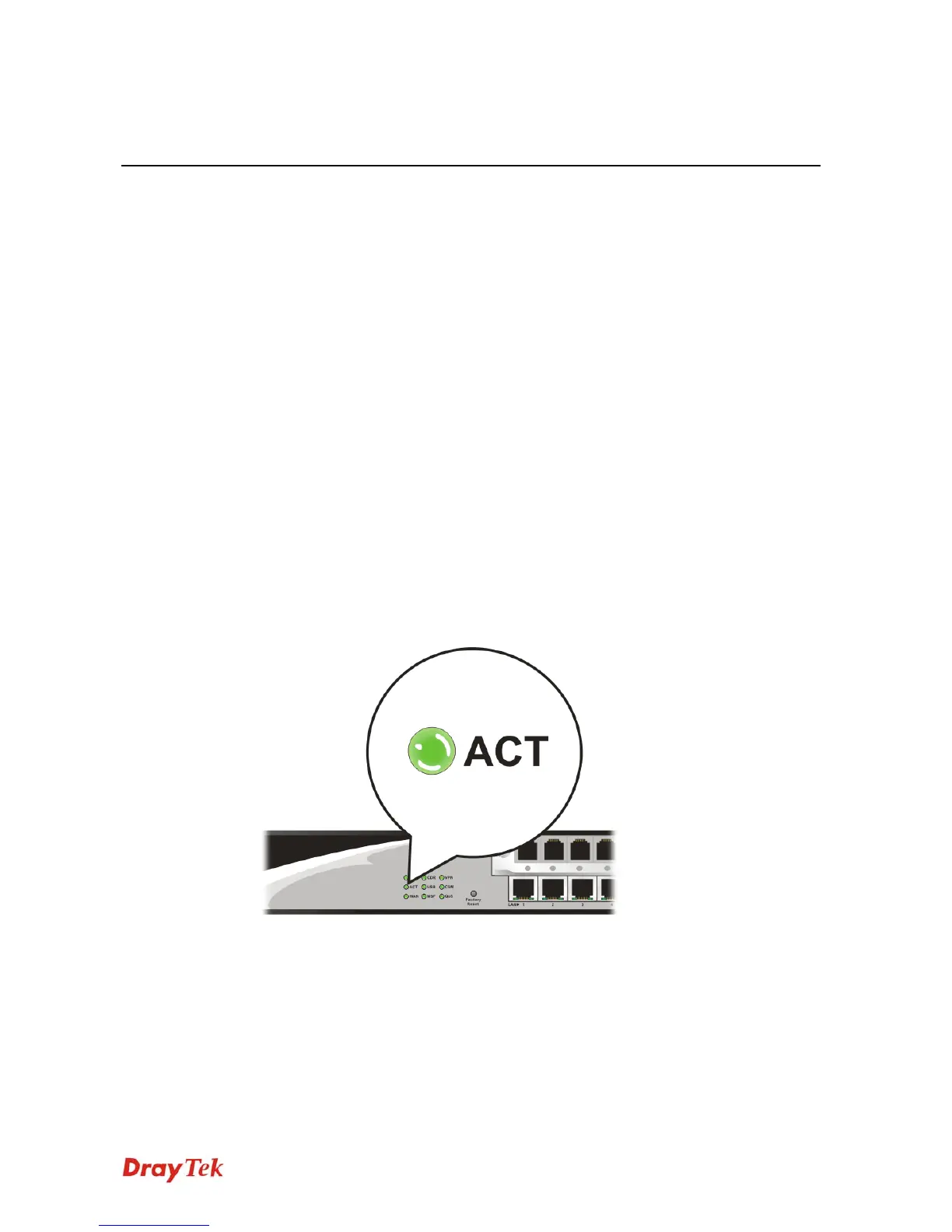
2. Turn on the router. Make sure the ACT LED blink once per second and the
correspondent LAN LED is bright.
3. If not, it means that there is something wrong with the hardware status. Simply back to
“1.3 Hardware Installation” to execute the hardware installation again. And then, try
again.


 To Next Page