Dymax BlueWave® 200 Version 3.0 User Guide
To Change from Manual Mode to PLC Mode:
CAUTION! Always wear protective goggles or a face shield when working near UV light. Never
look directly at the light exiting the lightguide. The PLC is capable of opening the shutter at any
time, including when the bulb becomes ready in PLC mode or when a user selects PLC Mode from
the front panel controls. Ensure the PLC is not commanding the Shutter to open when selecting PLC
Mode.
1. Ensure that the PLC Dip Switch is set to “ENABLED”. Refer to “Using the PLC Switch” (Page 20).
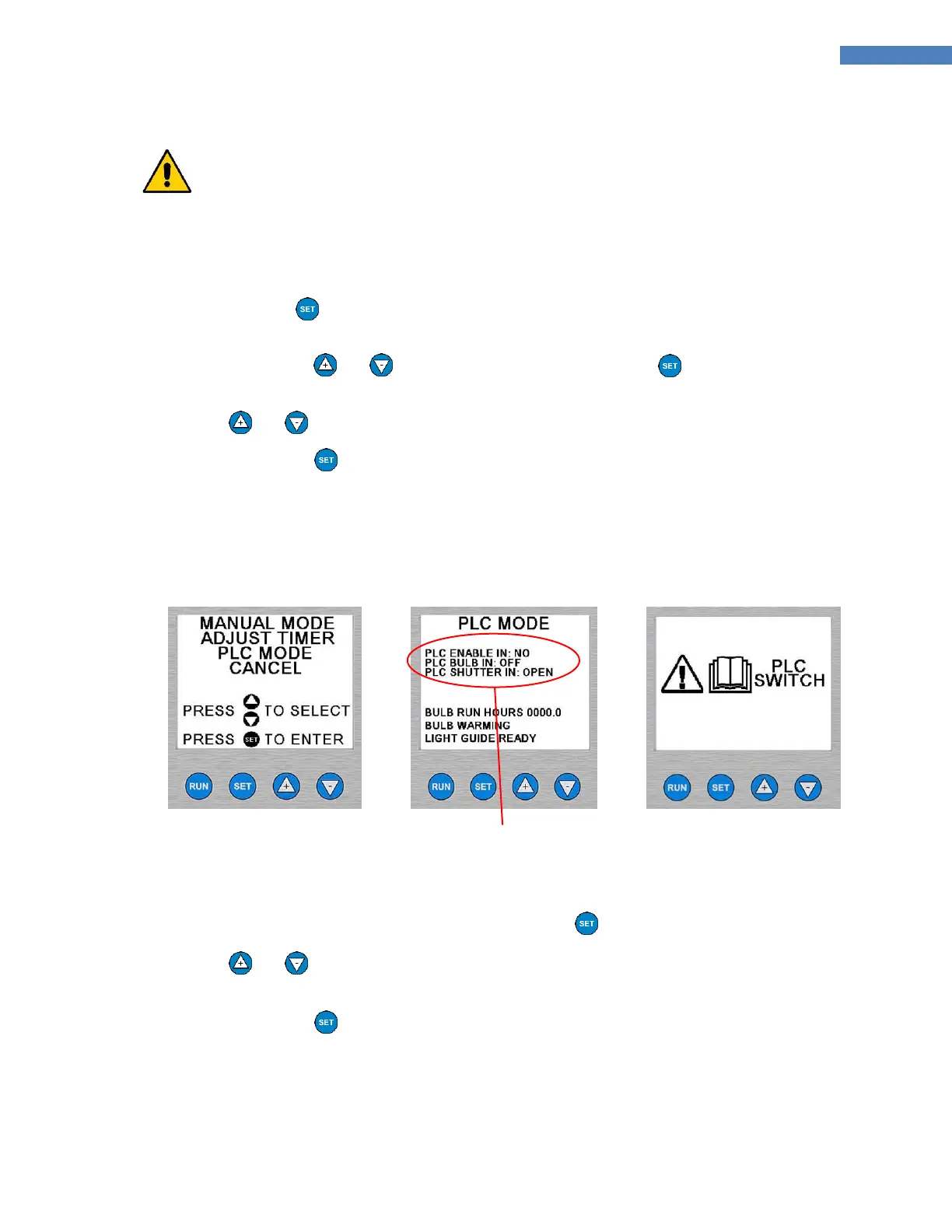
2. Press and hold the Button until the screen displays the PLC option. (Figure 15)
NOTE: If you do not see “PLC MODE” on the screen, then you did not hold the button down for a long
enough time. Use the and Arrows to select “CANCEL” and press the Button. No changes are
made and you can try again.
3. Use the and Arrows to select “PLC MODE”. When selected, “PLC MODE” will flash.
4. Press and release the Button. The screen should look like Figure 16.
NOTE: If the PLC Switch was not set correctly, the screen in Figure 17 will appear. Turn off the BlueWave
and refer to “Using the PLC Switch” (Page 20) for instructions on how to set the PLC Dip Switch.
Figure 15. Entering PLC
Mode
Figure 16. PLC Mode
Messages may vary depending on
PLC input signals
Figure 17. Message to
Set PLC Switch
To Change from Timer Mode to Manual Mode:
1. From the Timer Mode Menu (Figure 18), press and release the Button.
2. Use the and buttons to select “MANUAL MODE”. “MANUAL MODE” will flash when selected.
(Figure 19)
3. Press and release the Button.
4. The system is now in Manual Mode and has the screen shown in the Figure 20.



 To Next Page