DH200F User Manual
©Dyness reserves the copyright of this document.
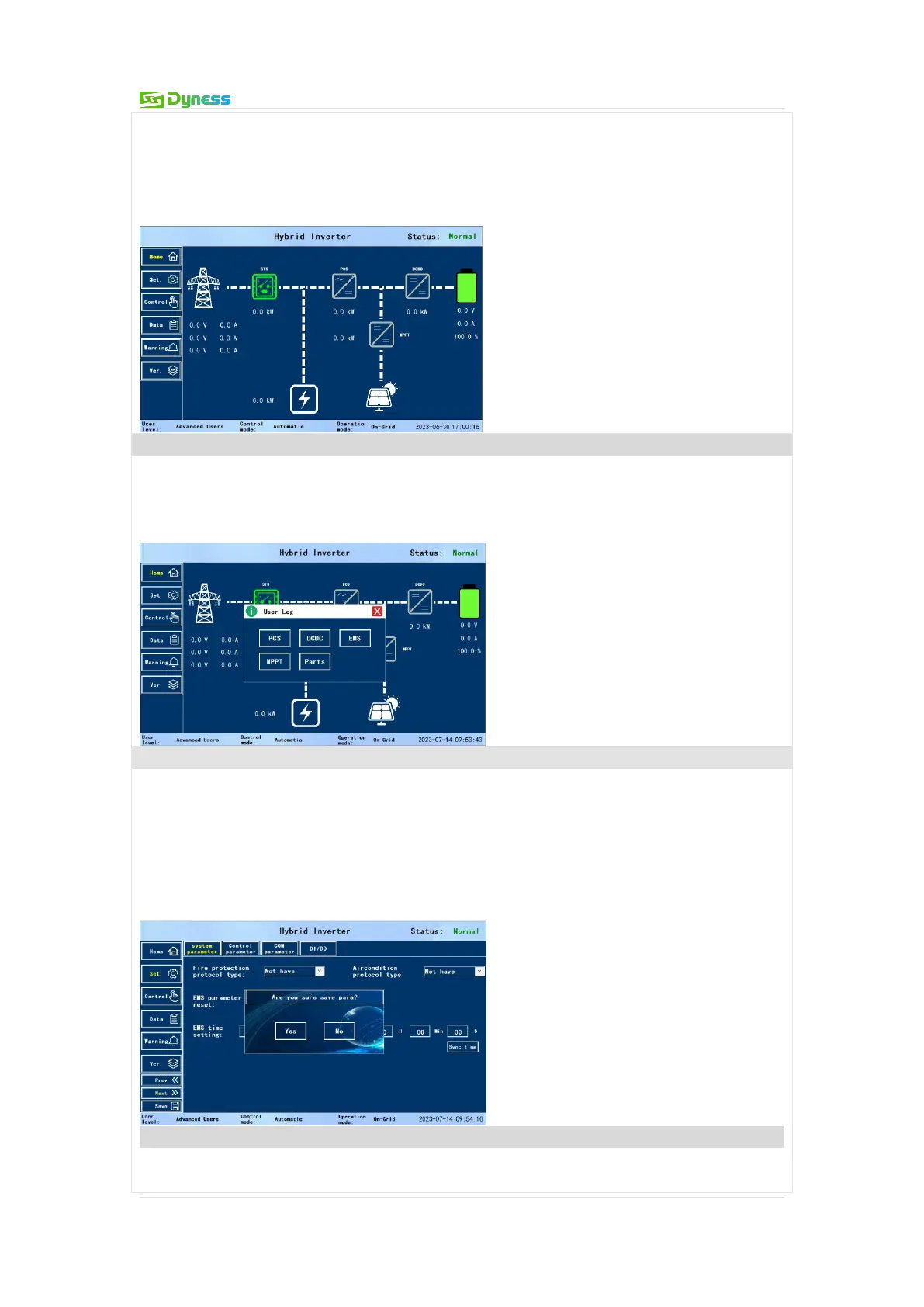
power, DCDC power, MPPT power, etc. Click the corresponding button to jump to the
data interface, view the real-time data of each device and set the system.
Note: The factory staff or non-professionals, please do not set the system parameters,
otherwise the equipment may not work, equipment may be damaged, or danger may
occur.
Step 4: Enter the setting interface
Note: General User does not have the Set permission.
Click the [Set.] button on the left of any other interface, the "User Log" interface appears,
at this time, you can select the button options of [PCS], [DCDC], [EMS], [MPPT], [Parts],
and select the device that needs to be viewed and set.
Select [EMS] in the " User Log " of "Set.", enter the setting interface of EMS, display the
"System Parameters" interface by default, click [Next] to enter other interfaces of system
settings. Customers could configure "transformer capacity", "anti-reverse flow" and other
items according to the actual application. Click the [Save] button in the lower left corner
to permanently save the parameter settings until all interface parameters are set.
Except for EMS, other modules generally do not need to be set and use default
parameters.
Step 6: Enter the control interface.
Click the [Control] button to enter the control menu, click the [EMS] button to enter the
EMS control interface. By default, it enters the "Period Control" interface, where you can


 To Next Page