2388-MANUL-V10.00.00-UTP2 Operating Manual
Page 22 of 74
3.12.5 In-field Firmware Upgrade
Through the ‘About’ screen, the firmware of the UTP2 can be updated. To access the firmware update screen
press the update icon .
The UTP2 can be updated in the field from an update file loaded onto the MicroSD card. Please check with
Product Support for any available update files. To use this feature the image will initially need to be copied from
the distribution media to the ‘updates’ folder on the MicroSD card. An SD to MicroSD adapter is supplied for use
with laptops or PCs which have an built-in SD card reader.
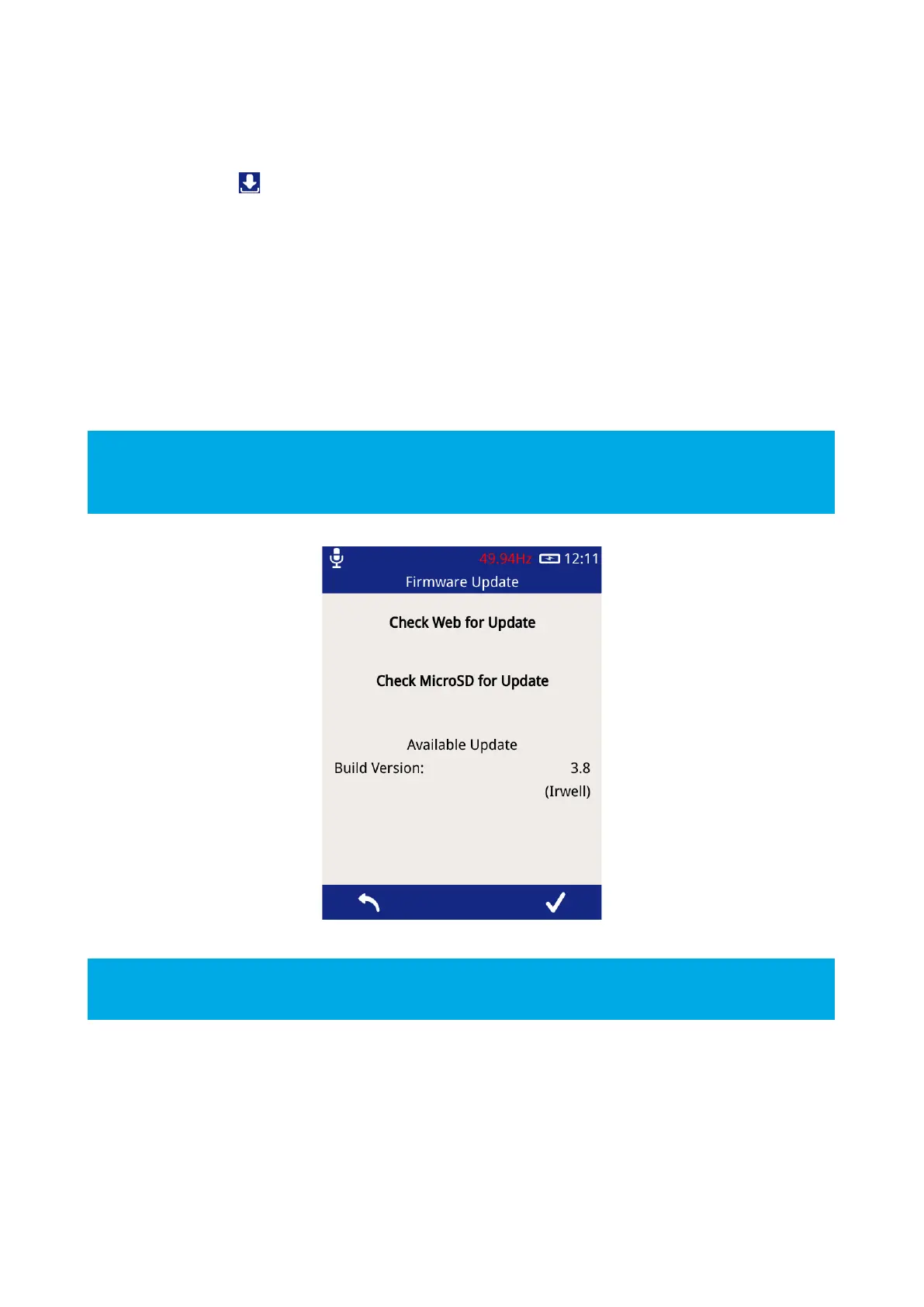
To install a firmware update from the MicroSD card, press the “Check MicroSD for Update” button on the above
screen. The MicroSD card will be checked for any available updates, and details populated on the display as
shown below. To install the update found, press the tick icon on the right of the menu bar and await the process
to complete.
An update can only be installed if the UTP2 is plugged into the mains charger, to avoid any unwanted
shutdown due to low battery whilst performing the update process. The update process can take up to 5
minutes to complete. Once installed, the UTP2 must be restarted to run the latest update.
To check you have the most current software version or if you need assistance in updating your UTP2, please
contact product-support@eatechnology.com



 To Next Page