2388-MANUL-V10.00.00-UTP2 Operating Manual
Page 35 of 74
3.15.8 Using Populated Lists
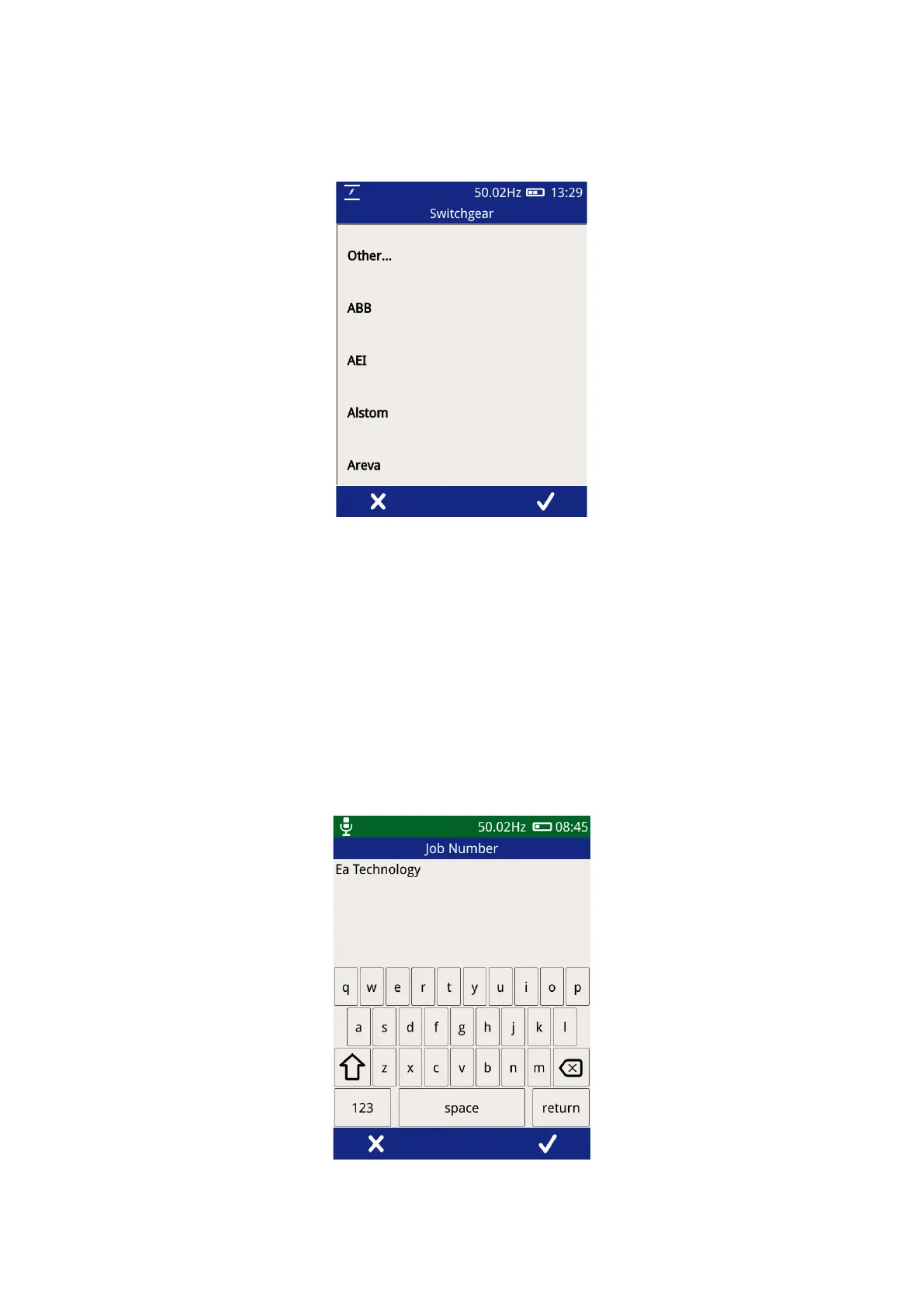
Populated lists used in many of the above fields will look like that of below.
The list can be scrolled by dragging the list up and down using a finger or stylus. Selecting an item is done by
pressing an item then pressing the tick in the menu bar. If the “Other…” option is selected a virtual keyboard
prompt will be displayed for custom input. If the cross in the menu bar is pressed, the list will be closed and no
input recorded.
3.15.9 Using the virtual keyboard
The virtual keyboard allows custom text to be input. Characters can be input using the buttons on the layout,
with additional characters and numbers available through the “123” button. Uppercase letters can be entered
by pressing the arrow (between A and Z). Double tapping the arrow will activate Caps lock, giving uppercase
letters until it is next pressed.
To accept the input text as input to the field, press the tick button on the menu bar, to cancel, press the cross
on the menu bar of the Left button.



 To Next Page