99
The recording schedule consists two parts: one-time schedule (only executes once),
and weekly schedule (executes at specified time and weekday every week). The
descriptions of every setting of one time schedule in this menu will be given below:
Item Description
Cycle Recording
(Affects both
one-time and
weekly schedule)
If the remaining space of hard disk you used to store
recorded video is not enough, and this check box is
checked, then viewer utility will delete oldest video file
automatically to make rooms for new video files.
If this check box is unchecked and the disk is full, viewer
utility will stop recording, and upcoming recording
schedule will not be executed.
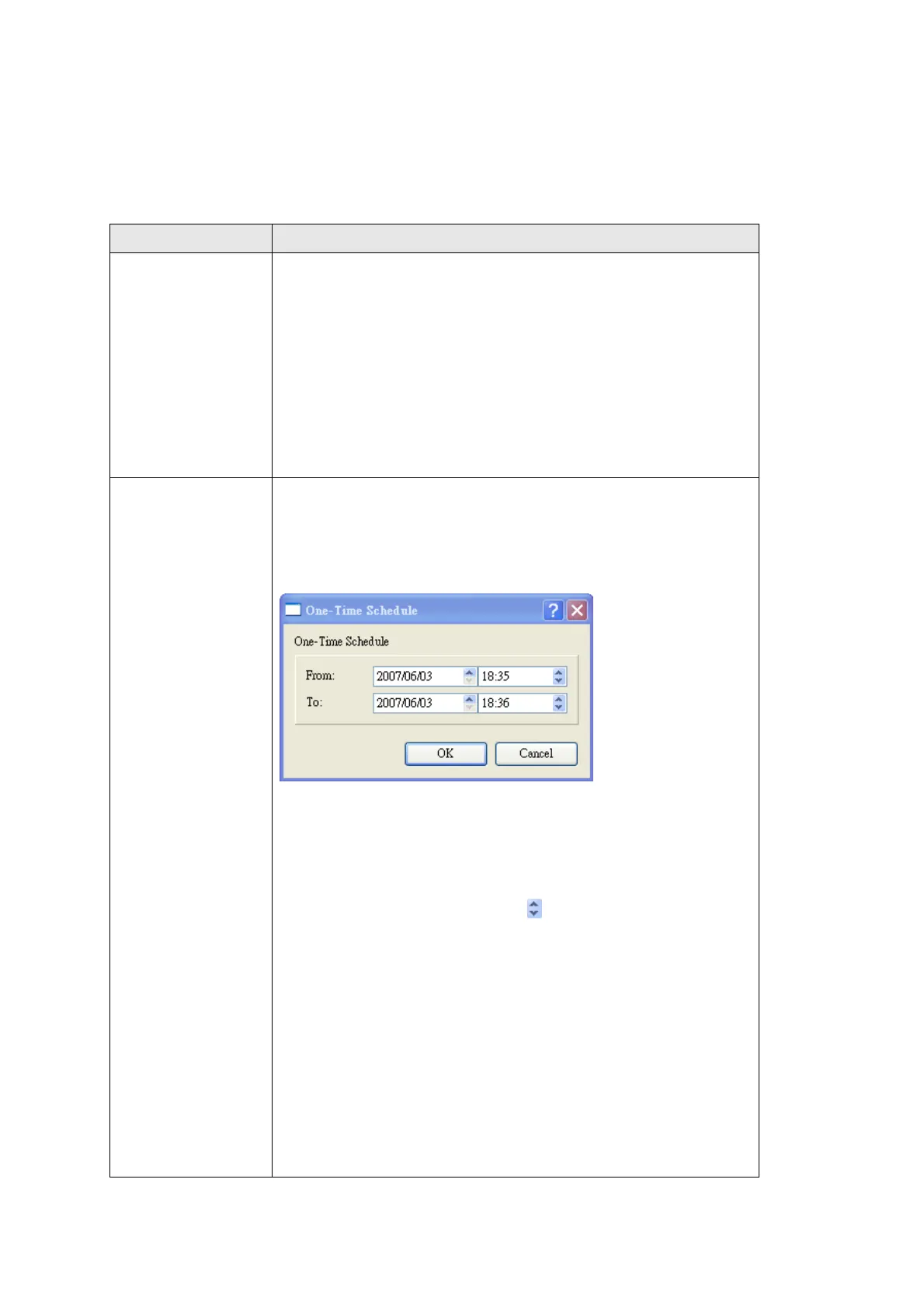
New Create a new one-time recording schedule. After you
click this button, you’ll be prompted to specify the
recording schedule:
From: Please specify the date and time you wish to start
recording for this schedule. Date format is YYYY / MM /
DD and time format is HH:MM (24-hour format). You can
also use up and down button
to adjust selected date /
time field. However, you can not specify a date / time in
the past.
To: Please specify the date and time you wish to end
recording for this schedule. You can not specify a date /
time before the ‘From’ time.
Click ‘OK’ to save this schedule or click ‘Cancel’ to
discard changes.


 To Next Page